
Google reviews, customer reach, photos and codes
Google reviews first, then email and WhatsApp, customer-screen photos and promo codes, when available to your shop.
Marketing is who you talk to, and what you put in front of them. Design is how the shop page looks. Link & QR is how they find you. Open Marketing on the rail, or from All tools on a phone.
The introduction and shortcuts follow the sections on the page: Google reviews,Email and WhatsApp, Customer screen photos, then Promo codes. Features and staff permissions can shorten that list. Use a shortcut to jump to its section.
Google reviews
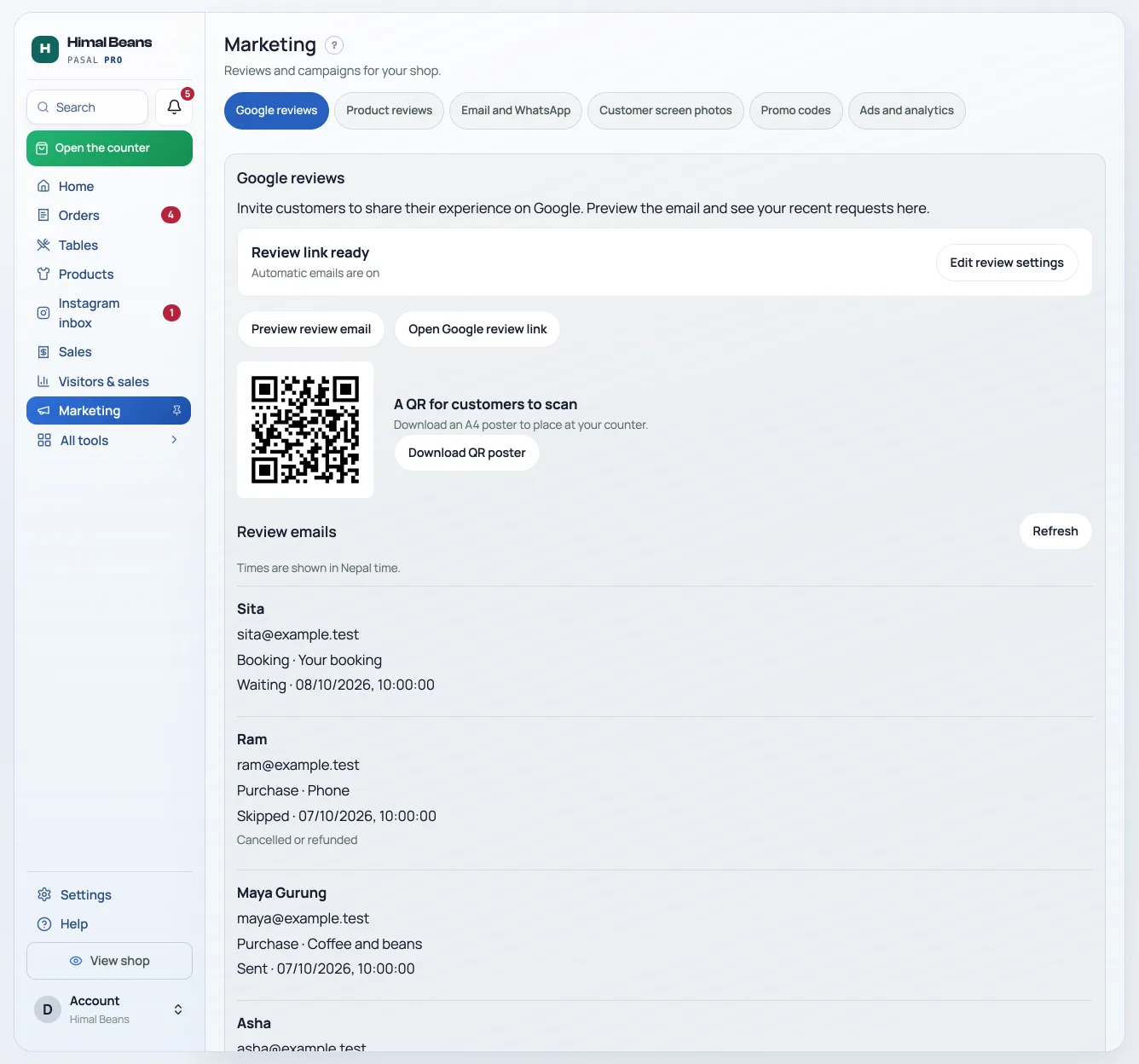
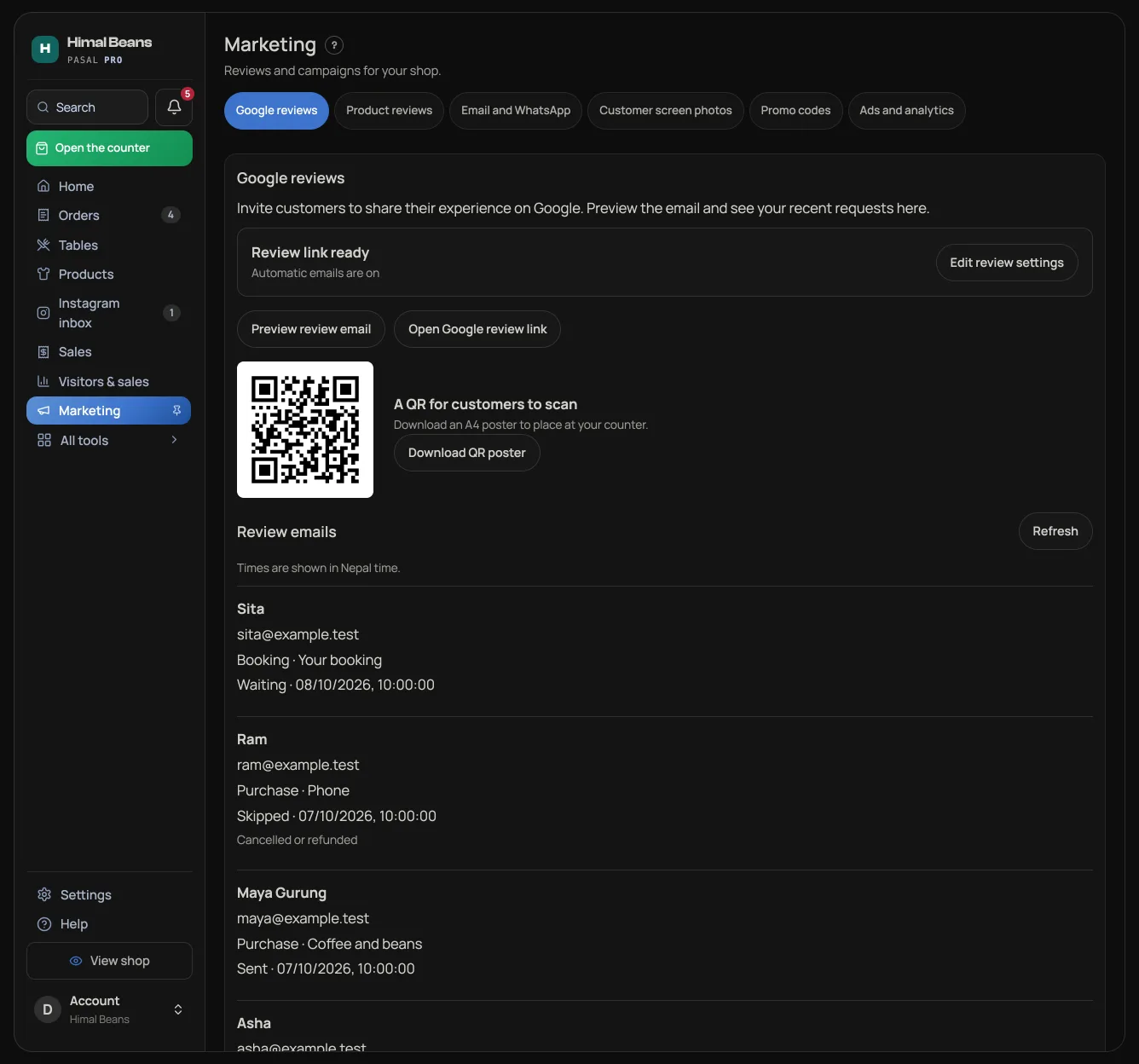
Marketing shows the saved review QR, email preview and recent requests. Owners press Edit review settingsto open Settings → Notifications, where the link, timing, language and automatic-email switch live. The saved link and QR still work with emails off. Readthe Google reviews guide for setup, timing and opt-outs.
Who came back
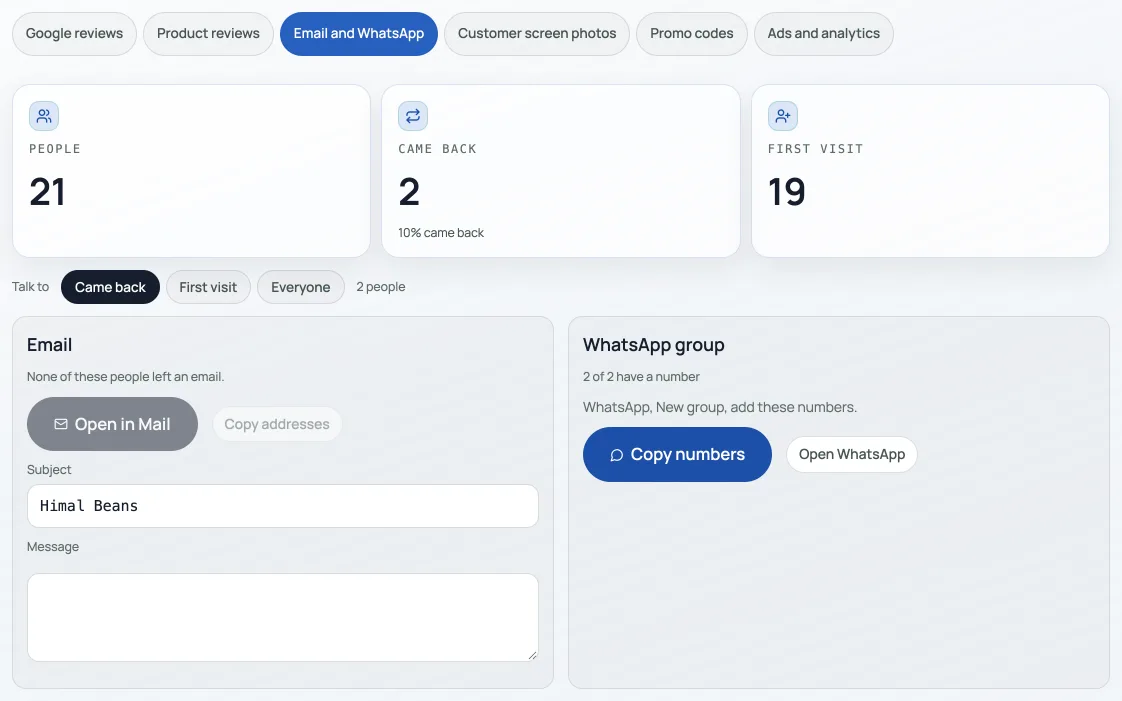
The first numbers are people in your book: how many have bought, how many came back (two visits or more), and how many have been once. Table seats and unnamed walk-ins stay out, so a cafe's Table 3 is not someone you write to. The same cut lives on Customers, behind the pulse. These figures open the Email and WhatsApp tab.
Email old customers or new ones
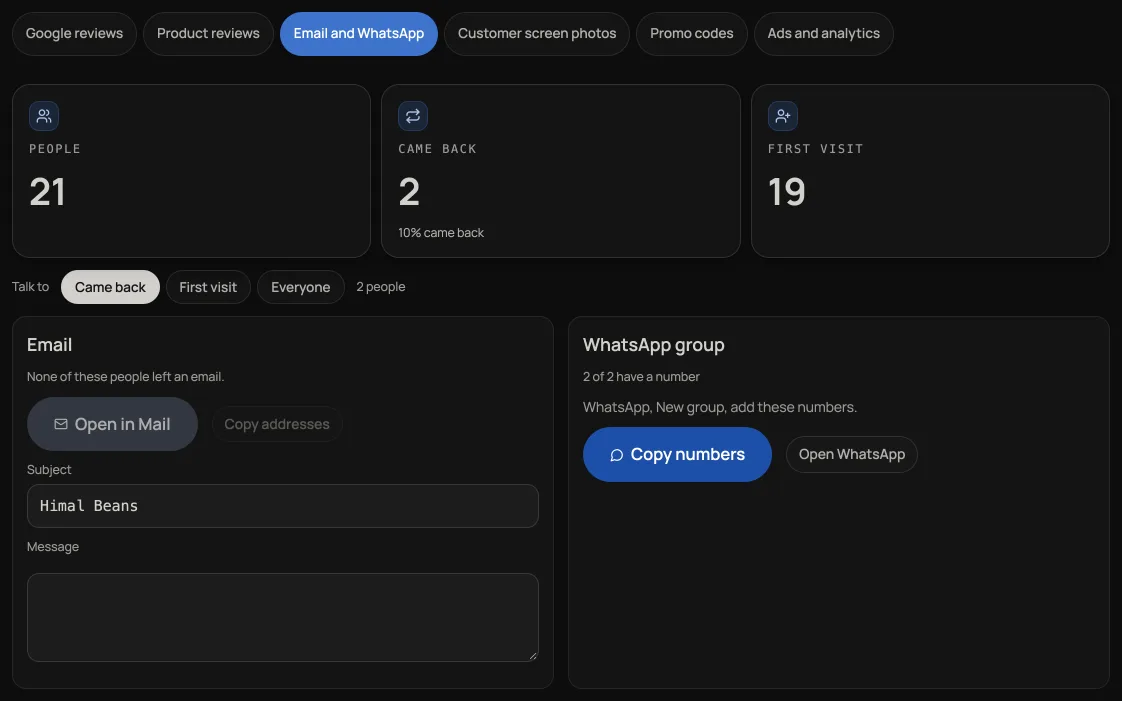
Pick Came back, First visit or Everyone. Type a subject and a message, press Open in Mail, then pick Gmail, Outlook or the mail app on this phone. Addresses go in BCC, so they cannot see each other. Pasal does not send the letter for you. A blast through the order mailer would mix a shout with a receipt on the same reputation. If the list is too long for one mail window, the addresses are copied instead. Paste them into BCC.
A WhatsApp group
WhatsApp will not let a shop page create a group. Press Copy numbers, then on your phone: WhatsApp, New group, add those numbers. Nepal mobiles get the 977 country code on the paste so the add field accepts them.
Photographs on the customer screen
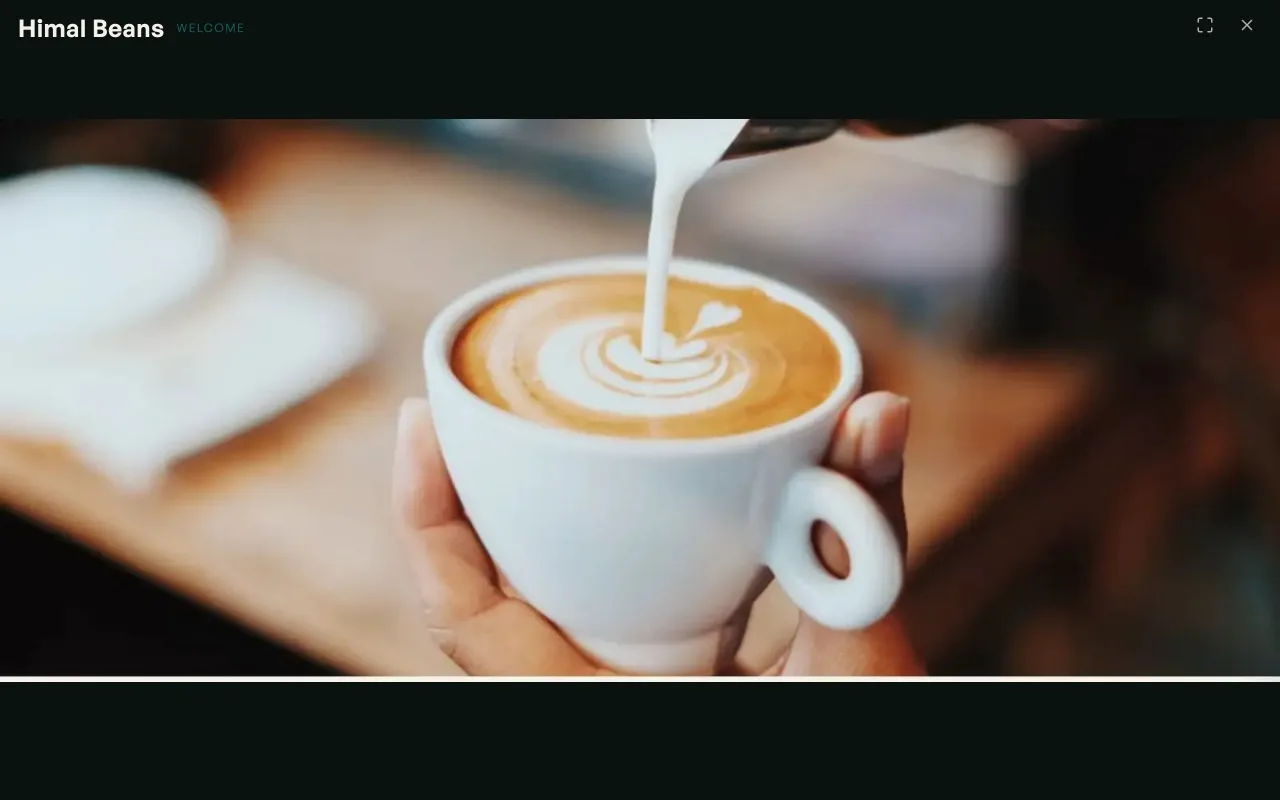
These play on the screen that faces the queue when nobody is being billed. They do not change your shop page. Add them on the Customer screen photos tab of Marketing, then pick how long each photograph stays, then press Preview to see the photographs at rest and the bill the customer sees when you ring something. Open the counter and press Customer screen to put that on this computer's second window, or sign in on an iPad and open Customer screen there. Several TVs on one shop all show the same bill. See Ring a sale at the counter and Staff email, the customer screen, and several counters.
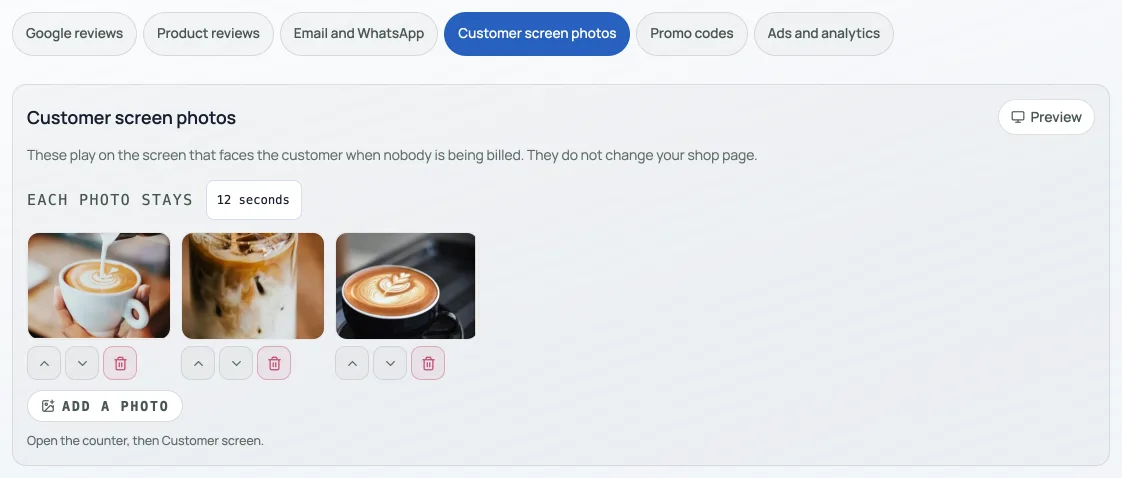
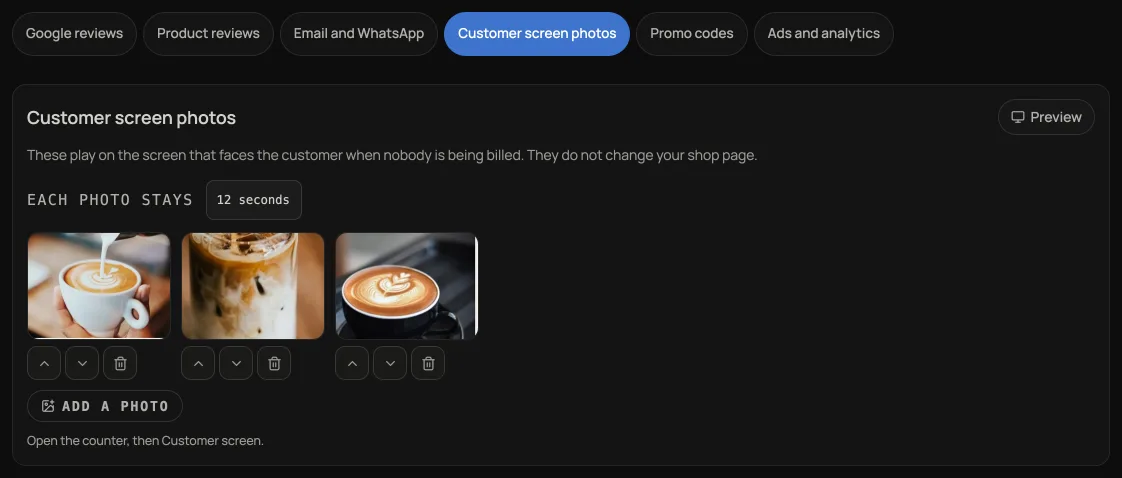
Until you add photographs here, that screen uses pictures from your shop page: the hero, About photos, then live products. Clearing the album goes back to that fallback. The shop page itself never reads this album.
Promo codes
A code customers type at checkout lives here too, on the Promo codes tab, not on Settings. Press New code, type a code and a percentage, press Add. Share it on Instagram or WhatsApp. The switch turns it off any time. See Run a promo code and Point a promo code at one event or a few products.
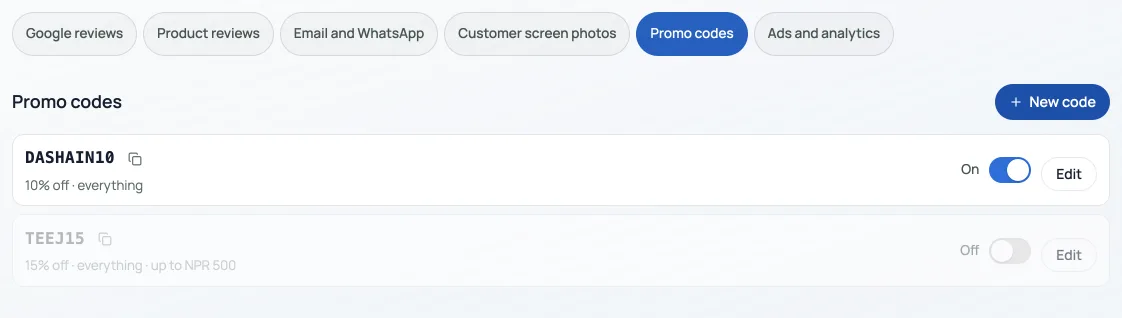
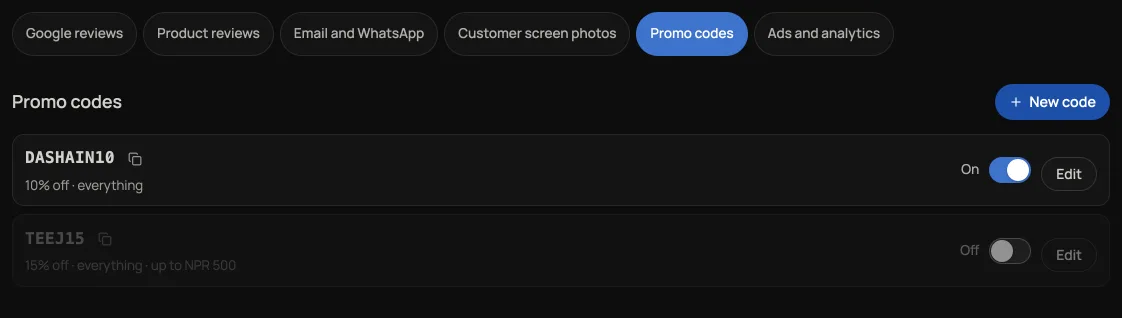
Promo codes, and the counter that shows the photographs, are Pro tools. The people numbers, the email door and the WhatsApp paste are on every shop. See What Pro costs and how to turn it on.
Product reviews, and ads and analytics
The owner also sees Product reviews, for reviews from people who bought on your shop page (see Product reviews from buyers), and Ads and analytics, for your own Google, Meta or Microsoft tags on your own domain (see Your own ad tags: Google, Meta and Microsoft).
- Share your shop linkPut your catalog on Instagram, WhatsApp, a QR at the counter, or your own domain.
- Product reviews from buyersLet customers who ordered on your shop page rate what they bought. Publish, hide or reply once, in Marketing → Product reviews.
- Your own ad tags: Google, Meta and MicrosoftOn your own domain, add your Google Analytics, Google Ads, Meta Pixel or Microsoft Advertising IDs. They load only after a shopper presses Allow.