
Help · Orders & fulfilment
Managing orders on your board
Move tickets through fulfilment, collect payment, and keep the board tidy.
Every order shows the items, customer phone, delivery choice, and total. New customer orders land at the top of the board.
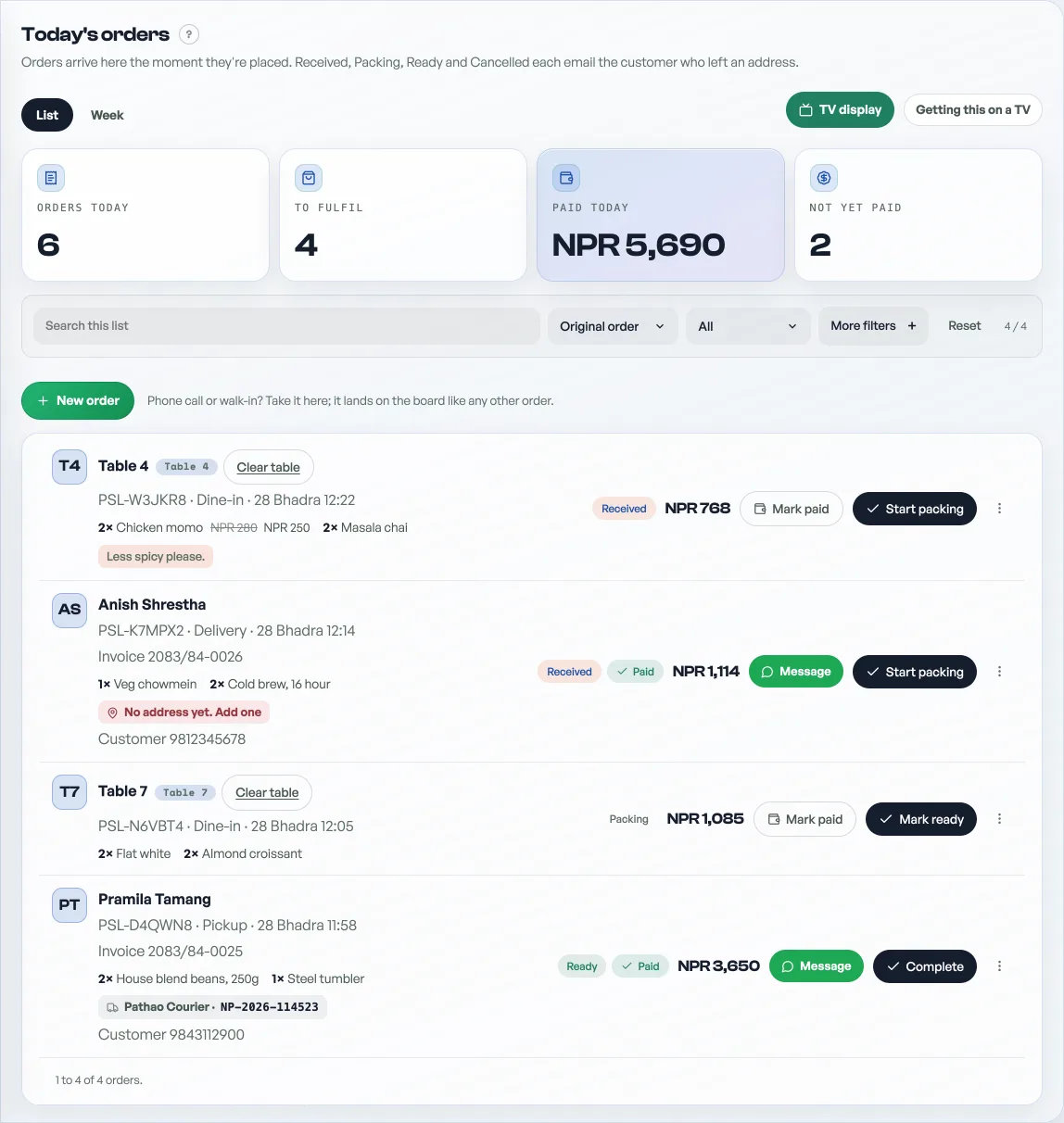
- Move it through fulfilment. Advance the status as you pack or prepare the order.
- Collect payment. Mark paid when cash or transfer is received so your records stay clean. An order that has been paid wears a green Paid badge beside its status chip, on this board and on Sales, so you can tell at a glance what is still owed.
- Open the bill. Invoice opens the order's own document: what it is, the lines, the total, and the buttons to print it or email it. See Tax invoices and sales records.
- Cancel a mistake. Void an order that should not count as a sale.
Customers who leave an email get status updates as you move the order along, and a receipt with a PDF attached that they can keep or print. See The PDF receipt your customer keeps. Dates and times on this board are Bikram Sambat, see Dates on your dashboard. Knocked something off over the phone? See Give a discount at the counter, which covers both the order card's discount and the one at the till.
Read next
- Get alerted for every new orderInstall the dashboard like an app and turn on notifications so nothing is missed.
- Give a discount at the counterAgree a price out loud and put it on the bill: one line, the whole bill, or an online order.
- Tax invoices and sales recordsPAN/VAT invoices and a record of every sale for your accounts.
Still stuck? Message usTell us what is happening and we will reply, usually the same day.
WhatsApp usOr email support@pasal.studio