
Help · Orders & fulfilment
Take bookings and reservations
Let customers reserve a table or a slot, and manage them on the Bookings tab.
If you take reservations, Pasal handles them right next to your orders. Turn Bookings on under Shop profile, then Orders and delivery under Selling, and set the hours you accept them and how many tables each time slot holds. Once bookings are on, that row renames itself Bookings, or Orders, bookings and delivery if you also do pickup or delivery. Salons, clinics and garages have it on from the start, so the row reads Bookings for you already.
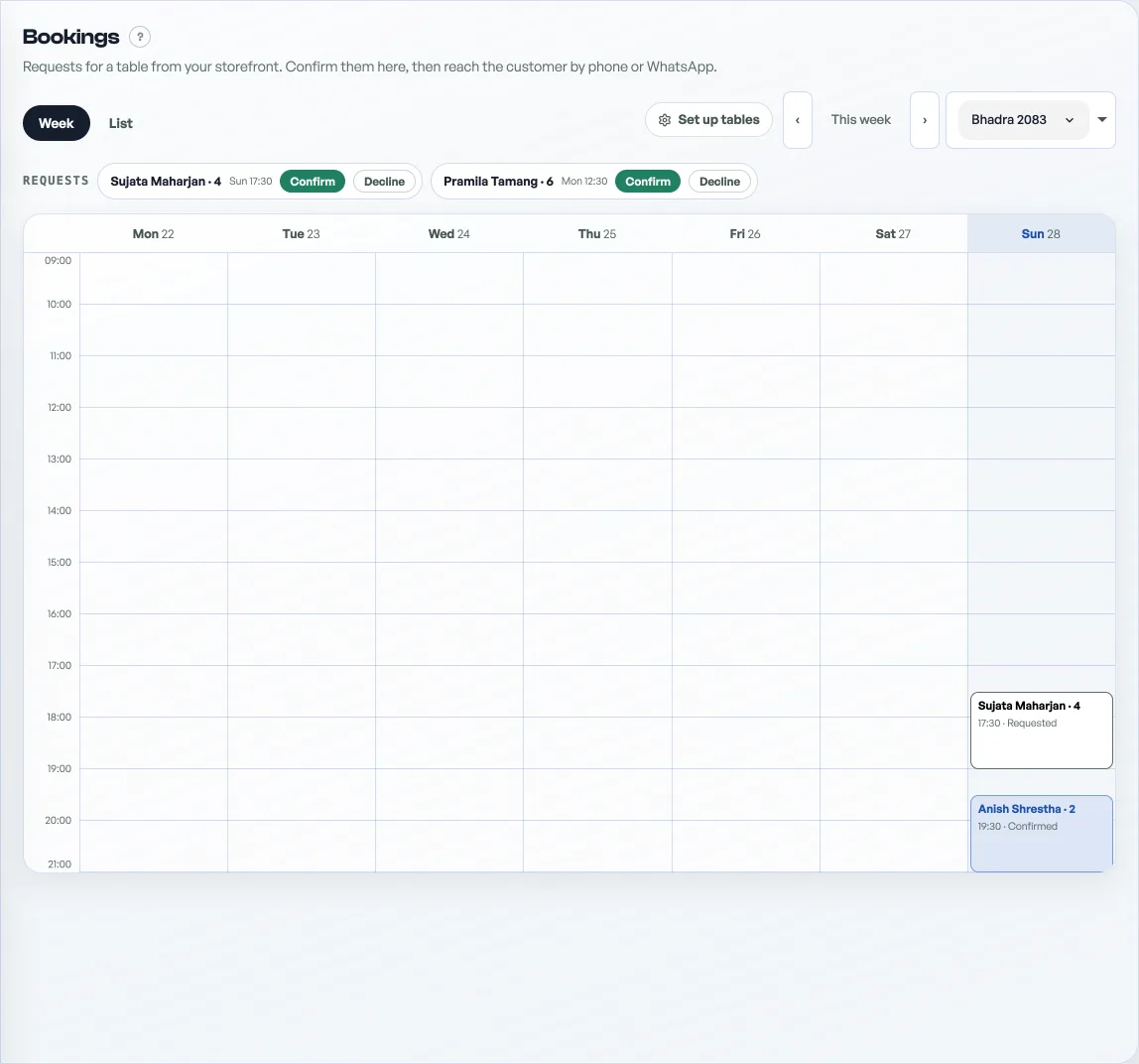
- A customer opens your shop, picks a date and time, and enters how many people and a phone number.
- The booking lands on your Bookings tab and rings your phone if alerts are on. New requests wait in the strip at the top.
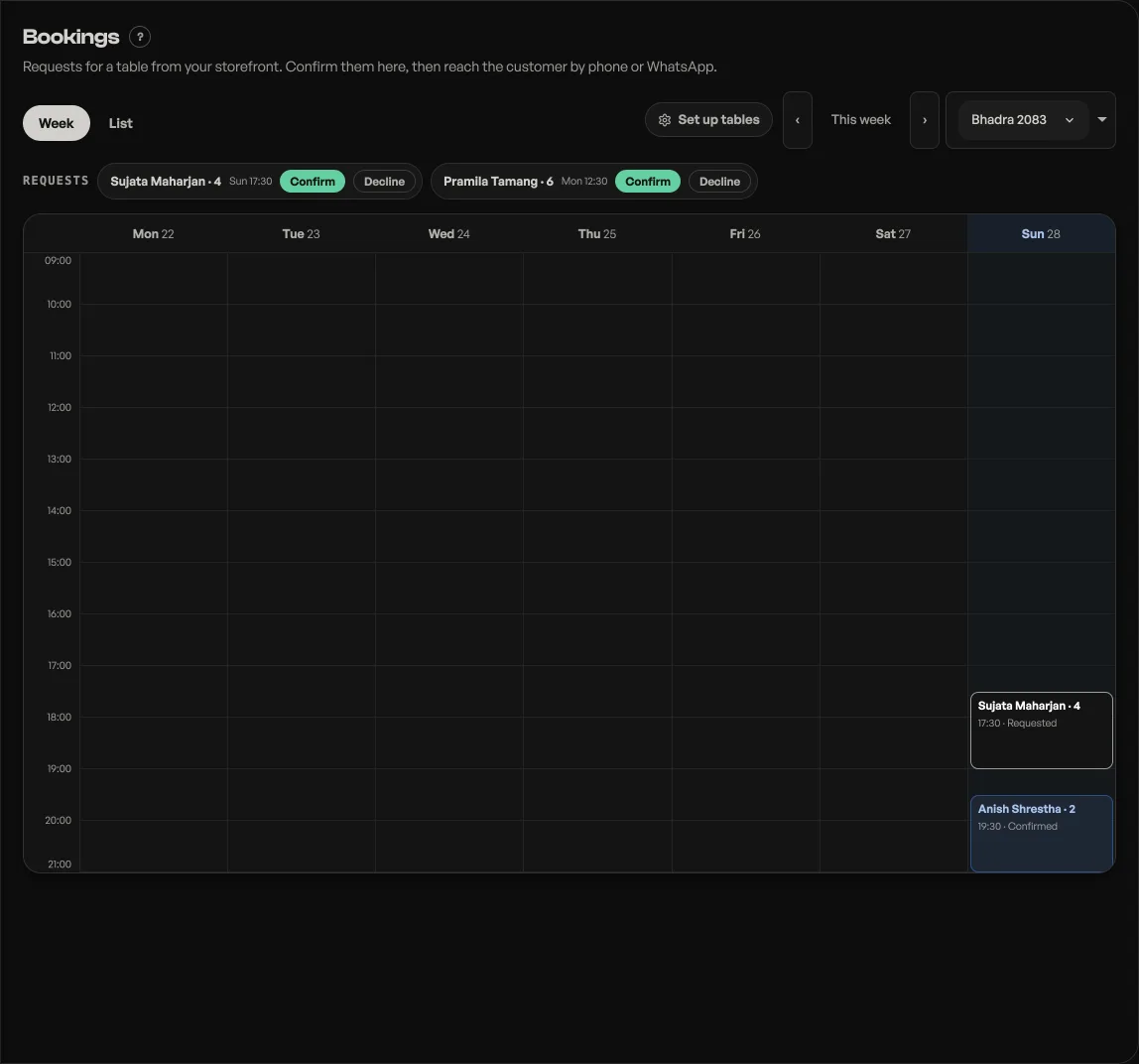
- Press Confirm on a request, or open a booking on the week to see it. Dashed cards are still requests; solid cards are confirmed. Edit and cancel sit on that card. Give an email when you add a booking by hand and they get the same written confirmation a request from your shop page would have sent them; send it again from the menu if it never arrived. The Week view shows the whole week like a calendar, and List shows the same bookings as a simple list.
- When a time slot is full, new customers are offered the waitlist instead of a false yes, so confirm or decline requests promptly.
New bookings can buzz your phone too, see order alerts.
Which rows say Book, and which say Add
You answer it on the product. On a service shop, every product's form asks How is this sold? with two choices: Booked, and the row shows a Book link that opens the calendar with that service chosen, or Bought, and the row sells with Add and the bag like any retail shelf. So a salon books its cuts and still sells shampoo on the same page. A product you have not answered for falls back to its category name: one ending in a service word, like services, appointment or class, books, and anything else sells, which is how every product behaved before the question existed. To hand goods over the counter or send them out, turn Pickup or Delivery on under the same Orders and delivery pane; service shops start with both off.
Bookings are a Pro tool. Opening the diary is the step that needs Pro; a diary already open keeps taking appointments on the free plan, and you can still confirm them and run them out. See What happens when your free trial ends.
- Get alerted for every new orderInstall the dashboard like an app and turn on notifications so nothing is missed.
- What happens when your free trial endsWhich tools go quiet, what deliberately keeps working, and why nothing you have built is ever locked away.
- Managing orders on your boardMove tickets through fulfilment, collect payment, and keep the board tidy.