
Help · Your shop online
Pick a template, keep your colours
Swap the whole look of your shop in one tap, and put your own colours back if the new ones are not yours.
A template is the whole shape of your site: the hero at the top, how products are listed, how customers browse, right down to the buttons. Swapping one changes the look, never your products, orders or settings.
- Open Design, then Templates on the rail down the left. The brand kit card says what your shop is wearing now; four designs chosen for your kind of shop sit under it, and the one you are on reads Wearing this.
- Press Show all designs for the rest of the set: market stalls, lookbooks, trade price lists, dark late-night shops, and more.
- Tap one. It is on your real shop straight away, and the live preview above the cards reloads so you see it before your customers do.
Keeping your own colours
A template arrives with its own colours, headings and corners, otherwise your shop would not look like the card you just tapped. If you had set your own, a bar appears saying the colours, type and corners now match the template, with a Keep my styling button. Press it and you keep the new layout with your own colours, headings and corners back where they were. The offer waits there until you use it or pick another template.
The details, afterwards
The colours and type live one stop down the rail, under Theme:
- Colours: each template ships three colourways measured against its own design, and you pick one. There is no free colour to choose any more, which is what stops a shop ending up with grey text on a grey button.
- Logo: upload one and it replaces the coloured square with your shop's first letter, everywhere that mark appears.
- Corners, headings and the headline: soft, sharp or round corners and a row of heading faces sit folded under Corners and type, because your template has already chosen them. The strap above your shop name is Top offer strip under Promo cards; the line under it is Storefront headline under Theme.
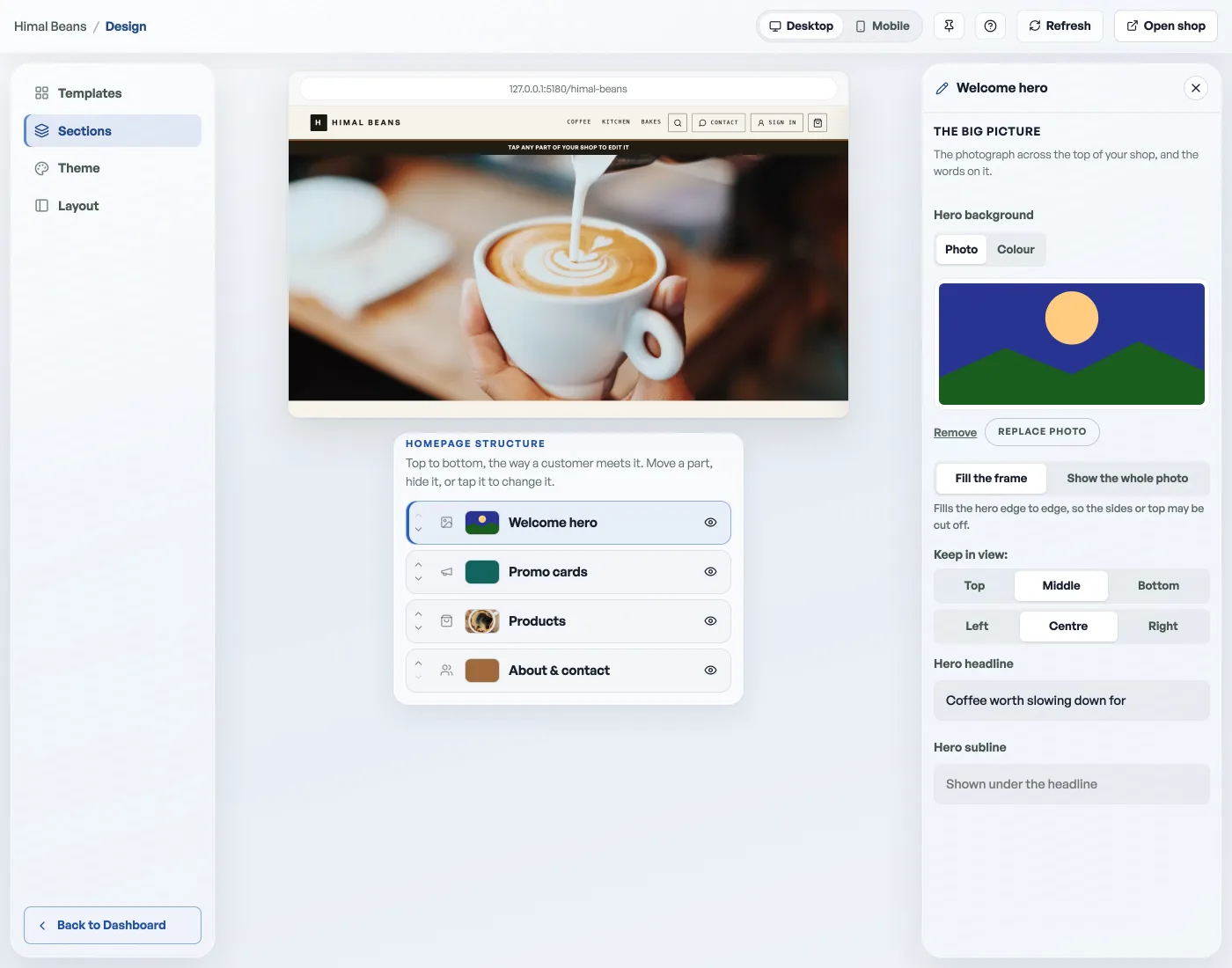
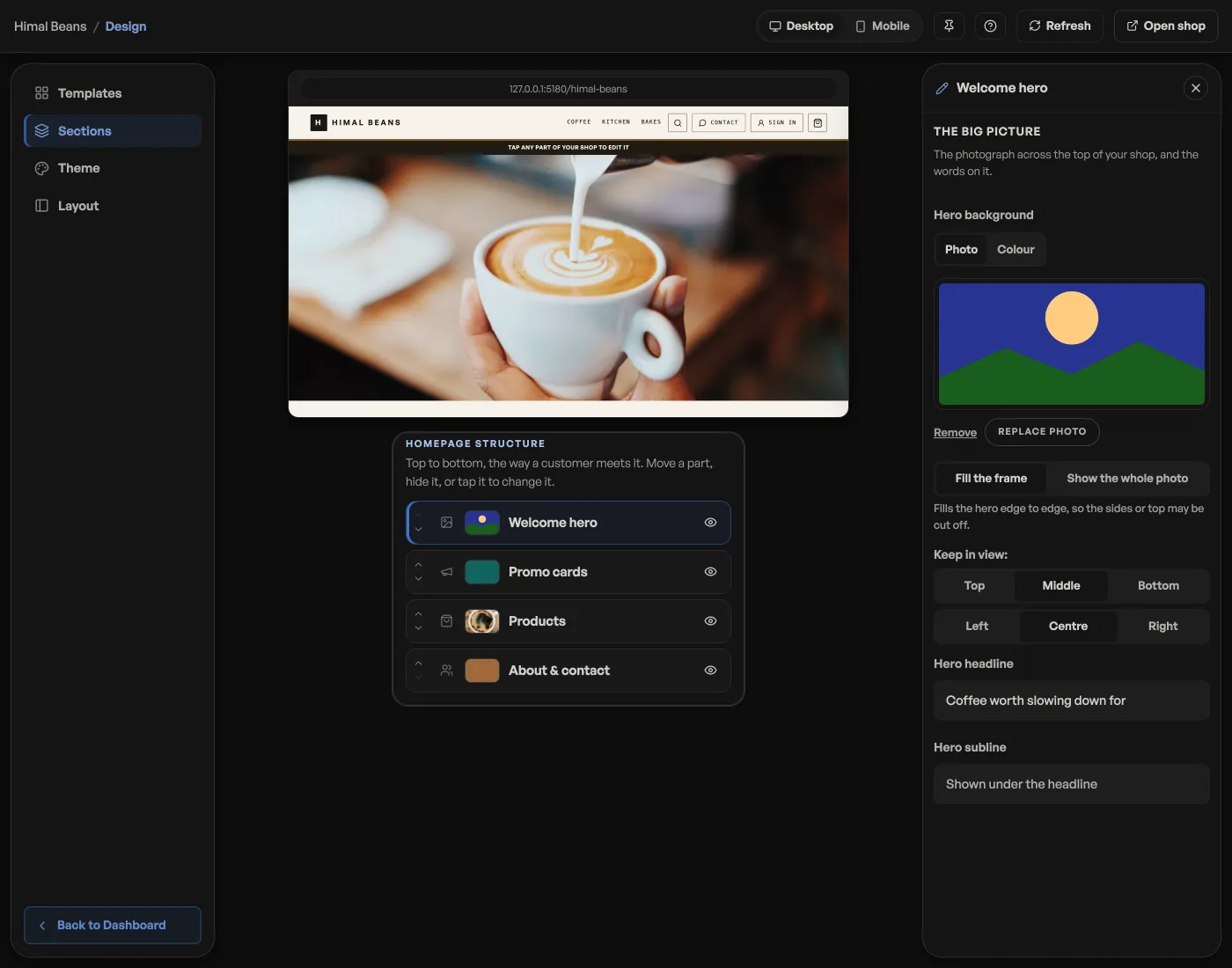
The hero photo lives with the hero itself: open Sections, tap Welcome hero, and pick a photo or a flat colour. On photo, your shop borrows one of your own product photos (or an event poster) until you upload one of your own.
There is no publish step anywhere in Design: every change is on your live shop within a second. Press Open shop in that bar to see the real thing in its own tab. How your products are laid out is a separate choice, see Showcase.
- Make the shop look like yoursTemplate, colours, logo, hero photo, and the order of the page, all from the Design tab.
- Choose how your products and events are shownPick the shelf your catalog sits on, and the stage your events take.
- Write your shop policyReturns, delivery rules and terms, shown on your site without sending customers anywhere else.