
A shop's colour is part of how people remember it: the maroon on the shutter, the green on the carry bag. Most Pasal templates come with three colourways, and if none of them is yours, you can set your own. The trouble with any colour picker is how easy it is to choose a pair that looks fine on your laptop and cannot be read on a customer's phone. So Pasal checks every pair before it saves.
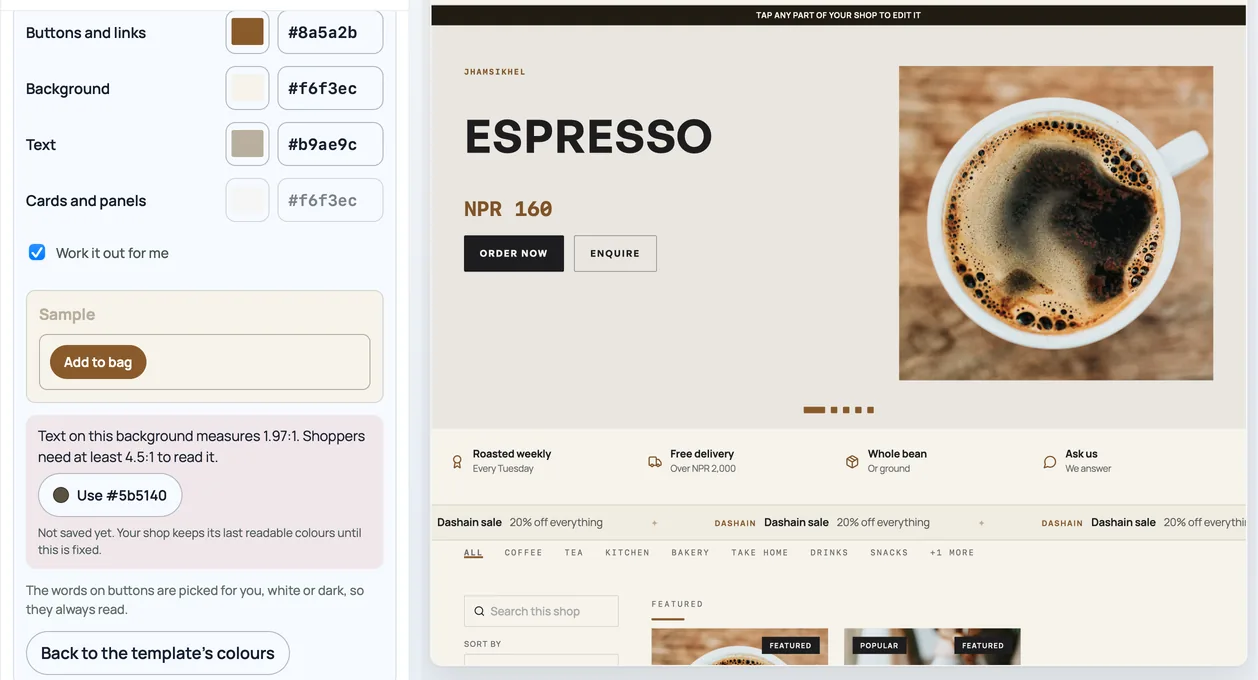
Set your colours
- Open Design and tap Template, colours & logo.
- Under the three colourways, press Custom colours. It starts from the colourway you are wearing, already readable.
- Change Buttons and links, Background and Text. Tap a colour to use your phone's own colour picker, or type your brand's six-digit code, such as #2a1d12.
- Cards and panels is optional. Leave Work it out for me ticked and Pasal picks a card colour from your background and text, or untick it and choose your own.
The Sample under the boxes shows a card and an Add to bag button in your colours. A pick that passes the check saves straight away. You never choose the words on buttons: Pasal uses white, black, or your own text or background colour, whichever reads on that button.
What "readable" means
Contrast is how far apart two colours are in lightness, written as a ratio. A colour on itself is 1 to 1. Black on white, the most there is, is 21 to 1. The hue barely counts: a red and a green of the same lightness are hard to tell apart, and harder still for someone who is colour blind.
Pasal uses the floors from the Web Content Accessibility Guidelines (WCAG), the standard websites are commonly measured against:
- Text on the background: at least 4.5 to 1.
- Text on cards and panels, when you choose them: at least 4.5 to 1.
- Buttons against the background: at least 3 to 1, so a button does not fade into the page.
When a pick falls short
The tab says which pair fails and by how much, for example "Text on this background measures 2.1:1. Shoppers need at least 4.5:1 to read it." Beside it is a Use #… button with a colour that passes. It keeps your shade and only makes it darker or lighter. It aims well past the floor, about 7 to 1 for text and 3.5 to 1 for buttons, so the quieter text Pasal works out from your colours, such as labels and the footer, still reads.
Until every pair passes, the tab says Not saved yet, and your shop keeps its last readable colours. Customers never see a half-finished pick.
Why it matters on a phone in the street
Most customers will see your shop on a phone, often outdoors, and often on a phone that is not new. Bright sun washes a screen out, and so does a brightness turned down to save battery. Budget phones often have dimmer screens to begin with. A pale grey on cream that reads well on a laptop indoors can disappear on a phone held up at a bus stop at noon. A pair that clears these floors has room to spare when the screen is working against it.
Which templates take them
Custom colours work on Minimal, Cafe Counter, Blush Bakery, Electronics, Restaurant, Kastha, Sirjana, Atelier, Akhada, Gahana, Mart, Mithai, Upahaar, Bhansa, Shobha and Durbar. Some other templates have one fixed look, or draw some of their text and panels in colours of their own. On those the Design tab says so, and you pick one of the template's colourways instead. Colours you saved stay saved, and come back when you move to a template that takes them.
Or ask ChatGPT or Claude
If you have connected Pasal to ChatGPT or Claude, you can ask in words: "make the buttons my brand red, #b4234a, on a cream background". The assistant sets the same colours and Pasal checks them by the same rules. A pair that cannot be read is refused with the measured ratio and a colour that would pass. A preview link shows the colours without saving anything, and saving needs your yes on pasal.studio. Claude lists Pasal in its connectors directory. In ChatGPT, add Pasal by its address until OpenAI approves the listing.
Every step is in Use your own colours on your shop. Connecting an assistant is in Connect Pasal to ChatGPT or Claude.