
Typing a new product is slow, especially on a phone: a name, a few lines about it, the right category. Add from photo does that part for you. Take a photo, and Pasal AI suggests the words. The price and the stock stay yours to type.
How it works
- Open Products and press Add product. The Add a product screen opens.
- In the Add from photo box, press Add from photo to open the camera, or Choose from your photos to pick one you already have. On a computer, both open the file chooser.
- The button reads Reading the photo… for a few seconds. Then the box says Filled in from the photo.
- Check every word. Type the price, and the stock if you count it. Then press Publish product or Save draft.
What it fills in
- A name and a short description, from what it can see in the photo.
- A category from your shop's own list, spelled the way you spell it. If none fits, it may offer a Suggested new category with a Use this button instead of filling one in.
- Up to five suggested highlights: short facts it could see, such as a colour or a material. None is added until you tap it.
- The photo itself, which becomes the product's first photo when you save.
Anything you had already typed in the name, description or category stays as you wrote it, and the box tells you so.
Why the price and the stock stay yours
A photo cannot show what you paid, what the shop down the road charges, or how many are in the back room. So Pasal does not ask. No price or stock goes with the photo, and the form has no place for the reply to put one.
A product filled in from a photo cannot be published or saved as a draft until you type a price. Both buttons stay off, and the screen says Type the price before saving, with a Go to price link. A product you type by hand saves as it always has.
Pasal AI only describes what it can see, and it can still choose a word you would not: cotton when it is linen, or a colour name your customers do not use. Treat it as a first draft and correct anything that is wrong.
Took the wrong photo? Take another
A second photo replaces what the first one filled in, as long as you have not changed it. Words you typed or edited stay. Highlights you tapped from the first photo come off; highlights you typed yourself stay.
Your photo and your privacy
Before the photo leaves your phone or computer, Pasal shrinks it to at most 1,600 pixels on the long side and saves it again as a new picture. That removes the location and camera details a phone keeps inside a photo. It then goes to Anthropic, the company that runs Pasal AI, with your shop's name, trade and area and the categories you already use. No price, stock or customer details go with it. Nothing is saved on your shop until you press a save button. The details are in the Privacy Policy.
Tips for a photo it can read
- One product per photo. Leave out people, hands, screens and other items.
- Fill most of the frame with the product.
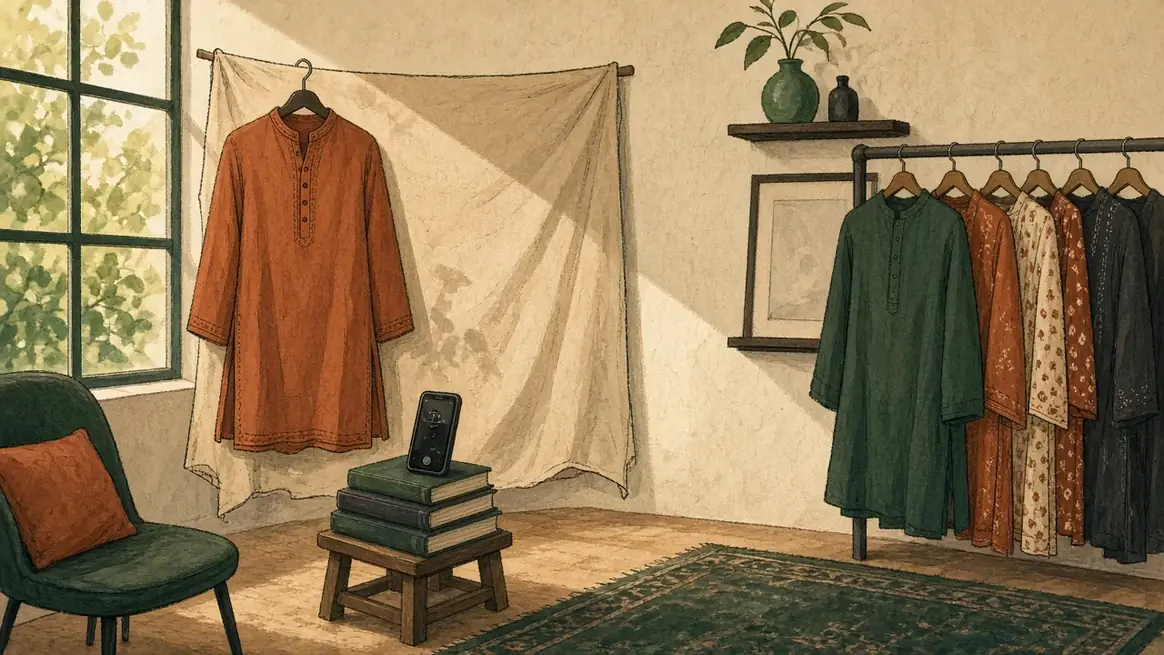
- Use a plain background: a wall, a sheet, a clean table top.
- Use JPEG, PNG or WebP, under 30 MB. A photo straight from your phone's camera is fine.
If it says Pasal AI could not see a product in that photo, take another with one product filling the frame on a plain background.
Who can use it
Add from photo is part of Pasal AI, which comes with the annual Pro plan. Each photo it reads counts as one of your daily Pasal AI questions, the same allowance as the chat. It needs the internet. Every step, and what each message means, is in Add a product from a photo.