
What Pasal AI does for you
Ask a question in your own words and get an answer from these guides and your own books. It never writes a figure itself.
The button in the bottom corner of the dashboard opens a chat you can type a question into, in your own words. Ask it how something works, or ask it about your own shop.
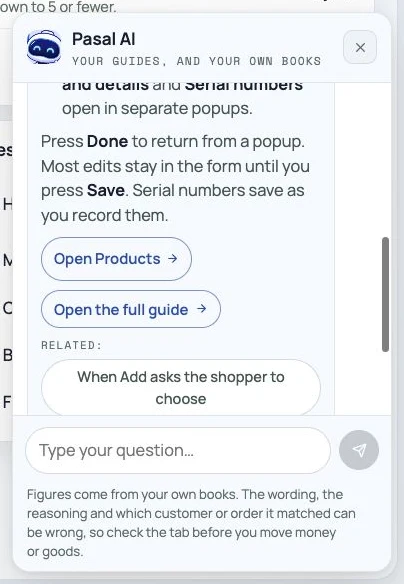
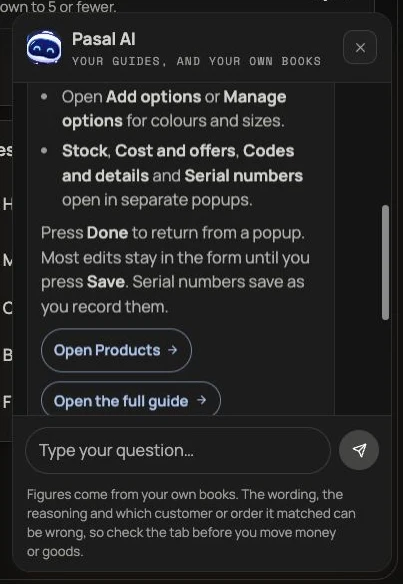
Where its answers come from
These help guides explain the full Pasal product, including features your shop has not turned on. For a feature that is off, the assistant can explain what it does and where the owner can enable it. Your current shop setup and plan still decide what you can use. Questions about your shop's figures use the books your account can read. Knowing a feature exists does not unlock private records. If the guides do not cover a question, it says so and offers human support instead of making something up.
Relevant answers can include page links such as Products, Sales orSettings · Notifications. Press a link to open that page or section. The available links respect your shop features and permissions; a copied link does not grant access. Anything that moves money or goods you still do yourself on that page.
Ask in your own words
Ask in English, Nepali or Romanised Nepali. A short subject such as event ticket is enough to start. You can follow up with Where do I enable it? in the same conversation. If something fails, name the tab and describe what happens when you press the button. The assistant cannot see your screen, press buttons for you or make account changes.
It can explain current limits too. Import previous sales from Excel or CSV, and backups are record copies, not a restore tool. Do not share passwords, sign-in codes or bank credentials in chat.
How figures stay tied to your books
The model is not allowed to type a figure. Where a number belongs it writes a named blank, and Pasal fills that blank in afterwards from your own books, formatted exactly the way the tile on your dashboard formats it. An answer that contains a digit anywhere, in any script, is thrown away and you are shown a plainer sentence instead.
So a figure in an answer is your figure. That is also why it can read careful rather than chatty: it is working inside a rule that costs it the whole answer if it slips.
What can still be wrong is the wording, the reasoning, and which customer or order it matched. Two customers with similar names is the failure worth knowing about, so the answer prints the last four digits of a phone number for you to check, and refuses outright rather than guessing when several people match. Check the tab before you act on it.
It can write a product description
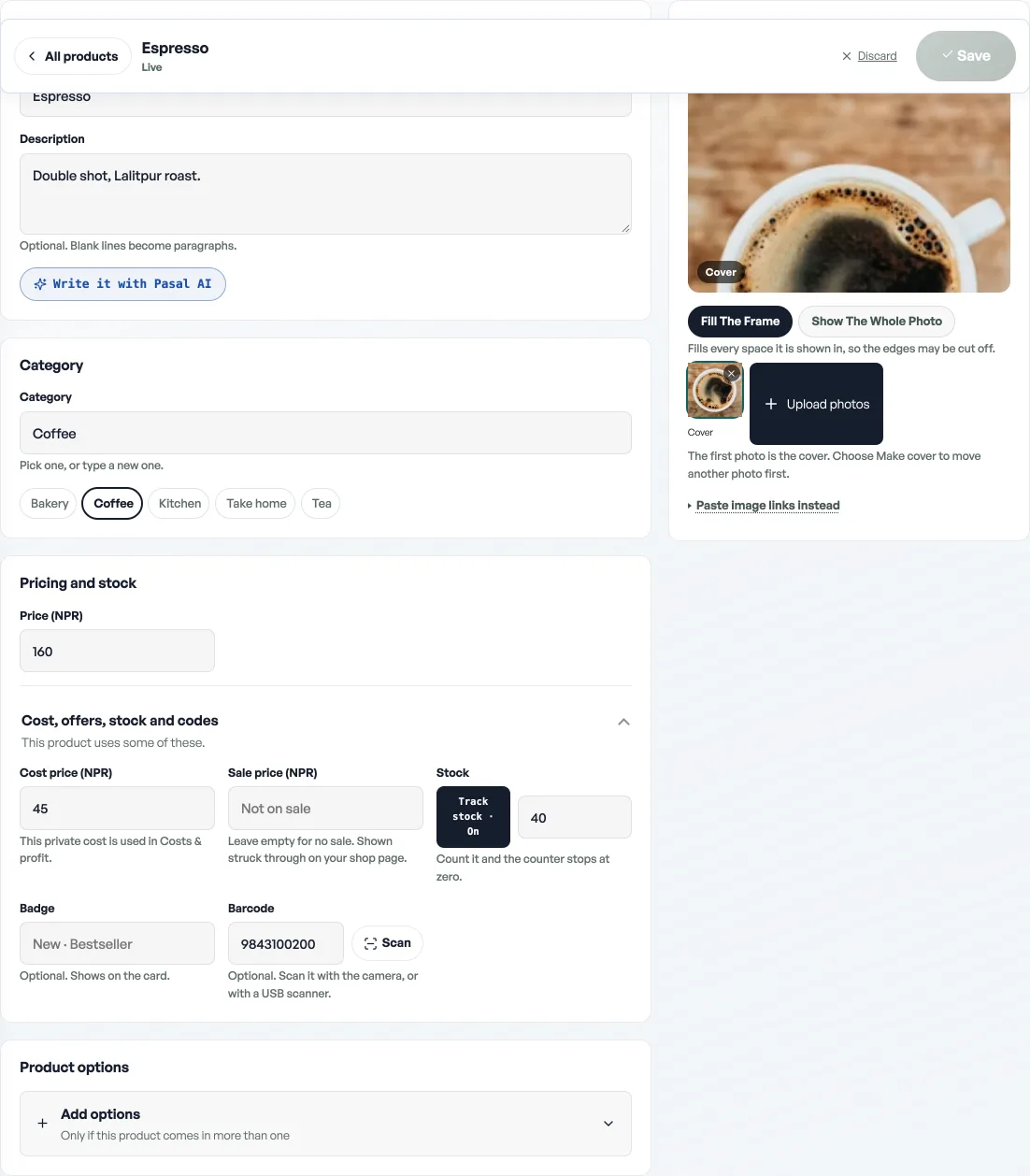
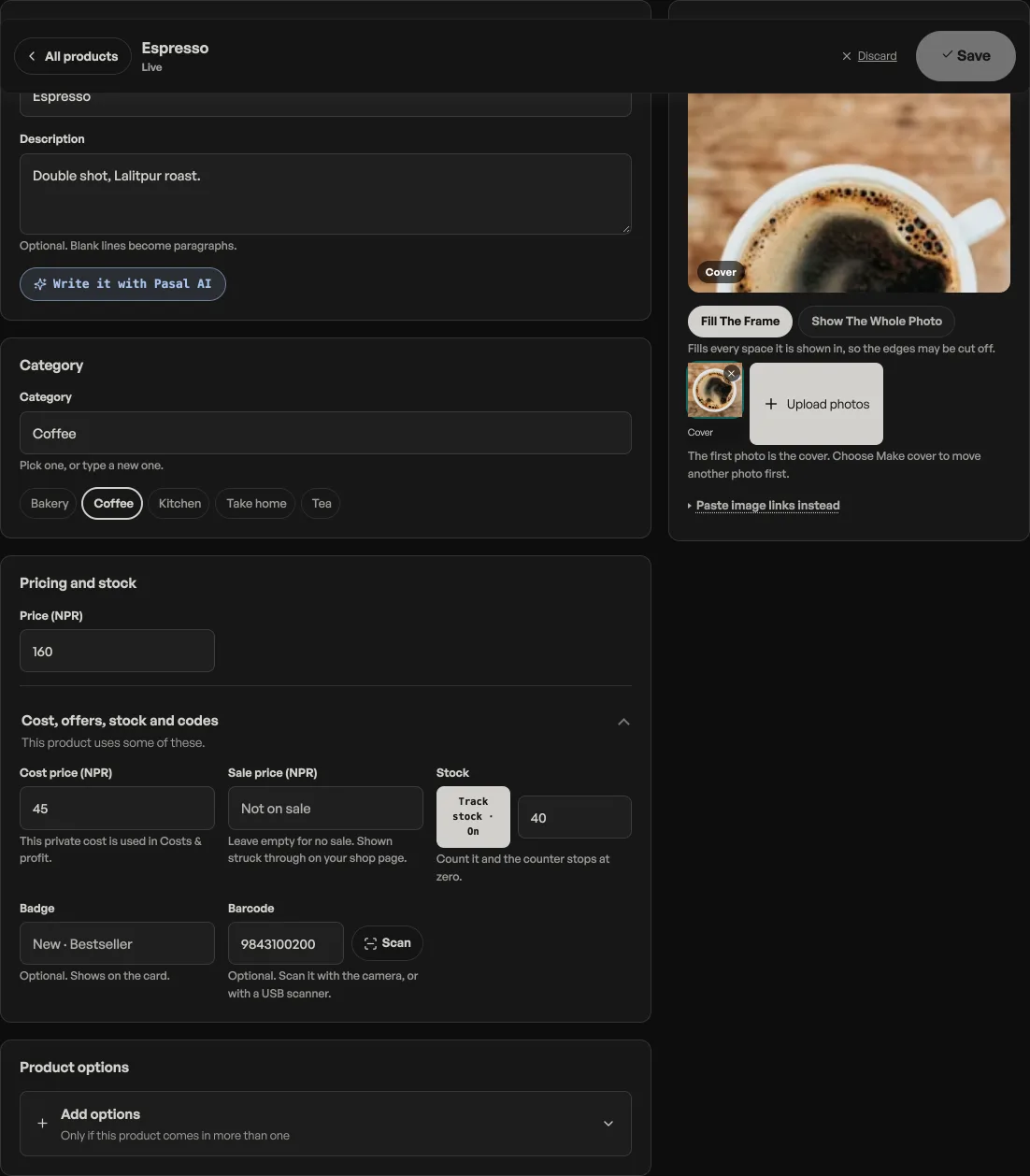
In the product editor, under Description, press Write it with Pasal AI. It reads what you have already filled in, the name, the price, the shelf, your trade and your other categories, and comes back with a few descriptions to choose from, a title and description for search, and a shelf to file it on. The descriptions and the shelf each carry Use this and the search pair carries Copy, so nothing lands on your product until you say so. Name the product first or the button stays off.
Which plan it is on
Pasal AI comes with the annual Pro plan. On it, the corner button reads Ask Pasal AI and the panel says Your guides, and your own books.
Without it, the same button reads Need help? and opens the Pasal helper, which answers from these guides and can still read back a few things the dashboard already has on screen, like today's sales. The two names are different on purpose: the name always says what actually answered. See What Pro costs and how to turn it on.
The same guides are in your Help tab, where you can read them end to end rather than a question at a time.
- Backups and the year's freezeDownload shop records to keep or share with your accountant. See what's included, previous copies and year-end records.
- What Pro costs and how to turn it onThe price of Pro by the month and the year, Pasal Complete for a ready counter, and how to pay.
- Bring old sales from ExcelImport paid bills from Excel or CSV, with original dates, bill numbers and customer details. Stock stays unchanged.