
The pack to hand your accountant
Sales, spending and wages for a period, on four panes, each with a download. It reads and exports, and writes nothing.
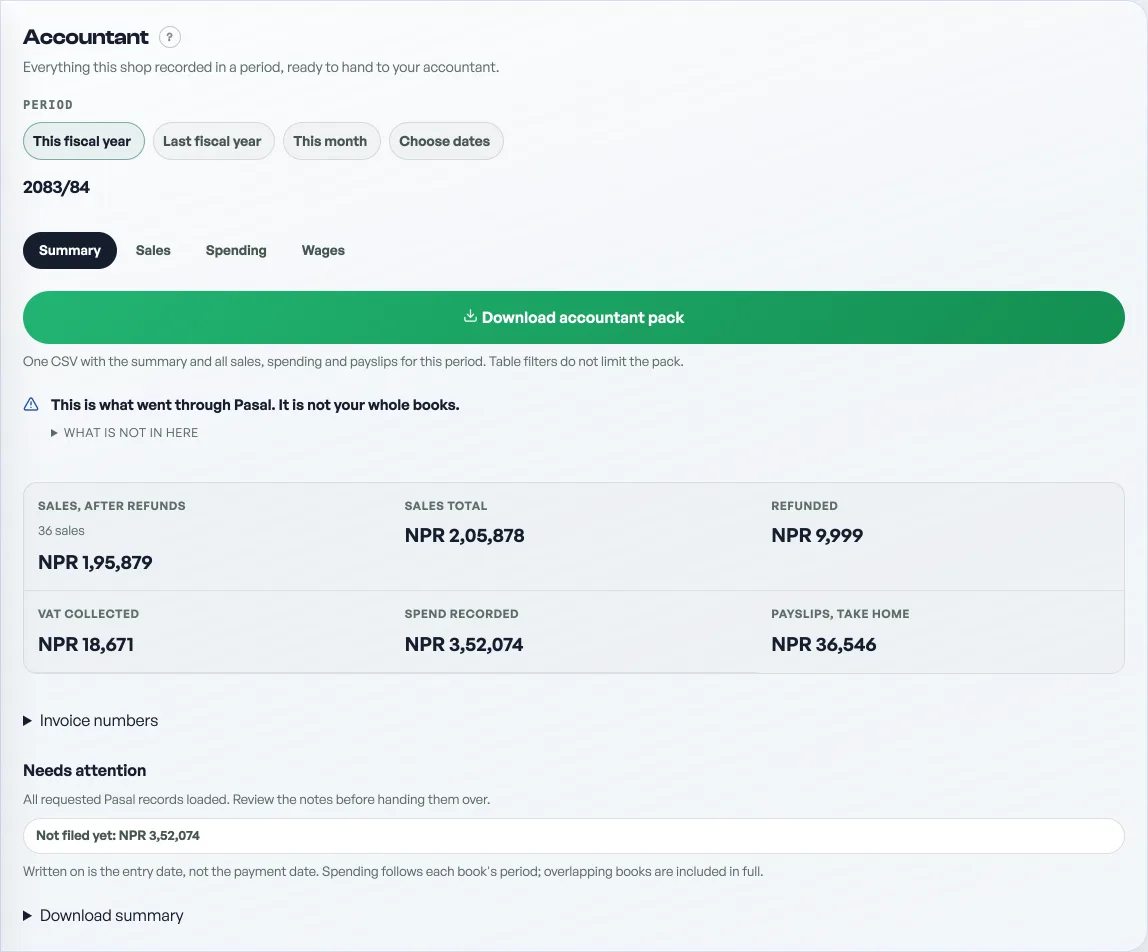
Accountant is on the rail behind More, under Money, and it opens a screen headed Accountant. It is everything this shop recorded in a period, compiled in one place, ready to hand over. It is yours alone: a staff account cannot open it.
It reads. It never writes.
Nothing on this screen changes anything. The three screens that write are the Sales tab behind More (see Tax invoices and sales records), Paid out and Payslips. This one compiles what those three already hold and lets you export it, which is why you can hand it to somebody without worrying what they might touch. The Sales pane on this tab is a register for the period you picked. It is not the Sales tab.
The period, then the four panes
Choose This fiscal year, Last fiscal year, This month or Choose dates. Everything below reads that period.
- Summary. Sales after refunds, sales total, refunds, VAT collected, spend recorded, wages on payslips, and the invoice number check.
- Sales. Cash against bank and wallet, what is not paid yet, then the sales register: date, invoice number, customer, how they paid, status and total. On a long period you can search it, and press a column head to sort by it.
- Spending. Every cost recorded on Paid out, with the book it sits in and what kind it is.
- Wages. The payslips issued for the period, with the slip number, the person and the net.
Every pane has a Download, and the download carries every row that matches your period and your search, not only the rows on the screen in front of you.
On a fiscal year the Summary also carries a Month by month table, in Bikram Sambat months, so a year can be read a month at a time. You can show every month or only the months with money in them, and a row opens that month. This fiscal year above the month name brings the year back.
The most important thing on the screen is what is missing


This is what went through Pasal. It is not your whole books, and the pack says so at the top of the Summary rather than in small print at the bottom, because a pack that looks complete and is not is worse than no pack at all. An accountant may use it while preparing their accounts. Open What is not in here for the list.
What is not in here, and is listed on the screen itself:
- What you bought from suppliers
- Rent
- Electricity, water and internet
- Bank charges and interest
- Anything sold without being rung up
- What the shop pays into the fund on top of wages
- Opening balances from before you used Pasal
Rent and utilities are on that list only until you start writing them down: record them on Paid out and they arrive on the Spending pane.
Three figures, never one
Sales, spending and wages are never added together into a single number. A cost you typed by hand can be the same money as a payslip, Pasal cannot tell the two apart, and a total that quietly counted a month's wages twice is worse than no total. So the three are reported side by side and the joining up is left to the person whose job it is.
Bookkeeping and reconciliation, not a tax filing
The VAT collected figure uses paid orders, by each order's placement date, with refunds left in. It is a bookkeeping figure, not a tax filing total. Ask your accountant to reconcile invoice dates, Khata sales, credit notes and debit notes, and review warnings and the selected period before filing. Pasal's IRD software approval is pending and Live submission is disabled. The pack does not file a return or establish approval. See IRD Off/Test.
The invoice number check


Pasal numbers every tax invoice in one unbroken run per fiscal year, so a missing sale shows up as a missing number. That is the first thing an auditor checks, and it is the one thing this pack can prove rather than assert. The Summary names the range, how many numbers are in it, and how many are not.
A gap is reported and never diagnosed. It can just as easily mean those sales fall outside the dates you chose, so widen the period before treating it as missing. Sales without a number are separate and are normal: a sale only gets one once your PAN is set, and only from that day on. See Tax invoice numbers.
- Tax invoices and sales recordsPAN/VAT invoices and a record of every sale for your accounts.
- Tax invoice numbersFill in your PAN and every paid order gets a numbered tax invoice, counting up from 1 each Shrawan.
- Write down what your shop paid outOne errand: type a cost, and see where the money went. Wages and goods sit beside the total and are never added into it.