
Connect Instagram to your dashboard
Read customer DMs, share products and enable product recommendations for your shop.
Use Instagram inbox to read DMs, reply and share products. Adding a handle in Shop details only adds a website social link; connect here for DMs.
Before you connect
Sign in as the shop's owner and use its Business or Creator account. New to business accounts? Follow Set up Instagram Business and Meta Business Suitefor account conversion and optional portfolio creation. A linked Facebook Page is not required for Pasal.
Pasal must enable merchant access. Ask Help if approval or server setup is pending. Publish names, photos, prices and codes in Products and check their links.
Connect your shop account
- Check that the correct shop name appears in your dashboard. Open Instagram inboxfrom the navigation. On a phone, use More to find it.
- Open Inbox settings, then click Connect Instagram once. The empty inbox also has a Connect Instagram button.
- On Instagram, sign in to the account you want this shop to use. Check its username before continuing. Allow the requested basic profile and messaging permissions.
- Finish authorization and return to Pasal in the same browser. Do not reload an old authorization URL or share its code.
- Open Inbox settings again. Confirm Connected and the correct @username. The connection expiry is shown here.
App creation, tokens and secrets are Pasal administrator tasks. Owners use this login flow.
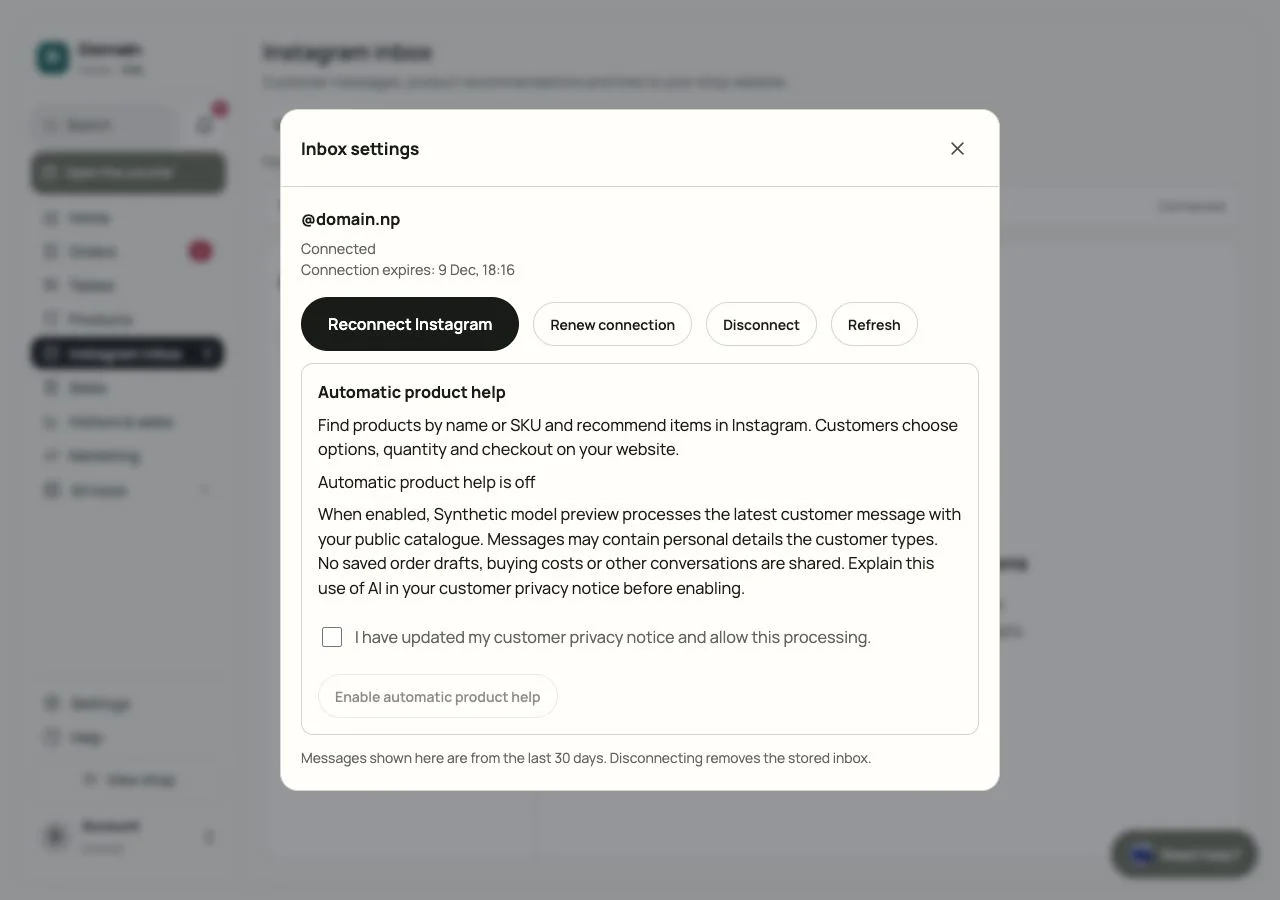
Read messages and share products
Send a fresh Hello from a different Instagram account. Refresh the Pasal inbox and select its conversation. Earlier conversations are not imported. The inbox shows the last 30 days.
Write a reply at the bottom. Enter sends it; Shift + Enter adds a line. Pasal allows replies within 24 hours of the customer's latest message. For older conversations, open Instagram. If delivery is unconfirmed, check Instagram before sending again.
Click the package icon, Share products, beside the reply box. In the popup, search and select up to 10 items, choose Swipeable cards or Text and links, then click Send products. Cards work in the phone app; use text and links on desktop.
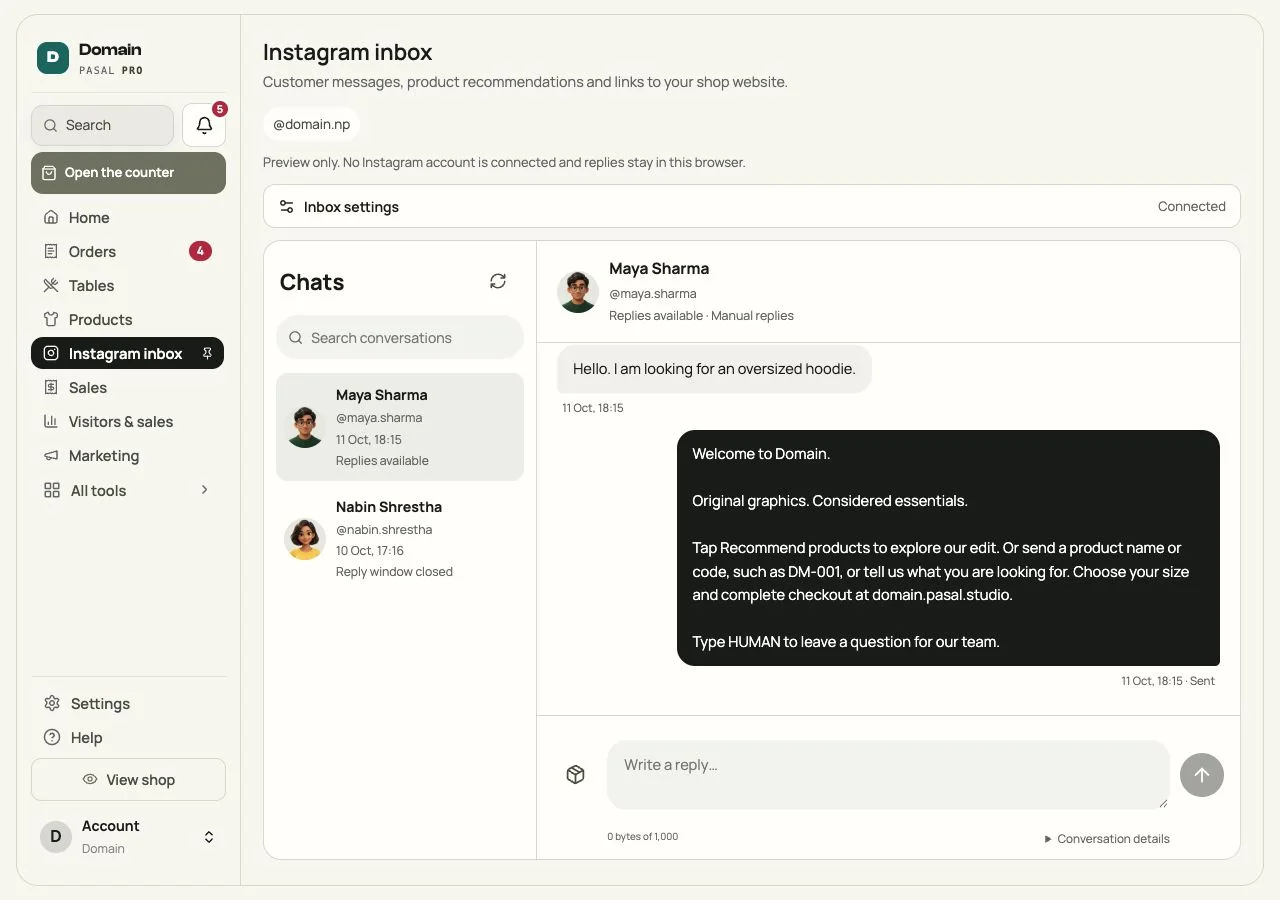
Turn on automatic product help
- Open Inbox settings → Automatic product help. Connecting alone does not turn on automatic replies.
- Read the notice and disclose this AI use in your customer privacy notice. The named provider processes the latest message and public catalogue. Messages may include personal details. Order drafts, buying costs and other conversations are not shared.
- Tick I have updated my customer privacy notice and allow this processing, then click Enable automatic product help.
- Confirm Automatic product help is on. If it says the feature is not available yet, ask Pasal to check merchant access and server setup.
Customers send a product name, SKU or Recommend an oversized hoodie. Where offered, tap Recommend products in the phone app. Size, colour, quantity and checkout stay on your website. DMs do not create orders or verify payments.
Test it and take over a conversation
- From another account, send Hello. Check that it appears in Pasal and, with product help on, that the greeting arrives in Instagram.
- Send one of your exact product names and then its code. Check the photo, price and product link. Try a recommendation request and open a returned item on your website.
- Send HUMAN. After its pause confirmation, send Hello again. The new message should appear in Pasal without an automatic reply.
- Send START to resume, then check a product request again. START is for resuming a paused conversation; customers do not need it before every message.
Take over conversation pauses one customer; Resume automatic product helpresumes them. Turn off automatic product help in Inbox settings switches off the whole account.
If something does not work
- No messages: check Connected and the username, send a fresh DM from another account, then refresh. If still empty, give Help the time and visible error.
- Messages arrive but no automatic reply: check that product help is on and this conversation is not paused. Send START if you previously used HUMAN.
- Authorization error: start a fresh connection once from Inbox settings in the same browser. If it repeats, give Help the error text. Keep authorization URLs, passwords and tokens private.
- Permissions missing: reconnect and allow both basic profile and messaging permissions. Confirm you are using a professional account.
- Too many connection attempts: wait 10 minutes, then click Connect Instagram once.
- Connection expires: use Renew connection while it is active. Wait at least 24 hours after connecting or renewing before renewing again. Use Reconnect Instagram when the account needs new authorization.
Disconnect removes Pasal's connection and stored inbox. Read its confirmation. Remove Instagram permission under Instagram's Settings → Website permissions.
Account requirements: Meta's Instagram API documentation. These steps describe Pasal.
- Manage your catalogAdd products, photos, prices, and take items off the shelf when you are out of stock.
- Add your own 360° photos or a 3D product modelLet shoppers rotate a set of product photos or explore a GLB model, alongside the usual gallery.
- Make the shop look like yoursTemplate, colours, logo, hero photo, and the order of the page, all from the Design tab.