
Help · Events & tickets
Sell tickets to your events
Put a gig, show or workshop on sale, take bookings, and scan people in at the door.
An events shop does not sell a product grid. It sells dated tickets: your storefront becomes a What's on board, each event gets its own page, and every ticket carries a QR code you scan at the door.
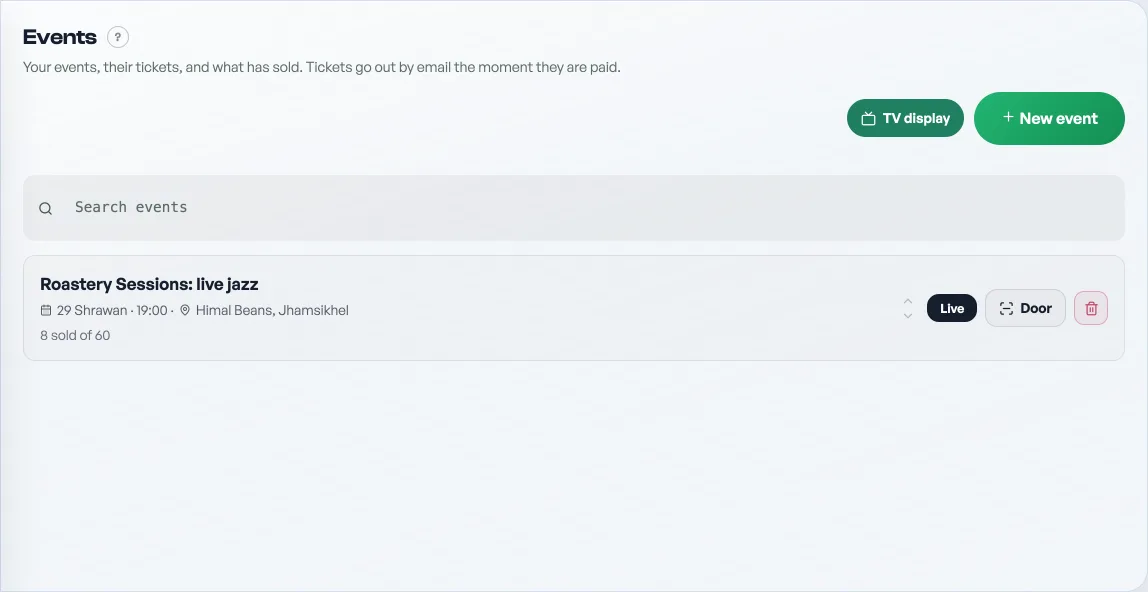
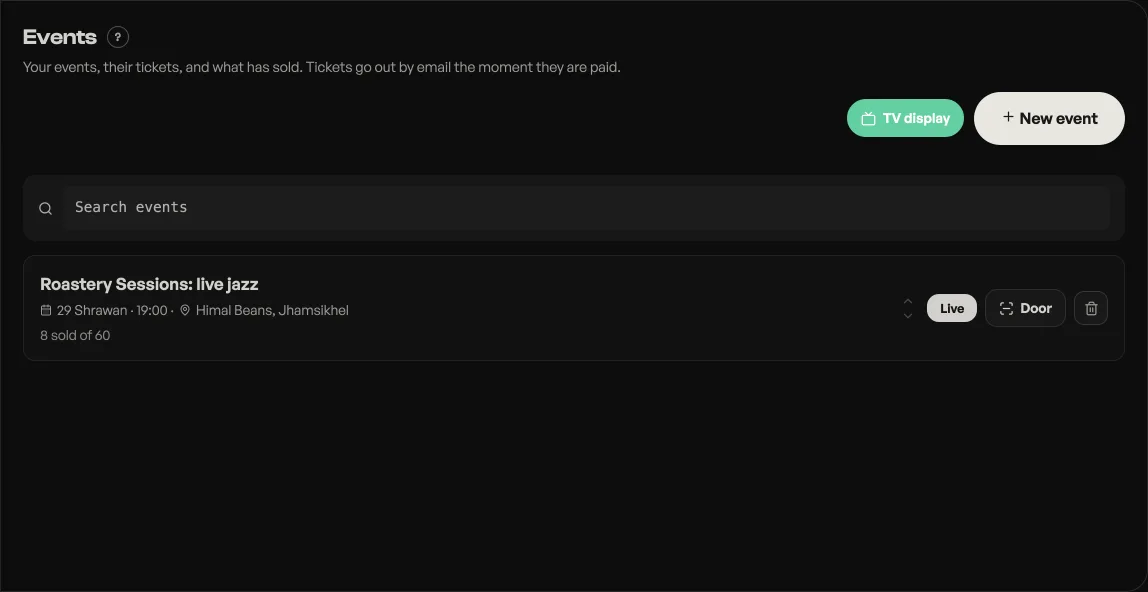
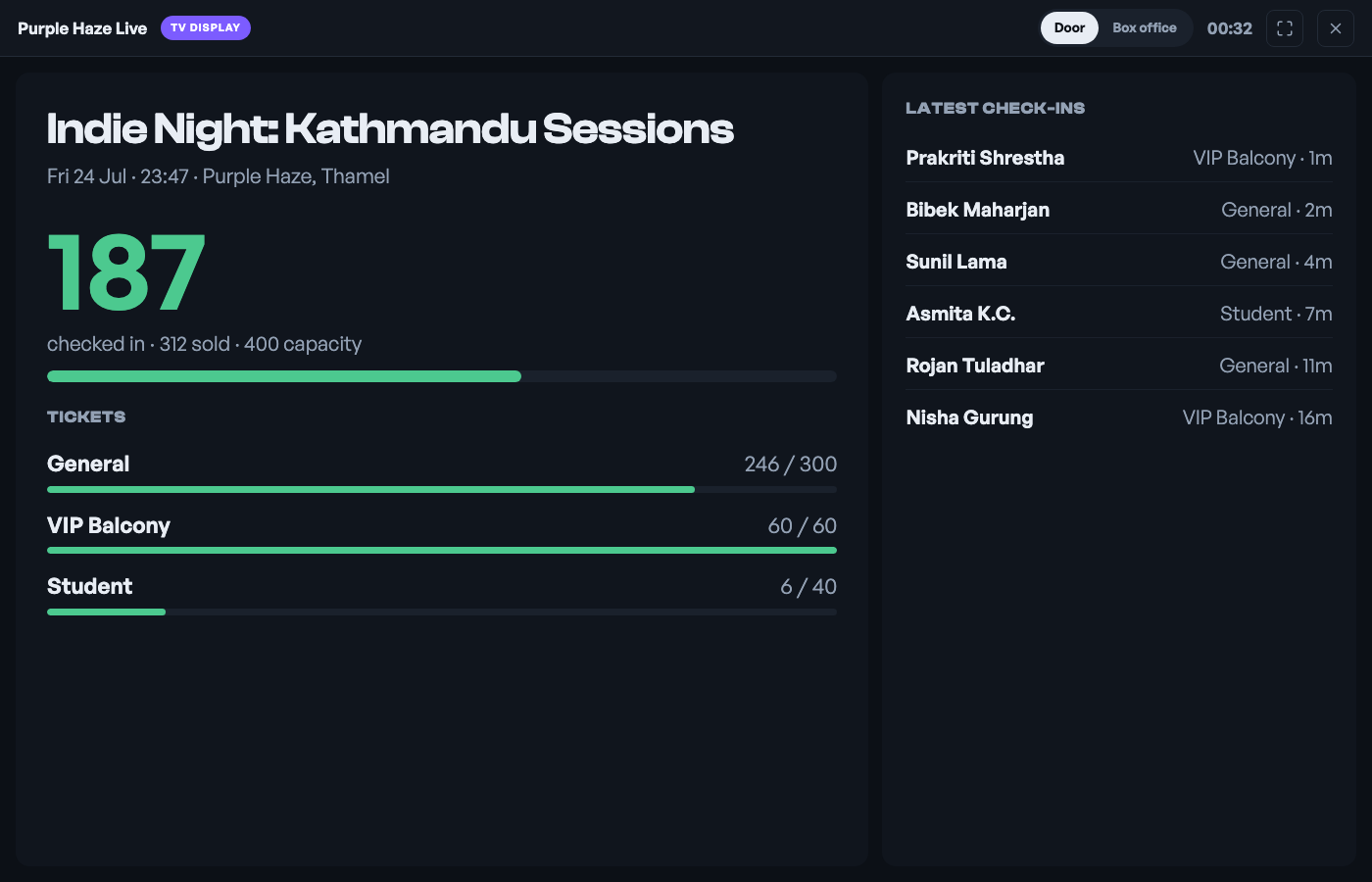
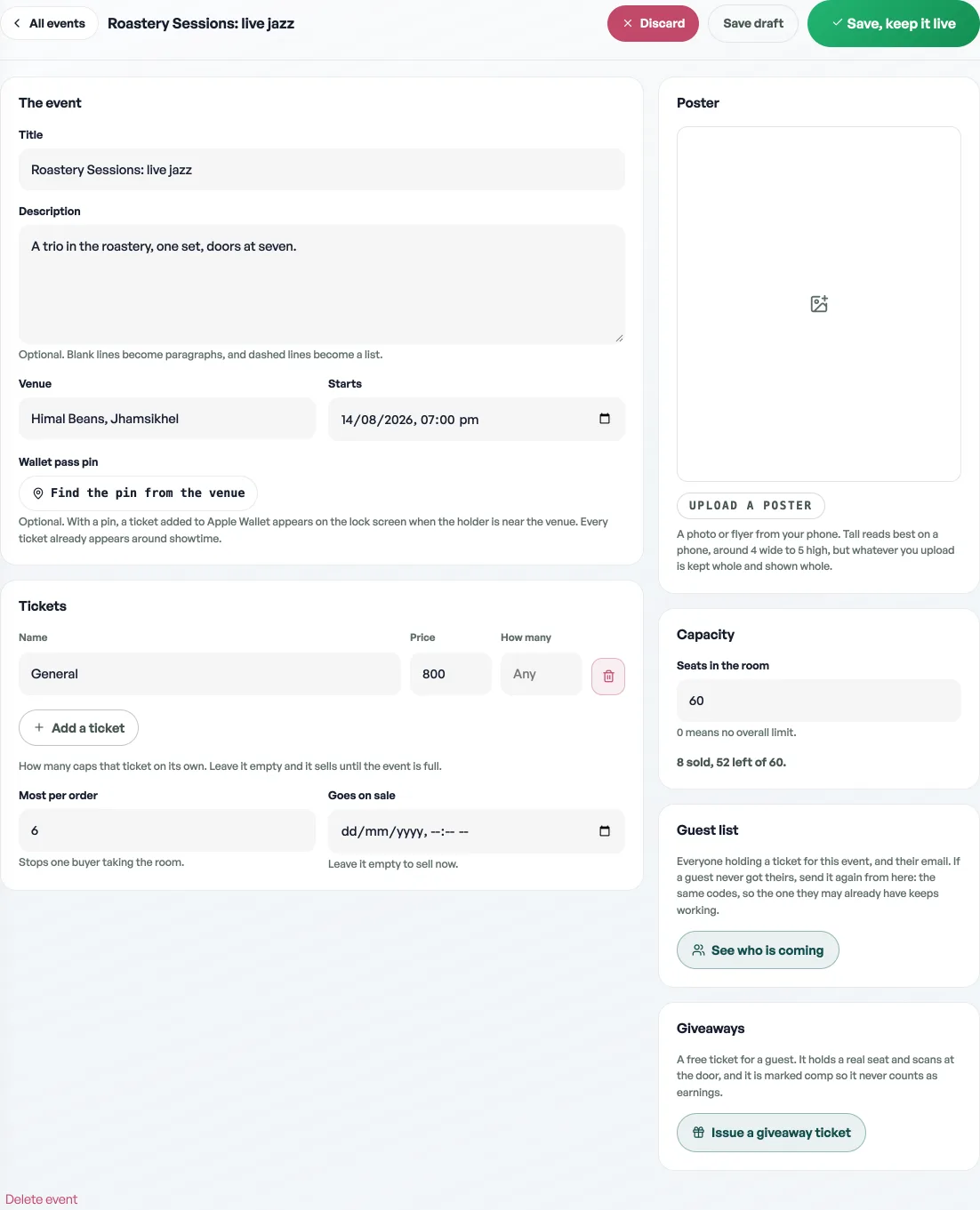
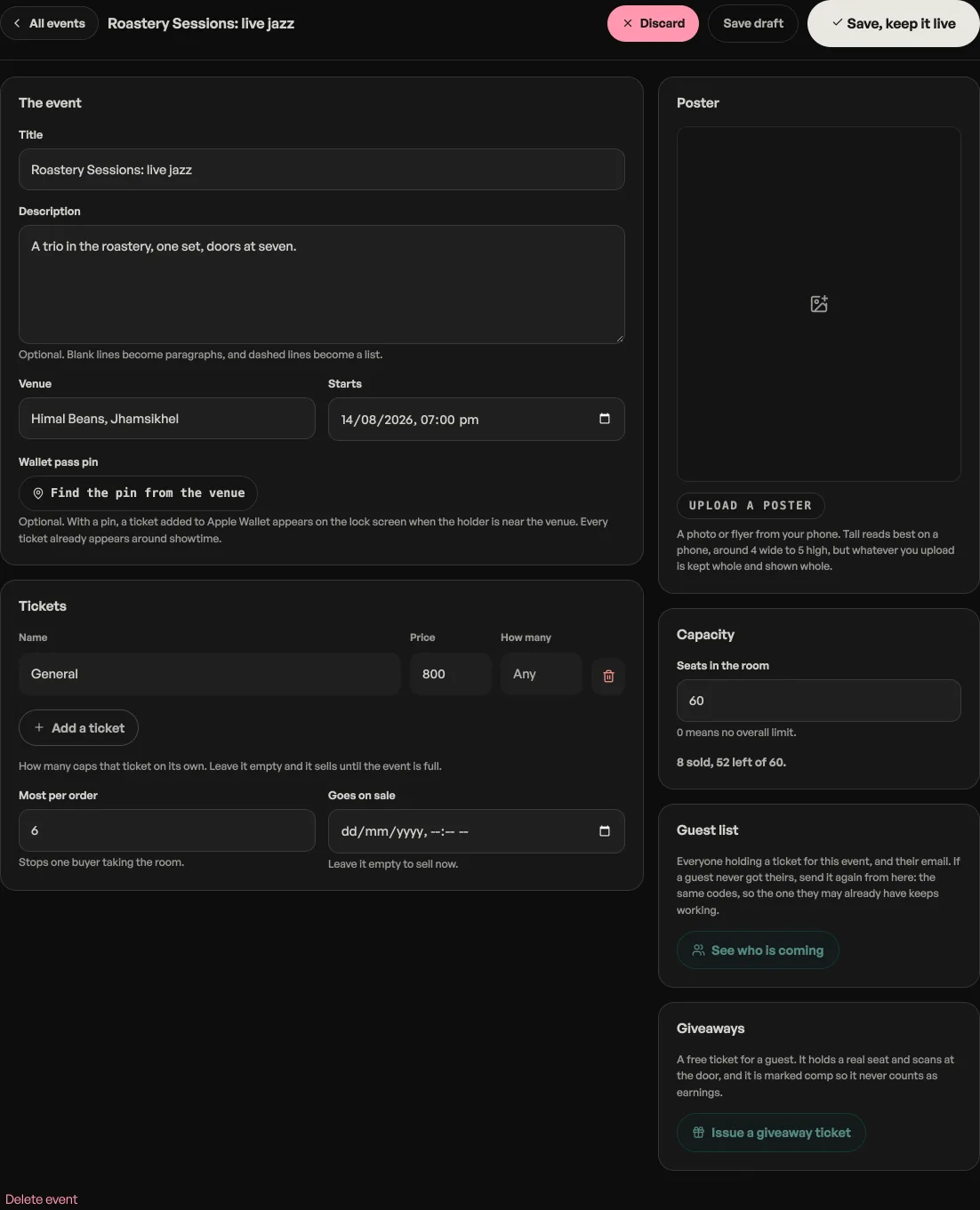
- Create the event. On the Events tab, press New event and fill in the title, venue, date and time, and a poster. The poster is what sells it, so use a real photo where you can.
- Add ticket types. Each has a name, a price and an optional quota (General 800, Front row 1,500). Quotas are per type; capacity is the ceiling for the whole event.
- Set capacity and a per-order limit. Capacity is the room. The per-order limit stops one person taking the whole allocation.
- Publish it. Set the status to live and it appears on your storefront. Draft events stay hidden while you work on them.
Buyers pick their tickets and fill in name, phone and email. All three are required: the email is where the tickets go. On a paid event the seats are held under their name and no QR appears anywhere until you press Mark paid. That is the moment the ticket email goes out, every code and a PDF attached, so they can show it at the door with no signal. See Getting paid for tickets.
Who is coming
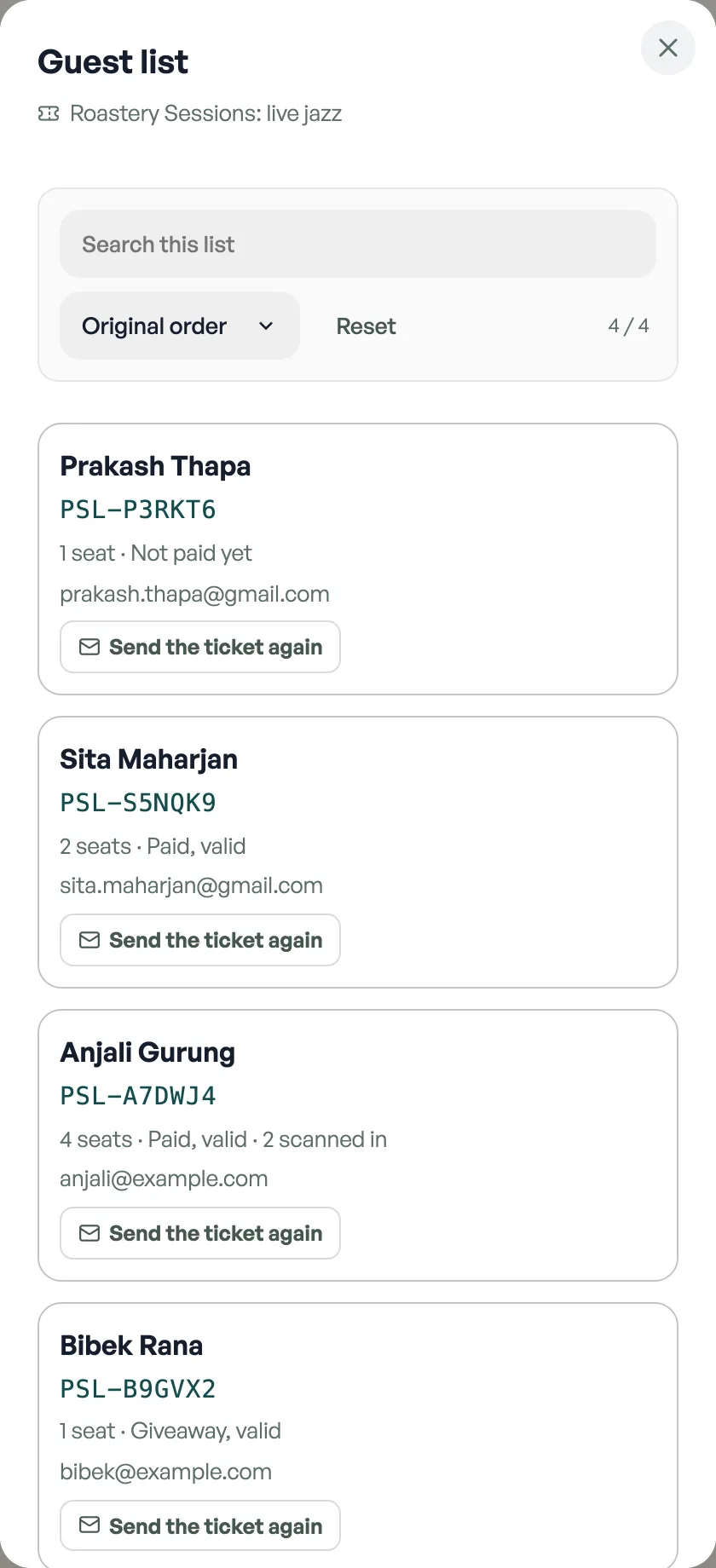
Open the event and press See who is coming under Guest list for everyone holding a ticket to that night: their name, their seats, whether those seats are paid for, and the address the ticket went to. It is also where you send a ticket again to somebody who never got theirs, see Send a guest their ticket again.
At the door
Open the Door scan tab, press All events, and point the camera at each QR. Picking one night only labels the screen; the door reads any ticket you sold. A code works once: a second scan tells you it is already used, which is what stops one ticket walking in twice. No camera on the device? Type the code by hand, or use a USB barcode scanner.
Free tickets for guests
Use Giveaway on the event to issue a comp ticket to a named guest. It takes a real seat, so it counts against capacity and cannot oversell, and it scans like any other ticket, but it is free and shows separately from your earnings.
Ticket sales appear on your Visitors & sales tab: tickets sold, money earned, and how many have been checked in. See See what is working.
Tickets are a Pro tool. Putting a new night on sale is the step that needs Pro: a night already on sale keeps selling on the free plan, and every ticket to it still scans at the door, so guests holding a ticket are never turned away over your plan. See What happens when your free trial ends.
- Send a guest their ticket againA guest says the email never arrived. Send it again from the order or from the event's guest list, with the same codes.
- Getting paid for ticketsA ticket is held, not sold, until you say the money arrived. Here is the whole path from checkout to the door.
- Run the door with the ticket scannerOne scanner for every event you run, what each answer on screen means, and taking money at the gate.