
Help · Events & tickets
Send a guest their ticket again
A guest says the email never arrived. Send it again from the order or from the event's guest list, with the same codes.
It happens at every show. Somebody rings the day before and says the ticket email never came, or they deleted it, or they typed their address wrong. You can send it again, and the codes you send are the same codes as before.
From the event, if you are looking a guest up
- Open the Events tab and tap the event.
- Under Guest list on the right, press See who is coming.
- Find the guest. Every row shows their name, their order number, how many seats, whether those seats are paid for, and the address the ticket went to. With more than six guests there is a search box: their name, their email or their order number all find them.
- Press Send the ticket again, check or correct the address, and send.
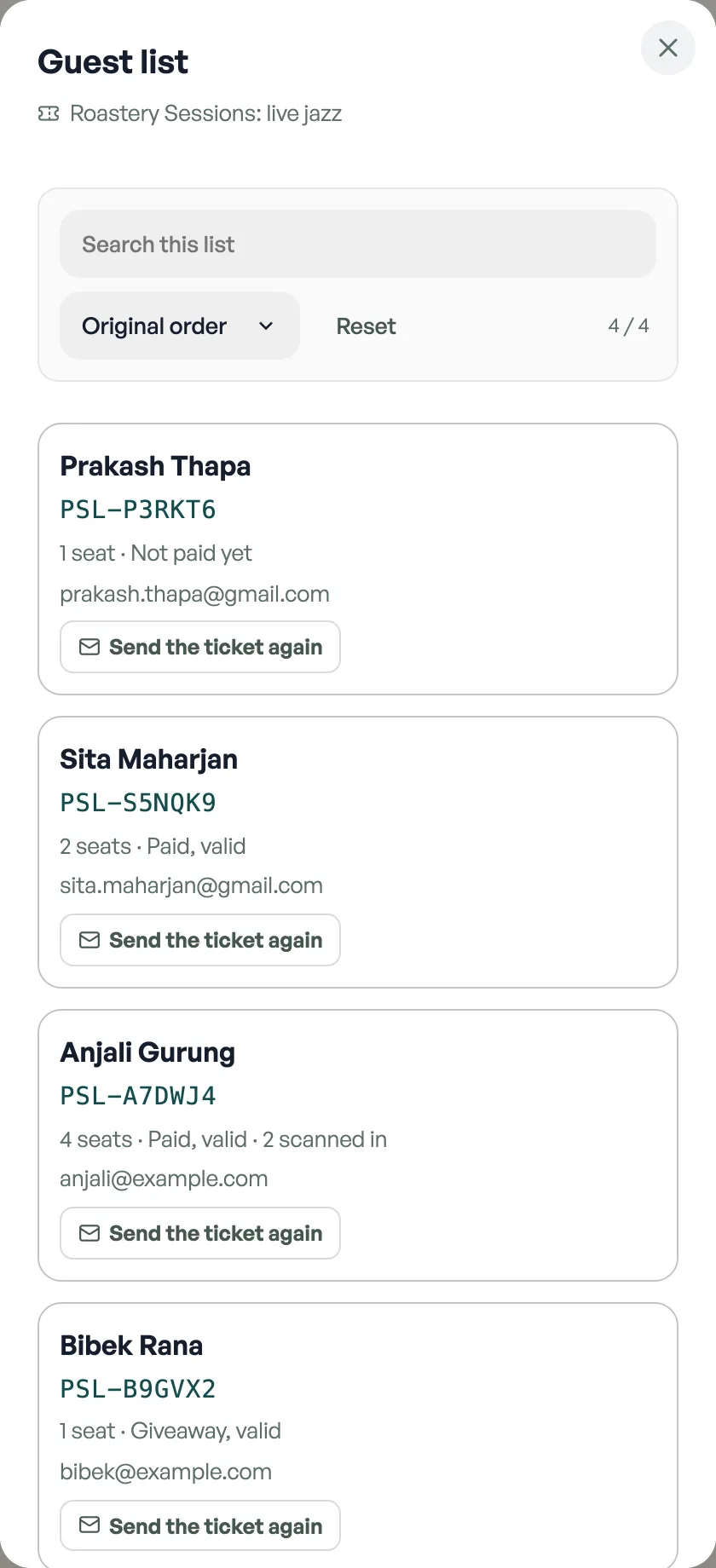
One row per booking, not per seat. A family of six who never got their email is one phone call and one address, not six.
From the order, if you have the order number
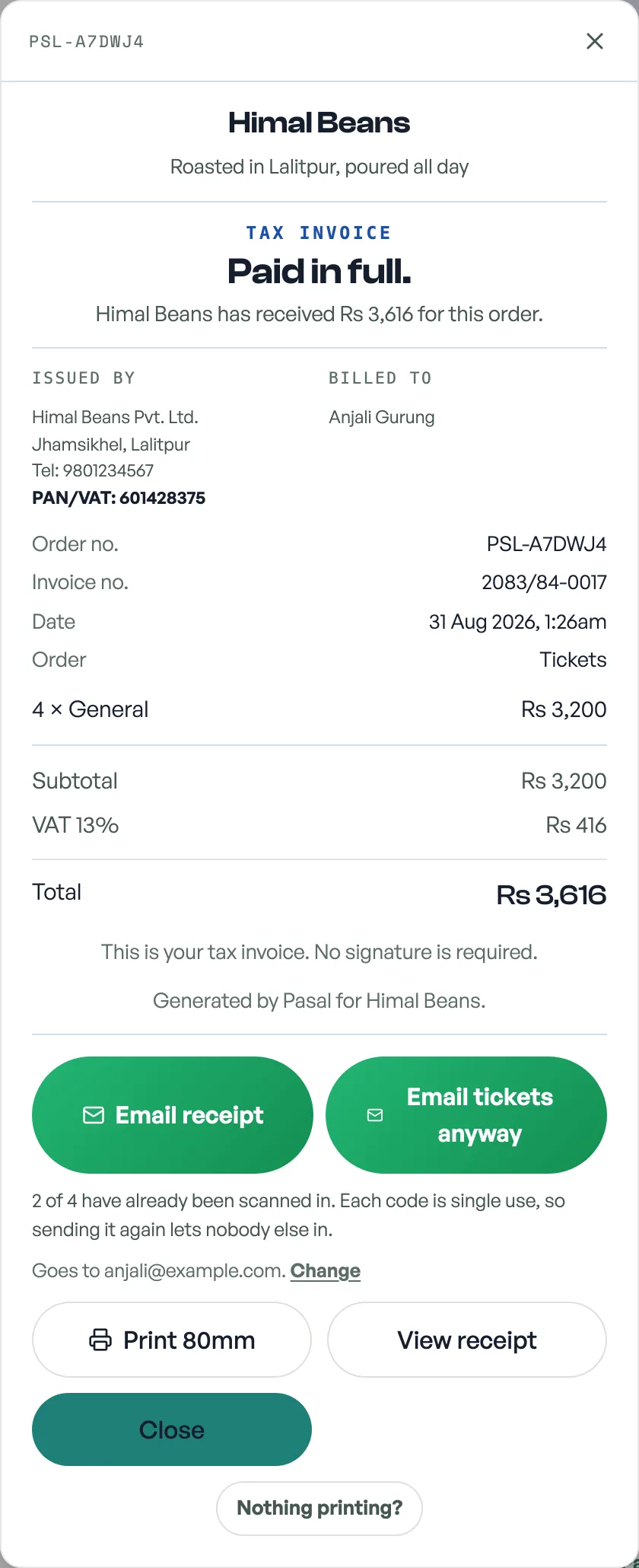
Open the order from Orders, or from Sales under More, and press Email tickets. It sits next to Email receipt, and the two are kept apart on purpose: a receipt proves a payment, a ticket opens a door, and you should never have to work out which one a single button would send.
The codes never change
Sending again mails the same QR codes the door already knows. That is deliberate. Fresh codes go wrong in one of only two ways: either the old QR still works and one paid seat lets two people in, or the old QR stops working and a guest who did save the first email is turned away by your own door.
The email says out loud that it is a second copy, so nobody reads it as a fresh charge or thinks their first ticket has been cancelled.
When it warns you
If a seat on the order has already been scanned in, Pasal says so before you press, and the button reads Email tickets anyway. It warns rather than refuses, because each code works exactly once, so sending it again lets nobody extra through the gate. Usually it means the guest is already inside.
When it will not send
- Not paid yet. The door would turn your guest away, so there is nothing worth sending. Mark the order paid and the tickets go out on their own; you can send them again from here afterwards. See Getting paid for tickets.
- Cancelled. Those codes no longer open the door, and mailing them would hand your guest something the gate is already set to refuse.
- No seats left on the order. There is nothing on it to send.
Giveaways can always be sent. A comp order stays unpaid for ever, on purpose, so the guest most likely to have nothing on their phone is exactly the one this reaches. See Give a guest a free ticket.
Sending to a corrected address does not change the address on the order, so the customer's own record stays as they typed it.
- Give a guest a free ticketIssue a comp ticket to a named guest: it takes a real seat, scans at the door, and never counts as earnings.
- Getting paid for ticketsA ticket is held, not sold, until you say the money arrived. Here is the whole path from checkout to the door.
- Sell tickets to your eventsPut a gig, show or workshop on sale, take bookings, and scan people in at the door.