
Help · Events & tickets
Getting paid for tickets
A ticket is held, not sold, until you say the money arrived. Here is the whole path from checkout to the door.
Selling a ticket online has a gap in it: the buyer wants the ticket before you have the money. Pasal closes that gap by not issuing one until you say the money arrived. The seats are held under their name straight away, but there is no QR and no code anywhere, on the confirmation screen, on their ticket page or in their email, until you press Mark paid.
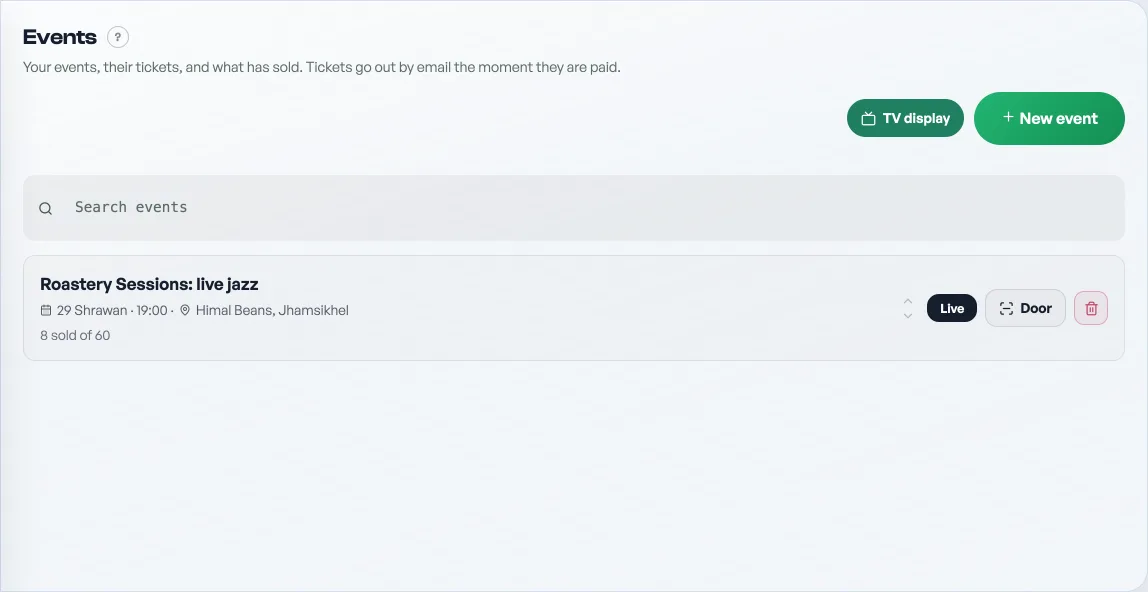
What the buyer does
- They pick their tickets on your event page and fill in name, phone and email. All three are required: the email is where the tickets are delivered, and you need a way to reach whoever is coming.
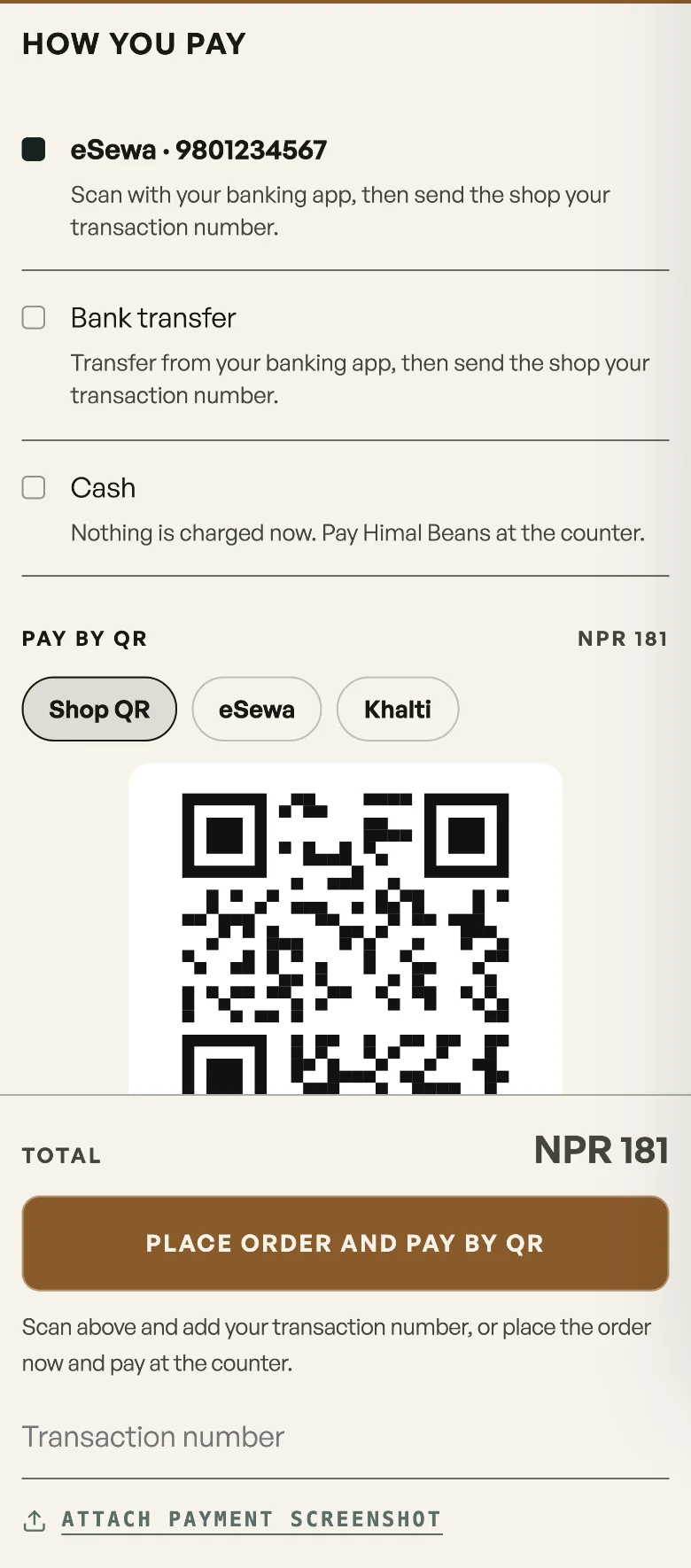
- They go to a payment screen. If you have uploaded a payment QR or filled in a bank account, pressing Get tickets opens a second step, Pay to confirm. Offer both and the buyer picks one first. Then your QR or your account details, the exact amount, and boxes for the transaction number and a screenshot. Nothing is reserved yet, so a buyer who wanders off at this point holds no seats.
- They press "I have paid". Now the seats are taken. The confirmation says Held for you, not "you're in", and tells them their tickets arrive by email once you confirm the payment. They get a "seats held" email with the order number to quote, and no ticket in it.
Nothing on file, no QR and no bank account? Checkout stays one step. The tickets are still held; the buyer is simply told to settle with you directly. See Take payment by QR for the upload.
What you do
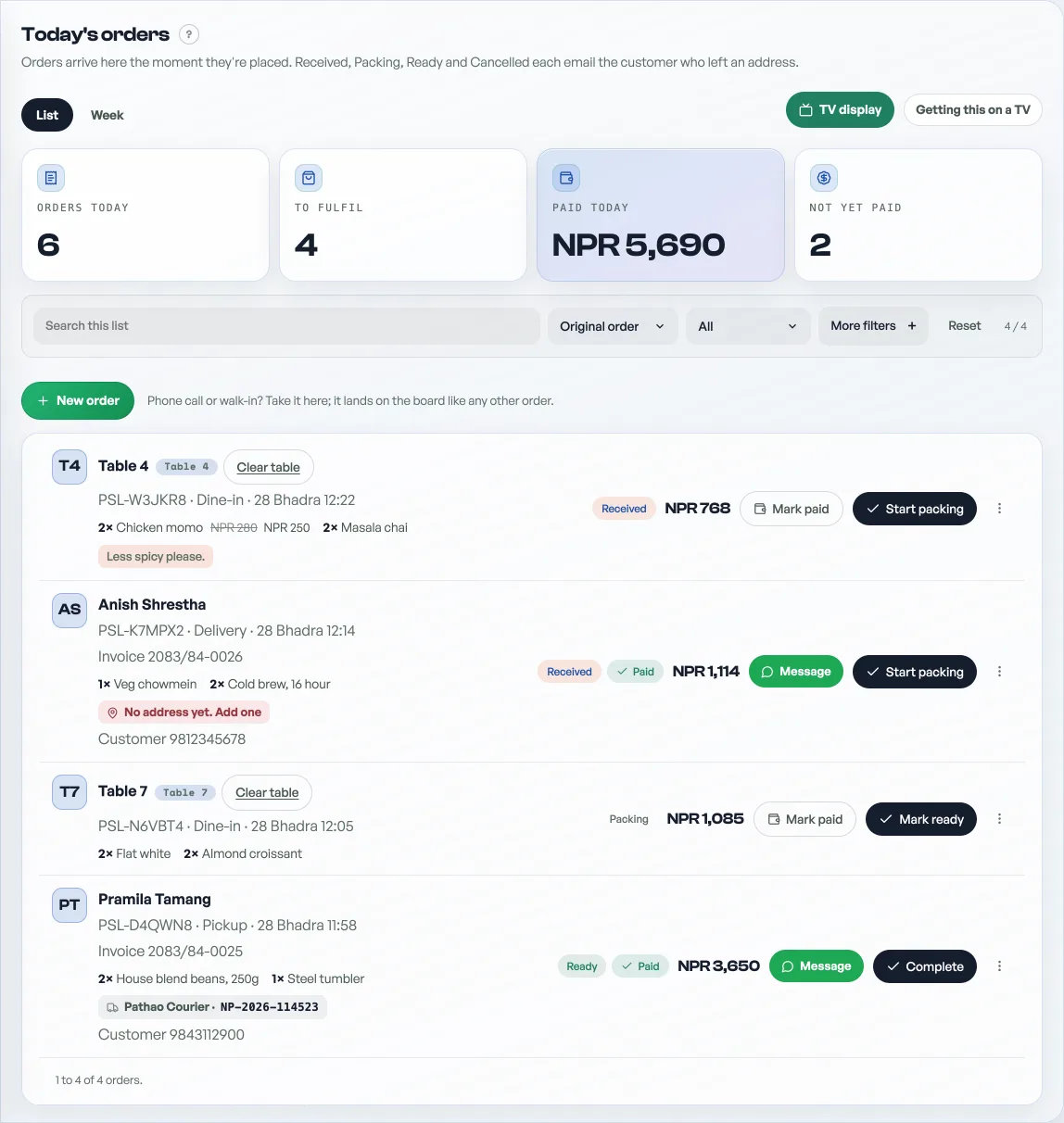
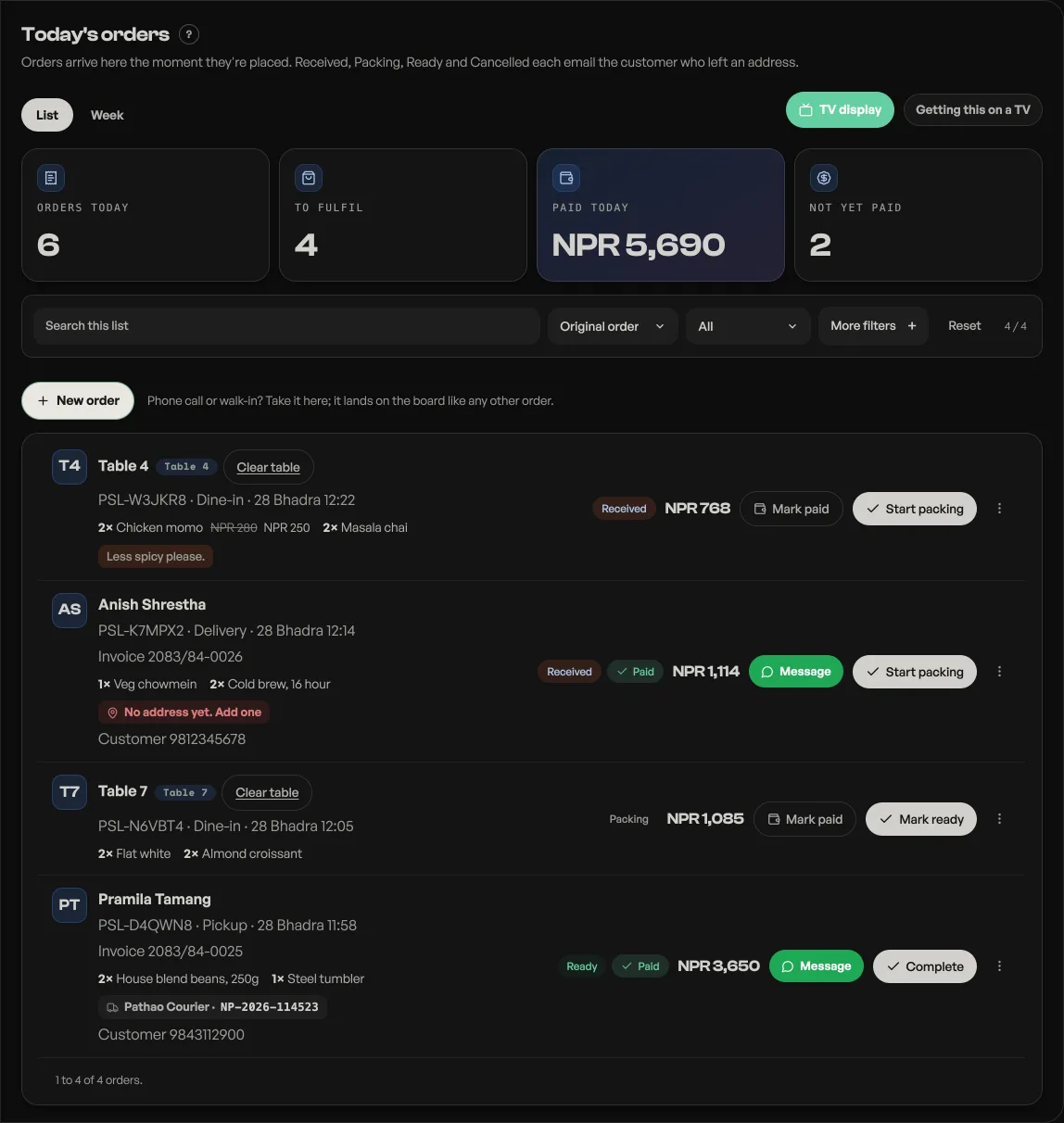
- The sale lands on your Orders board as an unpaid order marked Tickets, with the transaction number and a View screenshot link on the row. Ticket orders have no packing ladder: there is nothing to pack, so the only button that matters is Mark paid.
- Check it against your own account. Open your bank or wallet app and find the payment. A screenshot is a claim, not a payment, and Pasal never decides that money arrived.
- Press Mark paid. The tickets are issued in that moment: the buyer gets a second email, Payment received, carrying every QR code and a printable PDF, and the order files itself away off the active board. No email before this one carries a ticket.
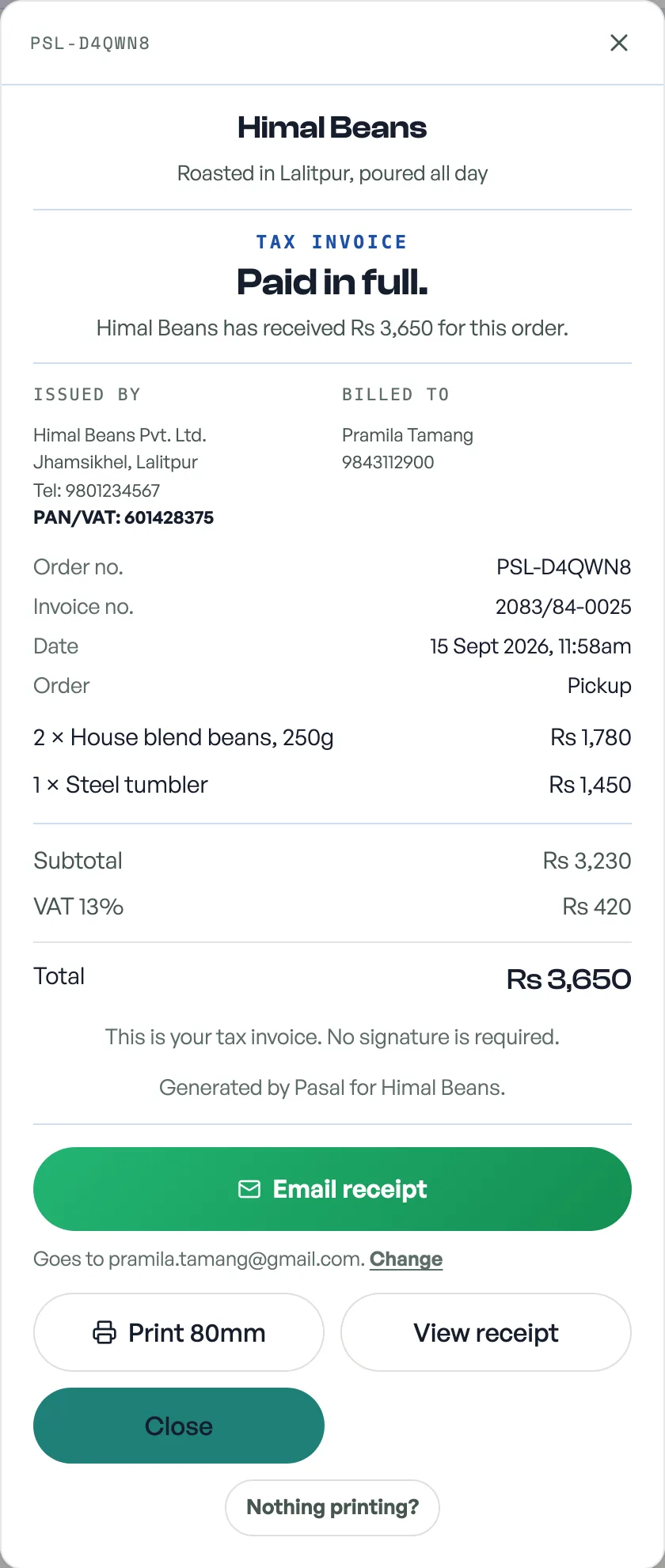
If that email never reaches them, you can send it again, with the same codes. See Send a guest their ticket again.
A free event needs none of this. If the tickets cost nothing there is nothing to collect, so the order is settled the moment it is made and the guest gets their tickets there and then.
Why so strict? A QR that the door will refuse is worse than no QR: the guest believes they have a ticket, and the argument happens at the gate with a doorman who is right and a guest who is furious. Nobody is handed anything until it works.
Tell them how to pay you
Open Shop profile, then Payments, and fill in How customers pay you: an eSewa number, a bank account and the name on it, "cash at the gate". That line is what a held ticket shows the buyer while it waits. Leave it empty and they are told to pay without being told how.
Somebody turns up unpaid
The door scanner refuses them with Not paid yet and shows who they are, how many seats are on the order, and the amount owing. Take the cash and press the green button, which names that amount: it settles the whole order and lets them in. The figure is the whole order, not one seat, so if four people booked together, take all four fares. See Run the door with the ticket scanner.
Voiding a sale
Cancel the order and every ticket on it dies with it: the door says Order cancelled, and the seats go back to your capacity for someone else to buy. Pasal asks you first, and lets you write a reason that goes to the buyer in the email, which for a called-off event is the whole message. Cancel is only offered while the order is still Received, so void a bad sale before you mark it paid, not after. See Cancelling an order.
Giveaway tickets never wait on any of this. They were never going to be paid for, so the door admits them straight away. See Give a guest a free ticket.
- Send a guest their ticket againA guest says the email never arrived. Send it again from the order or from the event's guest list, with the same codes.
- Run the door with the ticket scannerOne scanner for every event you run, what each answer on screen means, and taking money at the gate.
- Give a guest a free ticketIssue a comp ticket to a named guest: it takes a real seat, scans at the door, and never counts as earnings.