
Help · Events & tickets
Run the door with the ticket scanner
One scanner for every event you run, what each answer on screen means, and taking money at the gate.
The door is the one place a ticketing system earns its keep. Open the Door scan tab, or press Door on any event row on the Events tab, and the whole screen becomes a scanner.
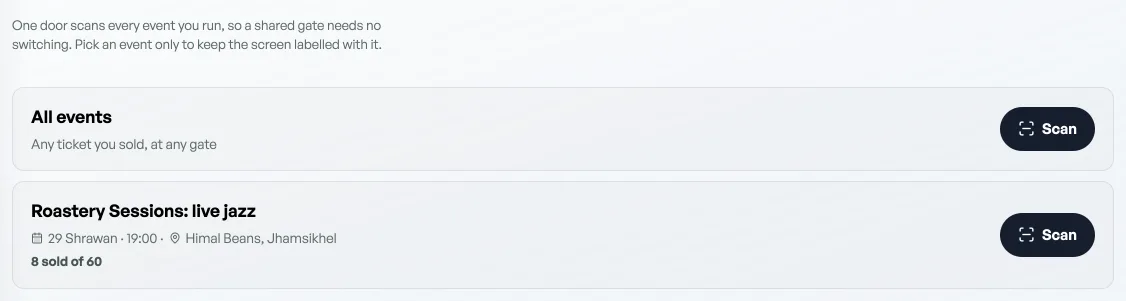
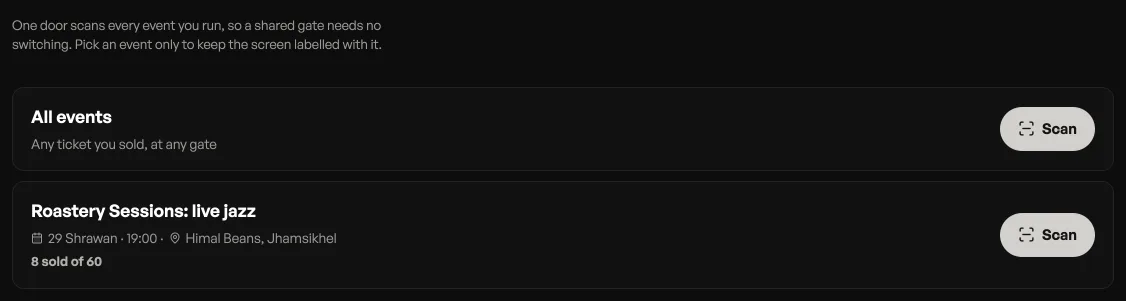
One door, every event
The scanner is not tied to one night. Press All events and it reads any ticket you sold, at any gate, which is what a festival with three stages actually needs. Picking a named event only labels the screen; it does not narrow what scans.
What keeps that safe is the clock, not the label. A ticket opens the door only while its event is on: from six hours before the start until twelve hours after. So tomorrow's crowd cannot walk into tonight, and a night you have marked Ended stops admitting the moment you mark it. Every green result still names the event it belongs to, which is worth a glance if you run two rooms at once.
Scanning
- Point the camera at the QR. It reads continuously; you do not press anything. The same ticket held in front of the lens is only processed once, so a slow queue does not spam the screen.
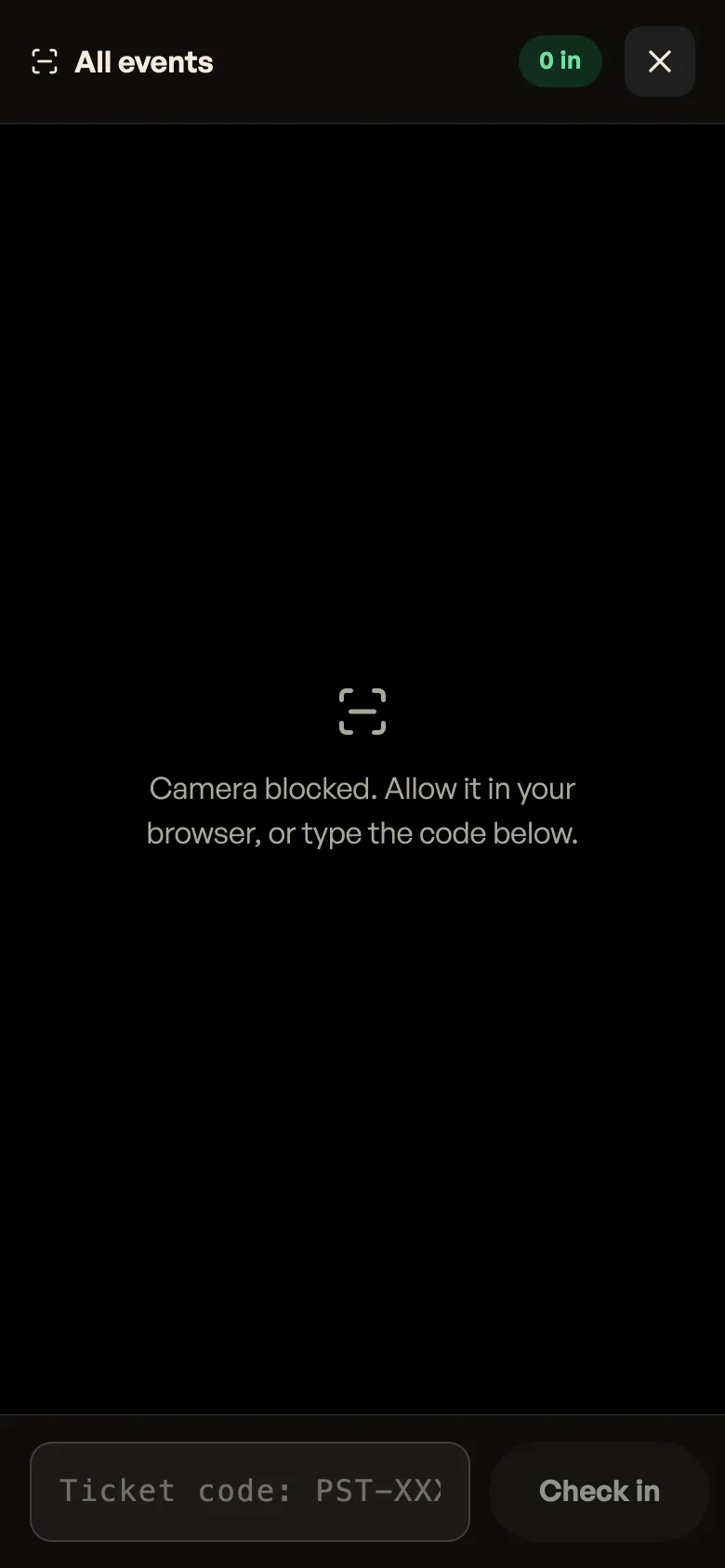
- Watch the banner and the buzz. One short buzz means in, three short buzzes mean stop. The count at the top right is how many you have admitted on this device since you opened it.
- No camera? Type the code in the box at the bottom (they look like PST-XXXXXXXX) and press Check in. A USB barcode scanner works too: it types the code for you. If the camera was blocked by mistake, allow it in your browser and reopen the scanner.
What the answers mean
- Admitted: let them in. The name, the tier and the event are on the banner, plus Guest pass if it is a giveaway. When several seats were booked on one order the banner counts them, 1 of 4 in, and offers Admit the other 3. That is a second, deliberate tap for when you can see the rest of the family standing there: a plain scan never admits more than the one seat, so nobody waves in strangers on somebody else's code.
- Already used: this code has walked in once already. The banner tells you when, and who admitted it. A code works exactly once, and this is what stops one ticket getting two people in.
- Not paid yet: the tickets are held, not bought. This banner waits for an answer instead of clearing after a couple of seconds. Take the money and press the green button, which names the amount for the whole order and admits them, or press Not now and send them to the box office. See Getting paid for tickets.
- Not open yet: a real ticket, but for a night that has not come round. The banner names the event and when it starts. Scanning begins six hours before that.
- Event already over: that night finished more than twelve hours ago. The banner says which night it was.
- Event has ended: you marked the event Ended, so nothing on it scans. If the night is in fact still running, put it back to Live on the Events tab and carry on.
- Event not live: the event has gone back to draft. Set it Live to let its tickets in.
- Order cancelled: the sale was voided. Do not let them in.
- Not your ticket: a real Pasal ticket, but it belongs to another shop.
- Not a valid ticket: not a code we ever issued. Usually a typo, or the QR on the back of something else.
Who let them in
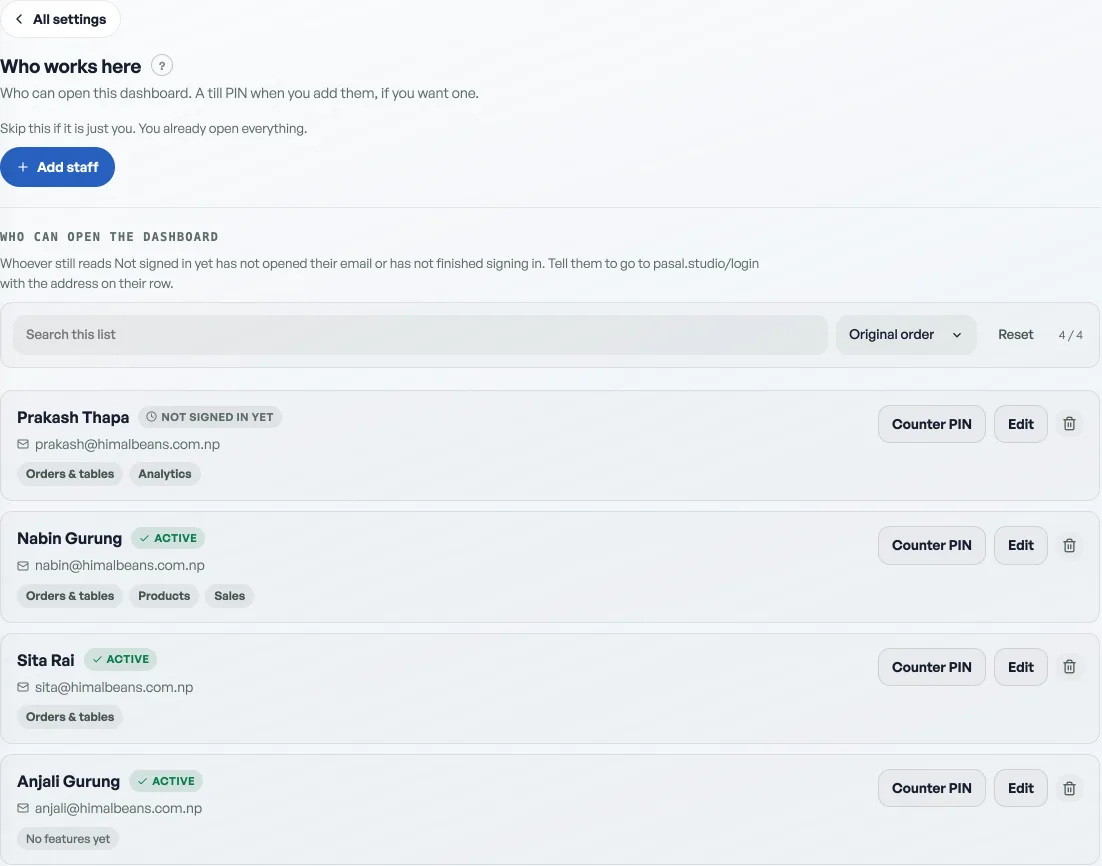
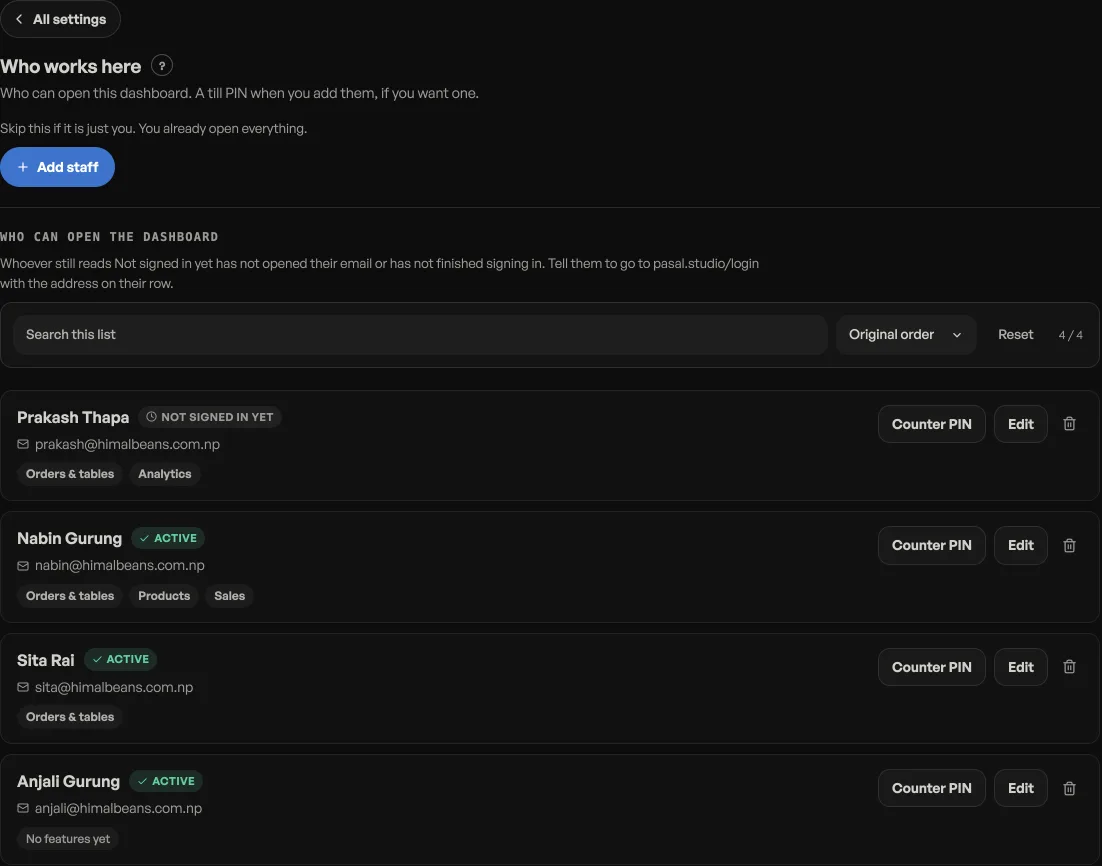
Every admission records the account that scanned it, and a second scan of the same code says who was on the door the first time. That record is only as useful as your logins: if the whole door team shares your account, every check-in says you. Give each person their own staff account with the Events and doorpermission and the record names a person. See Add staff and choose what they see.
Practical things
- The scanner needs a signal. Every code is checked against your shop, so a phone with no data cannot admit anybody. Test the gate's signal before doors open.
- Two people can scan at once on two phones. Each ticket is claimed by whichever scans first, so the second gets Already used, never a double entry.
- Check the event's date and time before the night, not at the gate. The door goes by that time, so an event saved with the wrong hour refuses real ticket holders. See Event dates, on sale times and lineup order.
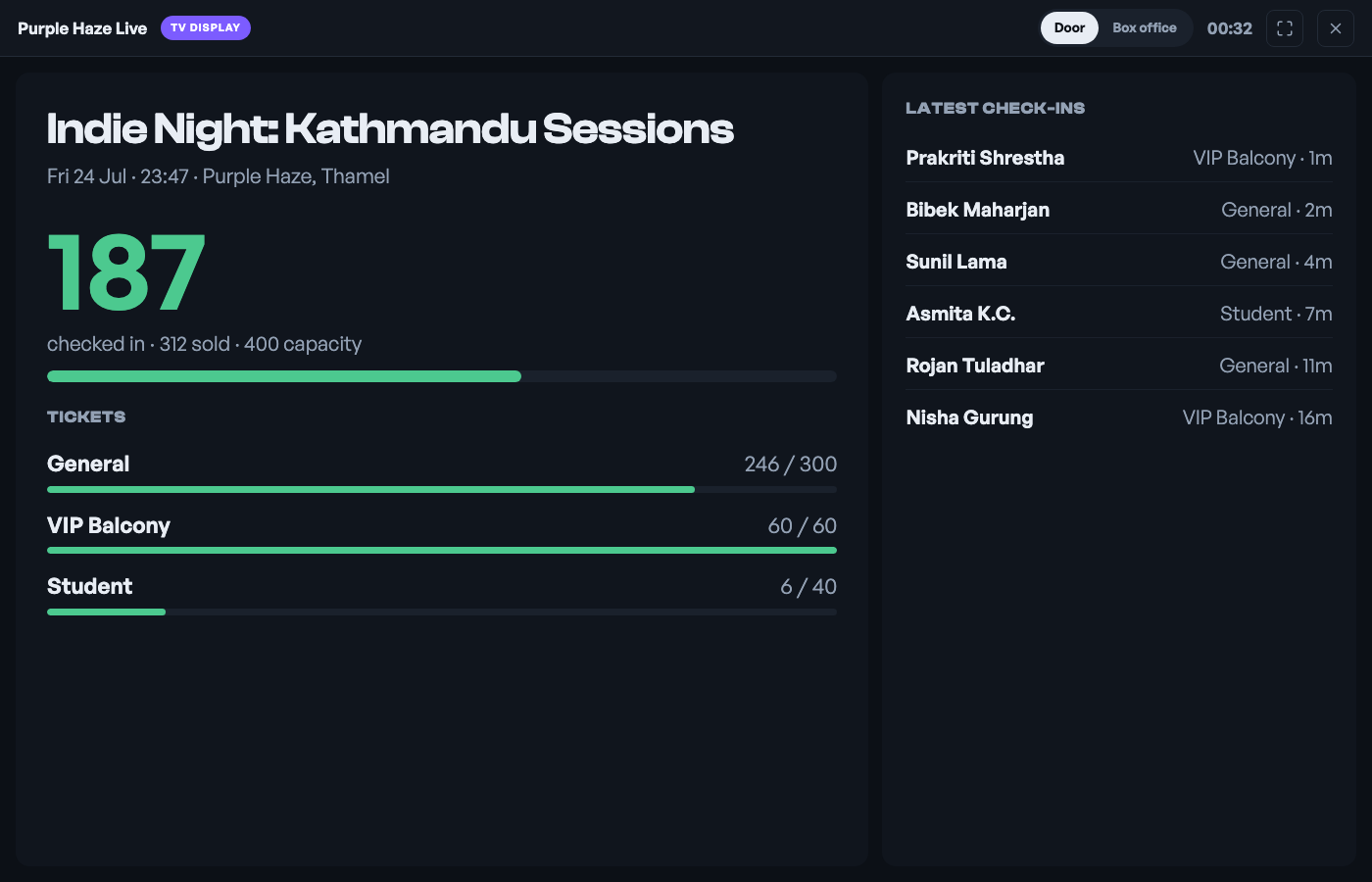
- Hang a TV at the gate to show the live checked-in count and the latest arrivals. See Put your orders on a TV.
- Getting paid for ticketsA ticket is held, not sold, until you say the money arrived. Here is the whole path from checkout to the door.
- Event dates, on sale times and lineup orderWhen tickets start selling, what draft, live and ended each do, and which event sits at the top of your storefront.
- Sell tickets to your eventsPut a gig, show or workshop on sale, take bookings, and scan people in at the door.