
Help · Money
Work out what a job kept
Open a book for one job and it answers what came in, what it cost, and what stayed with you.
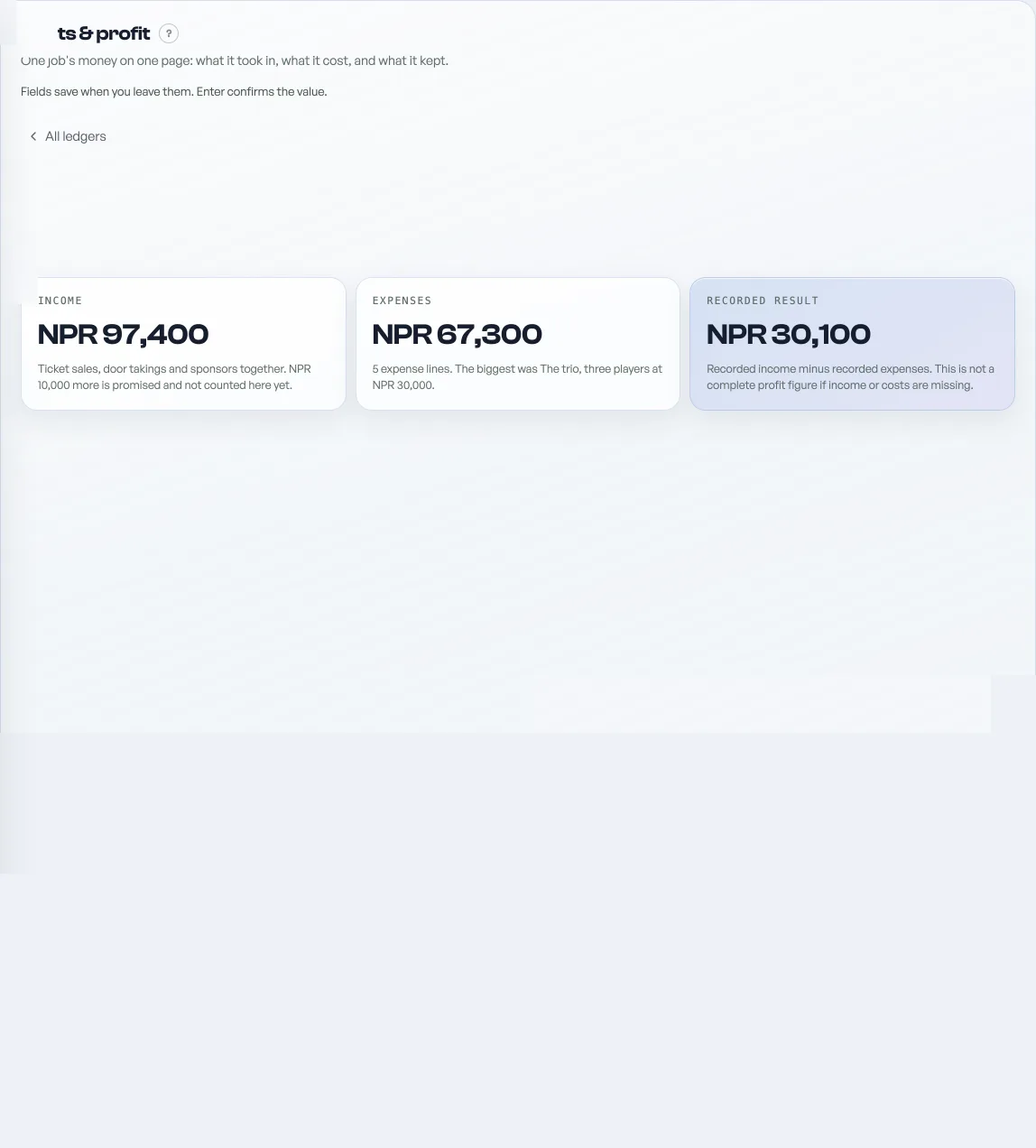
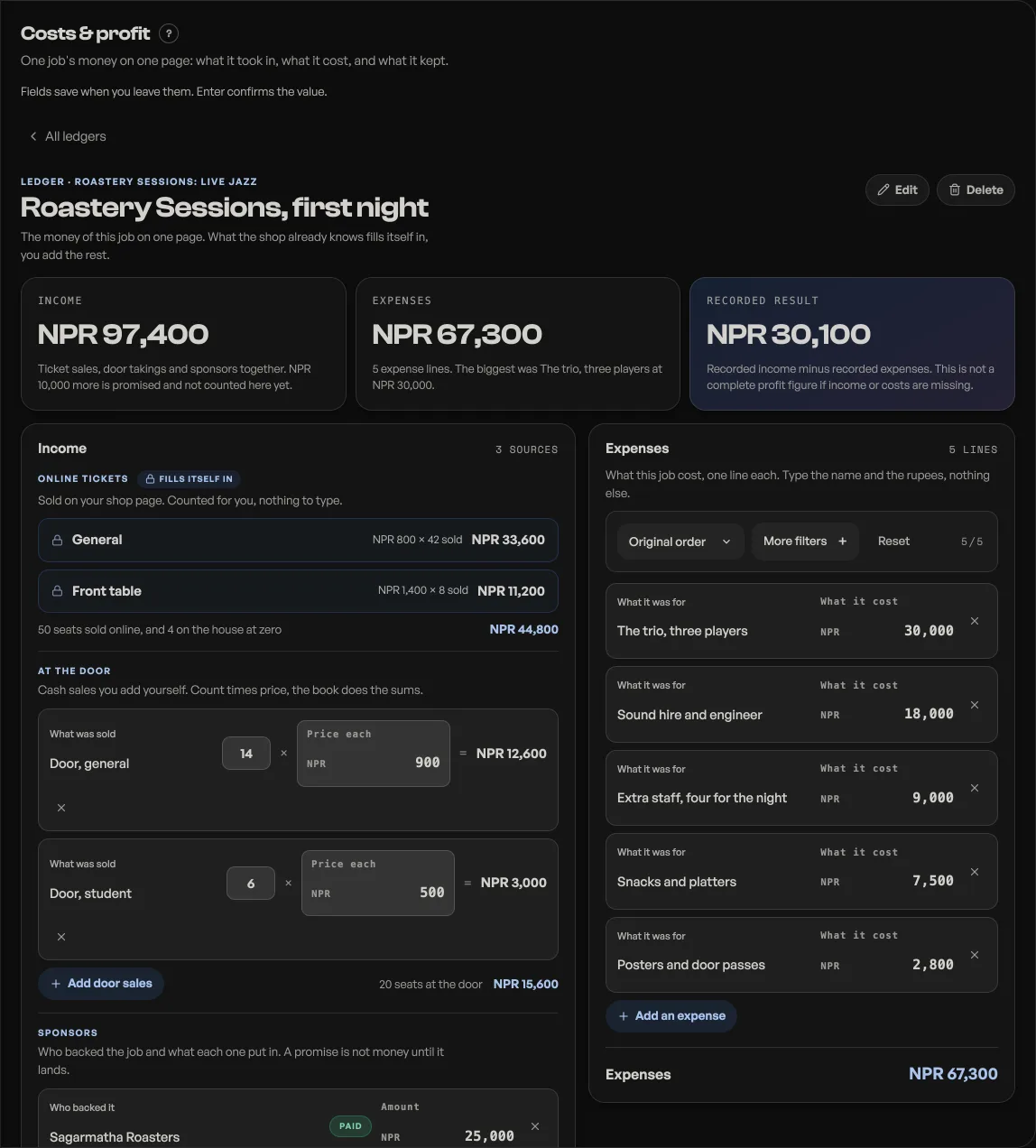
Your dashboard has always known what came in. It has never known what a job cost you, because the venue, the sound hire and the extra staff live in your head. The Costs & profit tab is the book for that. Open one for a job and it tells you what the job kept.
Open a book
- Press New book. Say what the book is about. The subject decides what fills itself in.
- Name it the way you would say it out loud. Roastery Sessions, first night. Shrestha wedding, 240 plates.
- Type what the shop cannot know: takings you counted by hand, money from outside the counter, and every expense. The rest is already there.
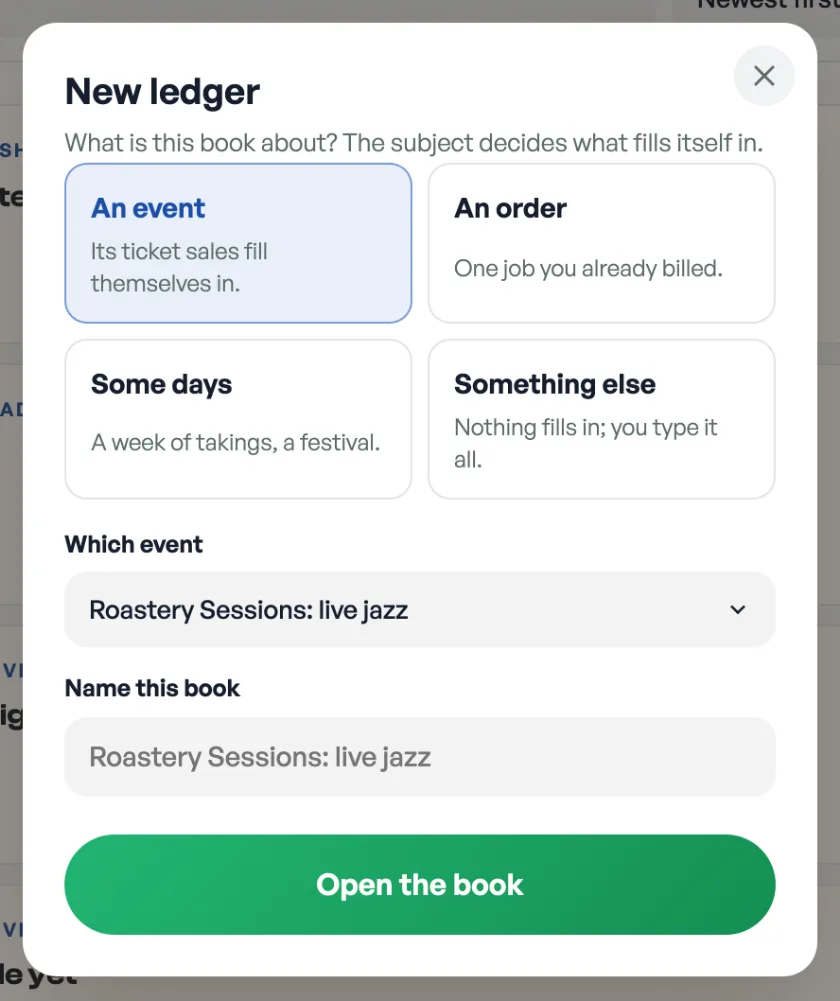
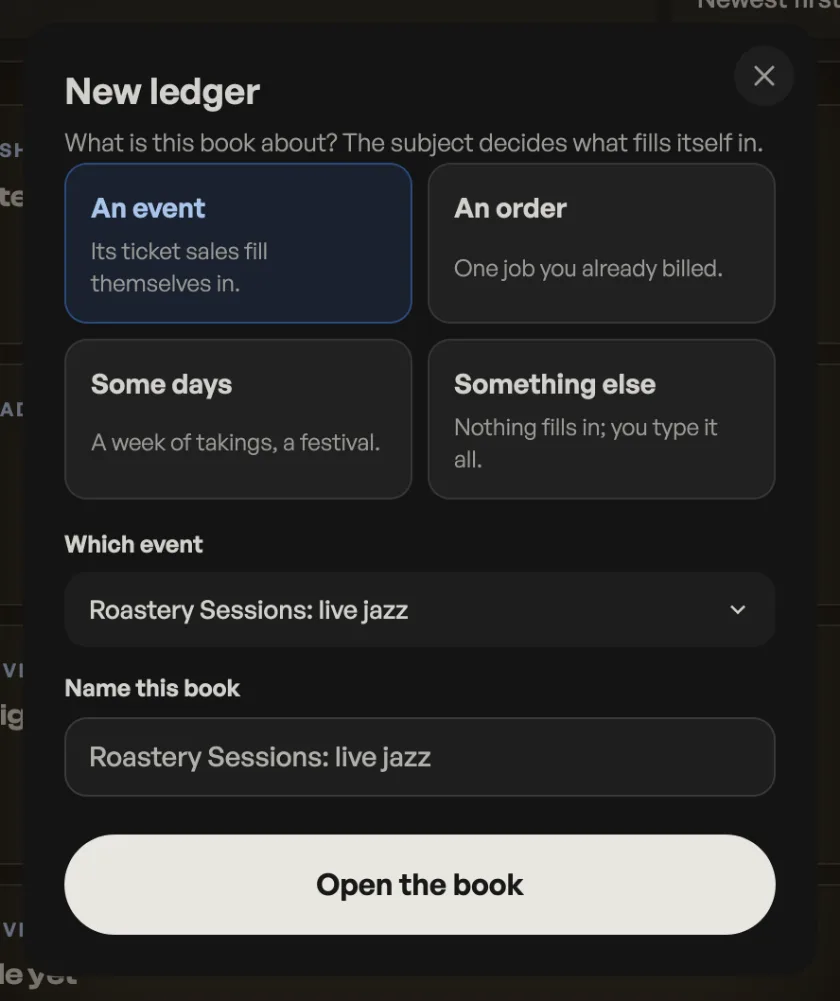
Four subjects
- An event: the ticket sales fill in one row per tier, each priced at what that tier actually sold for. Tickets given away are counted and priced at nothing, and the guests scanned in at the door are counted too.
- An order: that one order's own total. This is the one for a caterer costing a wedding already billed.
- Some days: every paid order across the dates you pick, split into counter sales and online orders. This is the one for a festival week.
- Something else: nothing fills in and you type it all, for a job Pasal never sold.
The rows with a lock
Rows carrying a small lock and the words Fills itself in come from your own sales, and are worked out again every time you open the book. You cannot type over them and you do not need to: if a late ticket sells tonight, the book has it tomorrow. Cancelled orders are left out, and an unpaid one counts as nothing until you mark it paid.
The rows you type
- Added by hand, which an event book calls At the door. A count and a price each, 14 at NPR 900, and the book multiplies for you.
- Other money in: a sponsor on an event book, a deposit or a partner on any other. Each line carries a chip that reads Paid or Promised. Tap it the day the money lands.
- Expenses: one line each, the name and the rupees, nothing else. The trio, NPR 30,000. Sound hire, NPR 18,000.
Promised money is never counted
A sponsor who has promised NPR 10,000 is shown in the book and in the sponsor subtotal, so you can see who still owes you. It is kept out of Took in and out of Kept, because those two numbers are what your shop actually has, not what it has been told it will get. Tap the chip to Paid when the money arrives and both figures move.
The verdict
Three cards sit across the top of every book. Took in is everything counted and paid. Spent is your expense lines added up. Kept is the difference, and it is the reason the tab exists; it turns red when a job spent more than it took.
Below the two boards a strip does the arithmetic you would otherwise do on paper: cost per guest on an event or kept per day over a span of days, the seat the night broke even on, and your margin. Seat 36 of 70 is the figure to price the next night with.
Who can open it
The job book has a permission of its own, Costs & profit (job book), under Shop profile, Who works here. It used to ride on the same tick as Sales, and that was wrong: Sales is the month's invoices, while the job book is what a job cost and what it kept. Handing the person who writes your invoices a view of every job's profit is not a decision you ever made, so it is now a separate tick. Ticking Sales no longer opens Costs & profit, and ticking Costs & profit no longer needs Sales.
If you do not want the tab at all, turn Ledger (job book) off under Shop profile, What this shop does. It is the same tool the staff tick calls Costs & profit (job book).
The job book is a Pro tool
Opening a new book needs Pro. Everything about the books you already have keeps working on the free plan: you can read them, add expense lines, change figures, mark a promised sponsor as paid and finish costing a job that is half done. Only opening a new book stops, whether you press New ledger here or write down a cost for a new period on Paid out. A job you were part way through is never frozen. See What Pro costs and how to turn it on.
A book costs one job. For the profit on everything you sell, day after day, give your products a cost price instead: see Track cost price and profit. For the month your accountant asks for, see Check the month's takings.
- Track cost price and profitGive each product a cost and every money surface reports profit, not just takings.
- Check the month's takingsThe Sales tab month by month: what counts as paid, what is still owed, and the spreadsheet for your accountant.
- Write down what your shop paid outOne errand: type a cost, and see where the money went. Wages and goods sit beside the total and are never added into it.