
Help · Money
Track cost price and profit
Give each product a cost and every money surface reports profit, not just takings.
Takings tell you what came in; profit tells you what you kept. Give a product a cost price, what it costs you to buy or make one, and the dashboard works the rest out everywhere money is shown.
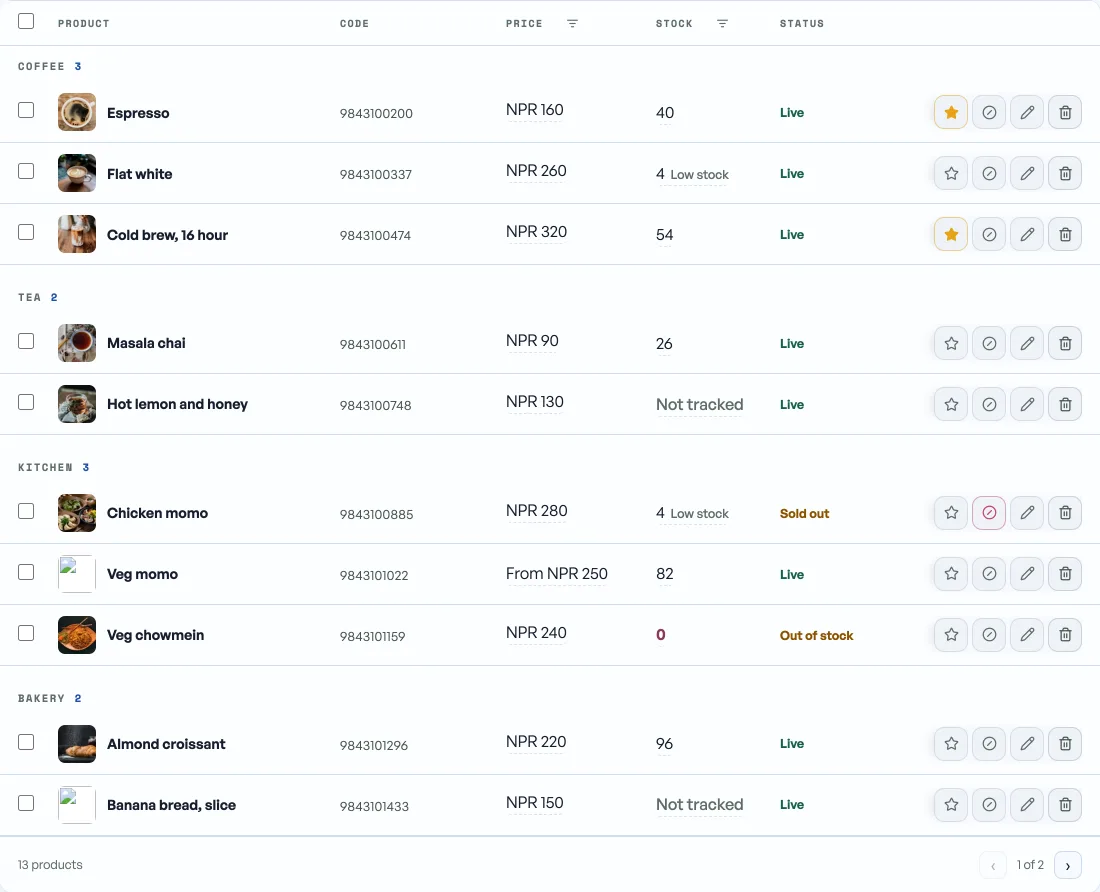
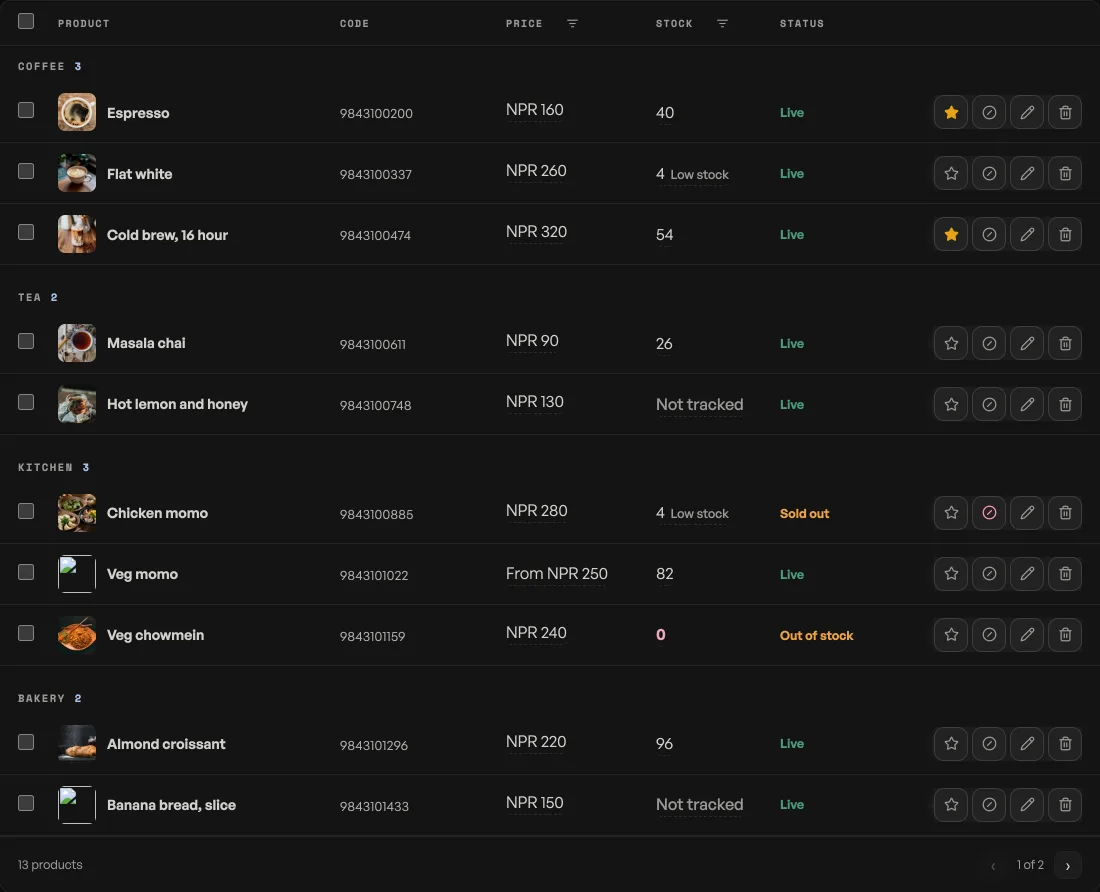
- Add a cost: in the Products tab, edit a product and fill the cost field, or tap the cost line on any tile in the counter. Custom amounts rung on the counter can carry a cost too. Staff cannot see or change a cost, on the shelf or at the till.
- Where profit shows: Home's Profit today tile, the Repairs tab's profit tile (charged minus parts), Visitors & sales over 7, 30 or 365 days, the Sales month card, the CSV export's Cost and Profit columns, and the daily summary email.
- Blank counts as no cost: a product with no cost recorded never invents a margin, but its whole selling price lands in profit, so the figure is overstated until your shelf is costed. It settles as you fill costs in, and it is worth doing your best sellers first: they move the number most.
- Customers and staff never see it: costs live in their own owner-only records. Your storefront, receipts, invoices, customer emails and the customer window carry selling prices only. The cost line on the counter is for you, the owner, not for a cashier.
Discounts come out of profit automatically: a haggled line is counted at the price actually paid. See Give a discount at the counter.
Read next
- Give a discount at the counterAgree a price out loud and put it on the bill: one line, the whole bill, or an online order.
- Work out what a job keptOpen a book for one job and it answers what came in, what it cost, and what stayed with you.
- Write down what your shop paid outOne errand: type a cost, and see where the money went. Wages and goods sit beside the total and are never added into it.
Still stuck? Message usTell us what is happening and we will reply, usually the same day.
WhatsApp usOr email support@pasal.studio