
Help · Money
Check the month's takings
The Sales tab month by month: what counts as paid, what is still owed, and the spreadsheet for your accountant.
The Sales tab is your book of sales. It used to be called Bills. It is not the Sales pane on Accountant, which is a period register, and it is not Plan & billing under Shop profile. Pick a period at the top and it loads every order in it, up to a year back.
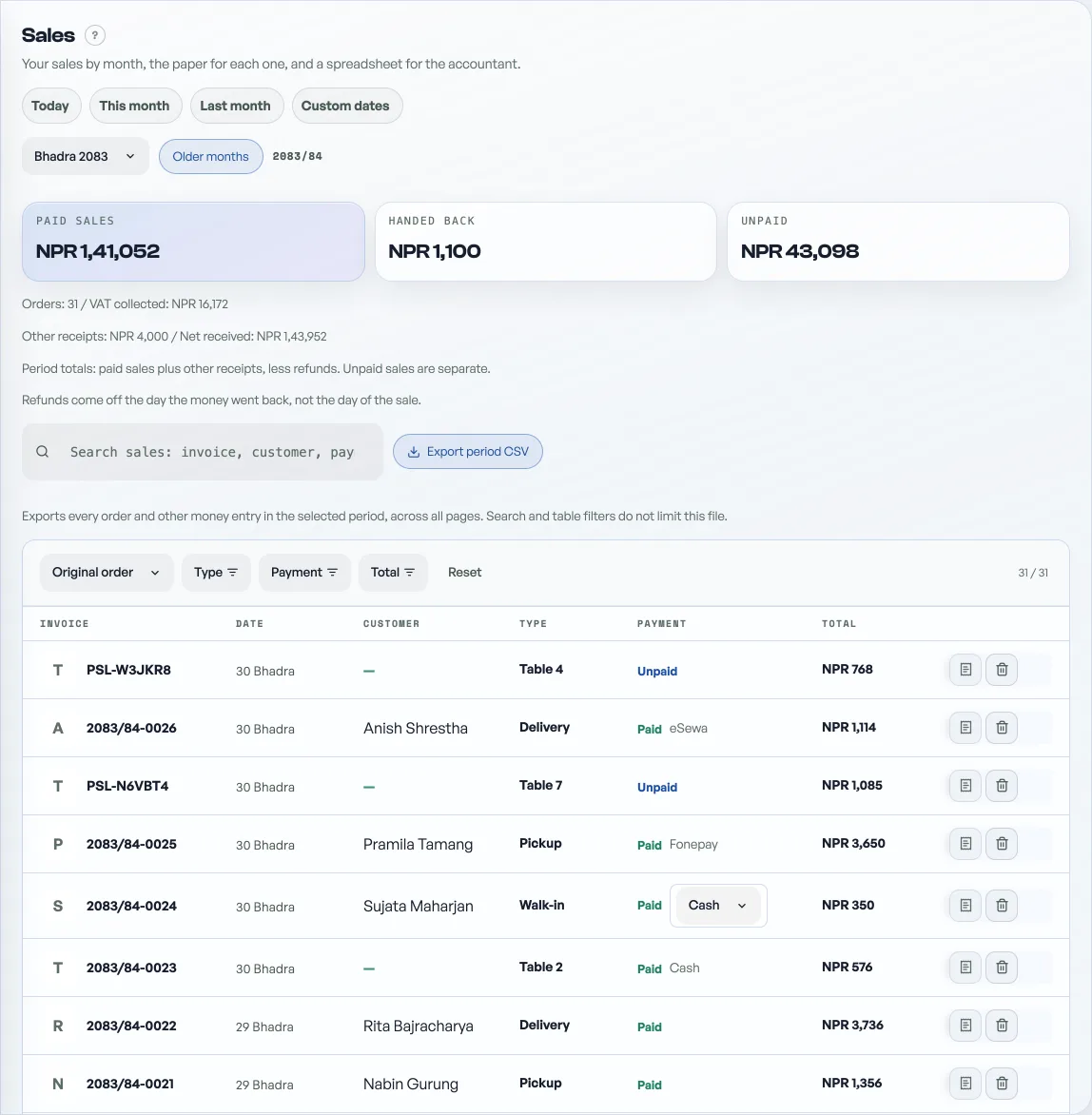
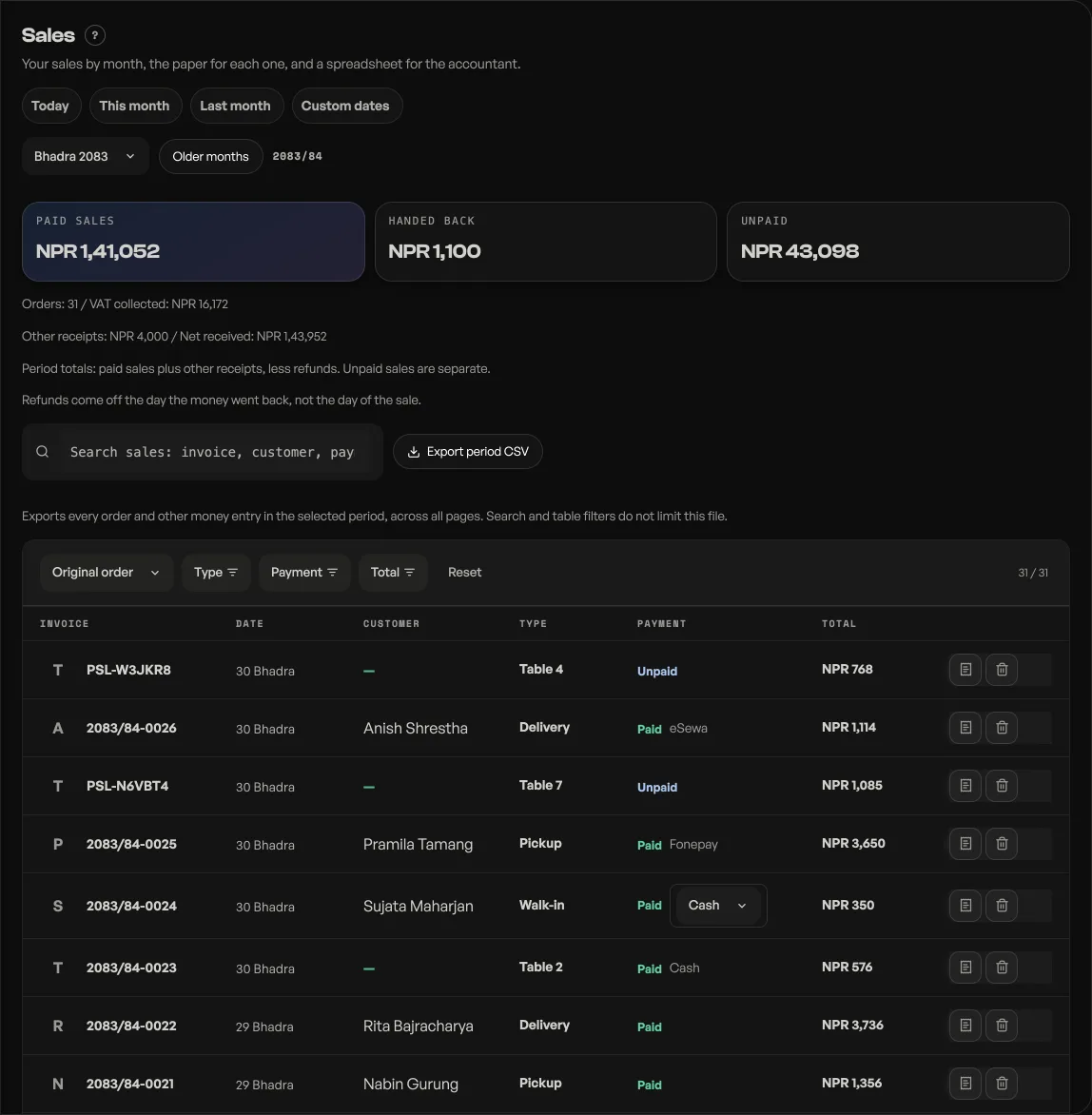
The months are Nepali months, Shrawan, Bhadra, Ashwin and so on, because that is what your books are kept in, and the fiscal year sits beside the picker. See Dates on your dashboard.
- Orders: how many you took that month. Cancelled orders are left out of the totals, so a void never flatters the figures. A refund comes off Paid sales on the day the money went back, and a Handed back tile appears saying how much, so a total that shrank explains itself. Orders, paid sales, VAT, profit and money handed back each name the month before.
- Paid sales: everything the shop actually took that month. The orders you ticked Mark paid, plus repair money collected, khata settled and any revenue line you typed into a job book, less anything handed back. Money in, not money promised.
- VAT collected: the VAT on those paid orders, ready to hand over. It stays at zero until you turn on VAT registered under Shop details.
- Unpaid: what is still owed to you. Working through this list is usually the fastest money you will make all week.
Ticket sales start out unpaid
A ticket sale writes a real order, but nobody has handed you cash yet, so it arrives unpaid like any other. Until you press Mark paid it counts under Unpaid, not Paid sales. The same goes for an order that came with a payment screenshot: the screenshot is a claim, and only you can say the money arrived. See Take payment by QR.
The spreadsheet for your accountant
Press Export period CSV and the period downloads as a spreadsheet named after your shop and the month. One row per order, with the columns an accountant asks for: order code, then Date (BS), Time and Date (AD) in three columns of their own, customer, phone and address, fulfilment (Pickup, Delivery, Dine-in or Tickets), status, counted in totals, paid yes or no, the promo code used, then subtotal, discount, service, VAT, delivery and total, then cost and profit, then the courier and tracking number.
Both calendars get a column because a spreadsheet has to do two jobs: sit beside your own ledger, which is Nepali, and sit beside a bank statement, which is not.
The export holds every order of that month, cancelled ones included, and leaves the Status column there for your accountant to decide with. Counted in totals says which rows the tiles above actually added up, so the two never disagree without explaining themselves.
The Promo column is also the honest answer to "did that offer work": sort by it and count.
One order at a time
Every row carries an invoice button. It opens the printable bill with your PAN details, the lines and the totals, the same one you hand over at the counter, and the buttons to print it, view it or email it again. Paid rows show the tax invoice number in the Invoice column. Unpaid rows show the order code. See Tax invoices and sales records.
The morning letter
You do not have to open the tab to know how yesterday went. On any morning that had orders, Pasal emails you a short summary: how many orders, what was paid, the counter and online split, your three best sellers, anything running low, and today's bookings. Switch it off under Settings, Account, with Daily summary email.
Visitors & sales shows a different number on purpose. Its revenue tile covers the last 7 or 30 days, not a calendar month, so it will rarely match Paid sales. Sales is for your books; Visitors & sales is for what is working.
- The pack to hand your accountantSales, spending and wages for a period, on four panes, each with a download. It reads and exports, and writes nothing.
- Tax invoices and sales recordsPAN/VAT invoices and a record of every sale for your accounts.
- Take payment by QRPut your eSewa, Khalti, Fonepay or bank QR on checkout and collect the proof.