
Help · Events & tickets
Give a guest a free ticket
Issue a comp ticket to a named guest: it takes a real seat, scans at the door, and never counts as earnings.
Every event has a handful of people who are not buying: the press, the band's cousin, the person who lent you the PA. A giveaway ticket is a real ticket you did not charge for.
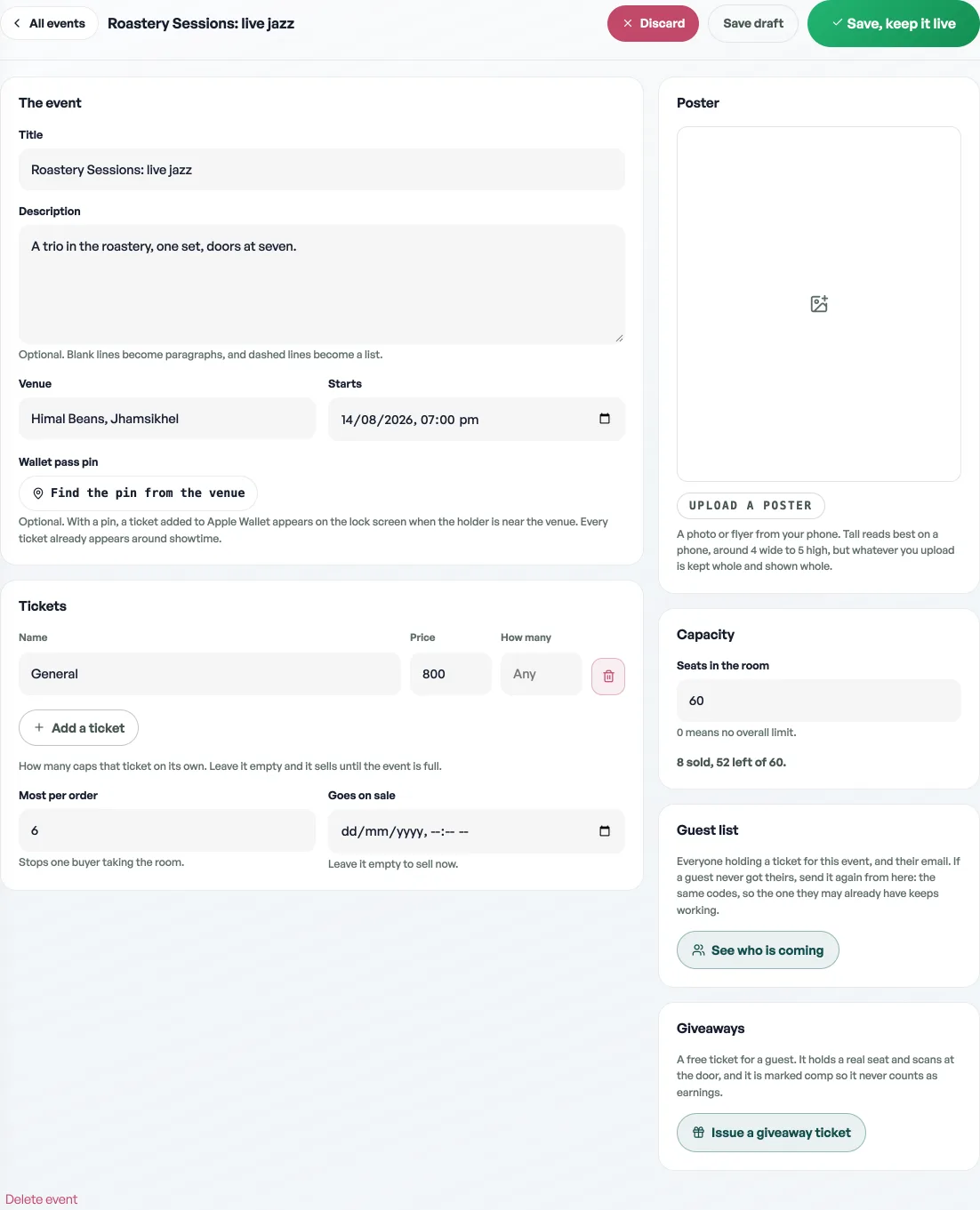
- Open the event from the Events tab and find Giveaways in the right-hand column, under Poster, Capacity and Guest list. You need at least one saved ticket first; a comp has to belong to a ticket type, so if Issue a giveaway ticket is greyed out, add one and press the save button at the top of the editor: Publish on a draft, or Save, keep it live on a night already on sale.
- Press Issue a giveaway ticket and fill in the guest's name, the tier, and how many (up to ten at a time). The name is printed on the ticket and shows at the door.
- Add their email if you have it and the ticket is emailed to them, PDF and all, exactly like a bought one. Leave it empty and you get the QR and the code on screen instead, with a Copy code button for sending it on WhatsApp.
What a comp ticket is and is not
- It takes a real seat. Comps count against your event capacity and the tier quota exactly like a sale, so you can never give away a room you have already sold. If the tier is full you are told to pick another one.
- It never waits for payment. There is nothing to settle, so it is good at the door as soon as the night comes round, unlike a booked ticket. The scanner shows it as Guest pass.
- It scans once, like every other ticket. A guest cannot pass their QR back over the fence.
- It is not revenue. A zero-value order marked Giveaway appears in your records so the seat is accounted for, and Visitors & sales counts comps apart from your earnings. See See what is working.
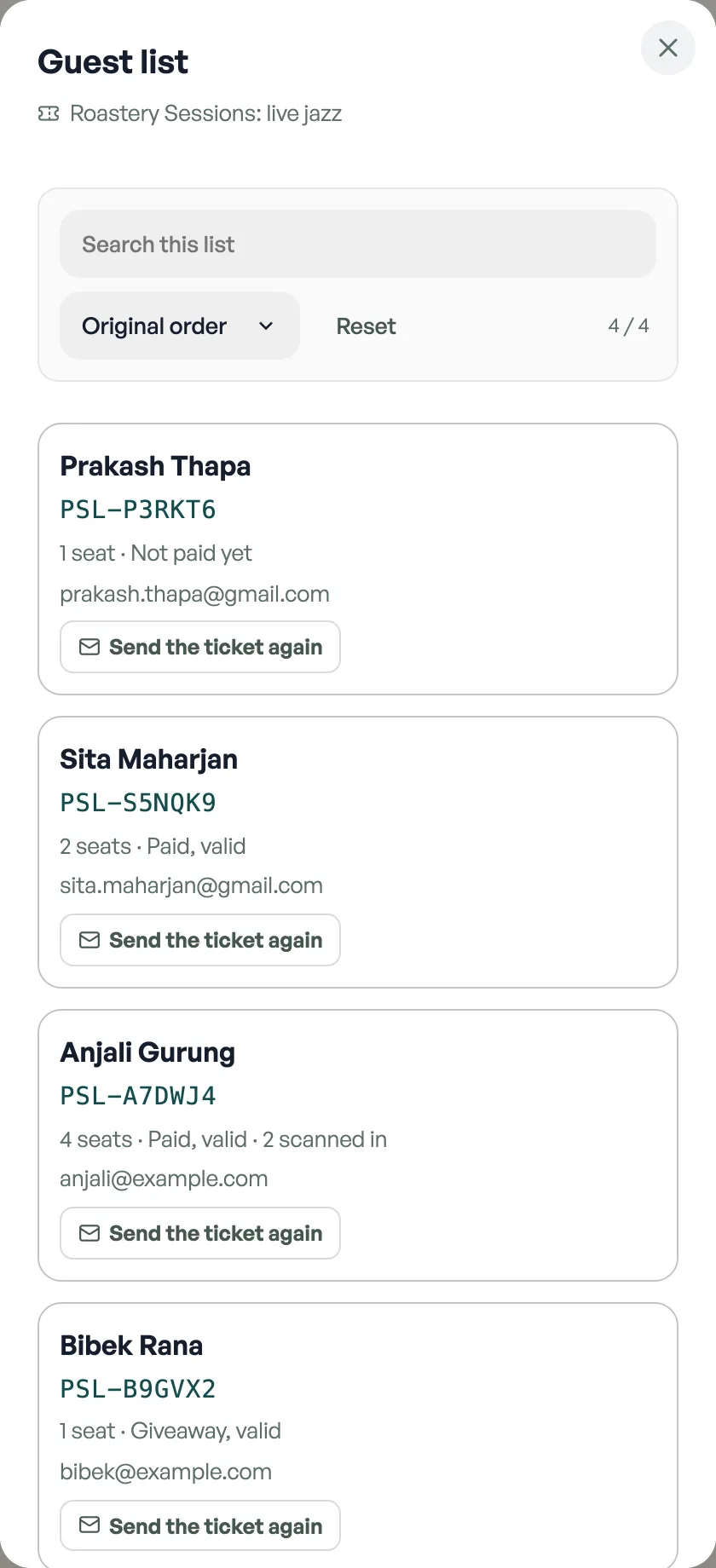
- It can always be sent again. A comp never gets paid for, so a guest who lost the email is reached from the guest list like anybody else. See Send a guest their ticket again.
An event set to Ended cannot be given away from. If you need one more comp for a night still running, put the event back to Live first, which is also what reopens the door for it.
Read next
- Send a guest their ticket againA guest says the email never arrived. Send it again from the order or from the event's guest list, with the same codes.
- Sell tickets to your eventsPut a gig, show or workshop on sale, take bookings, and scan people in at the door.
- See what is workingVisitors, what they look at, what they buy, and where they came from.
Still stuck? Message usTell us what is happening and we will reply, usually the same day.
WhatsApp usOr email support@pasal.studio