
Help · Events & tickets
Event dates, on sale times and lineup order
When tickets start selling, what draft, live and ended each do, and which event sits at the top of your storefront.
Making an event is quick, see Sell tickets to your events. This is the rest of it: the settings that decide when it sells, whether it shows, and where it sits.
The editor is one page
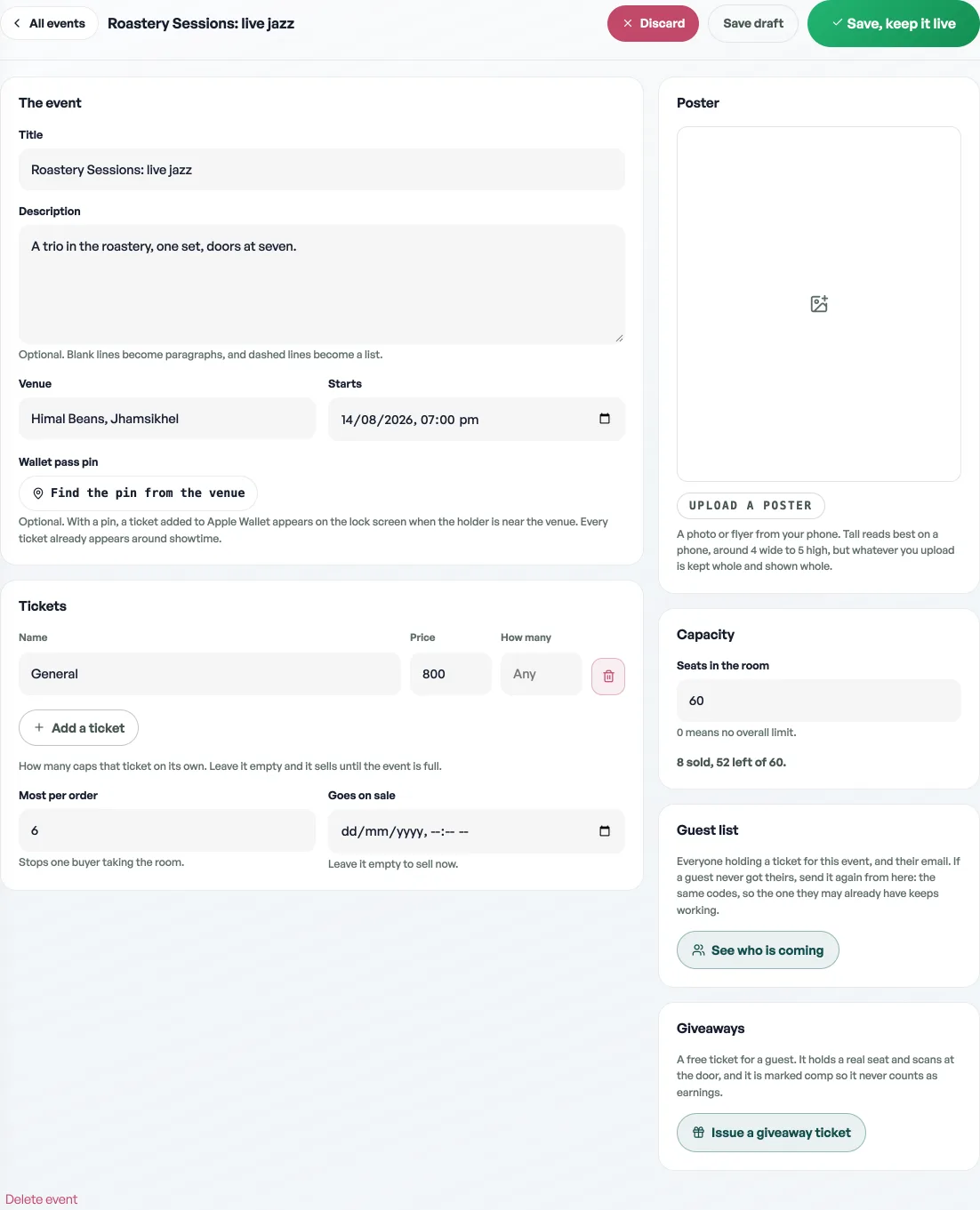
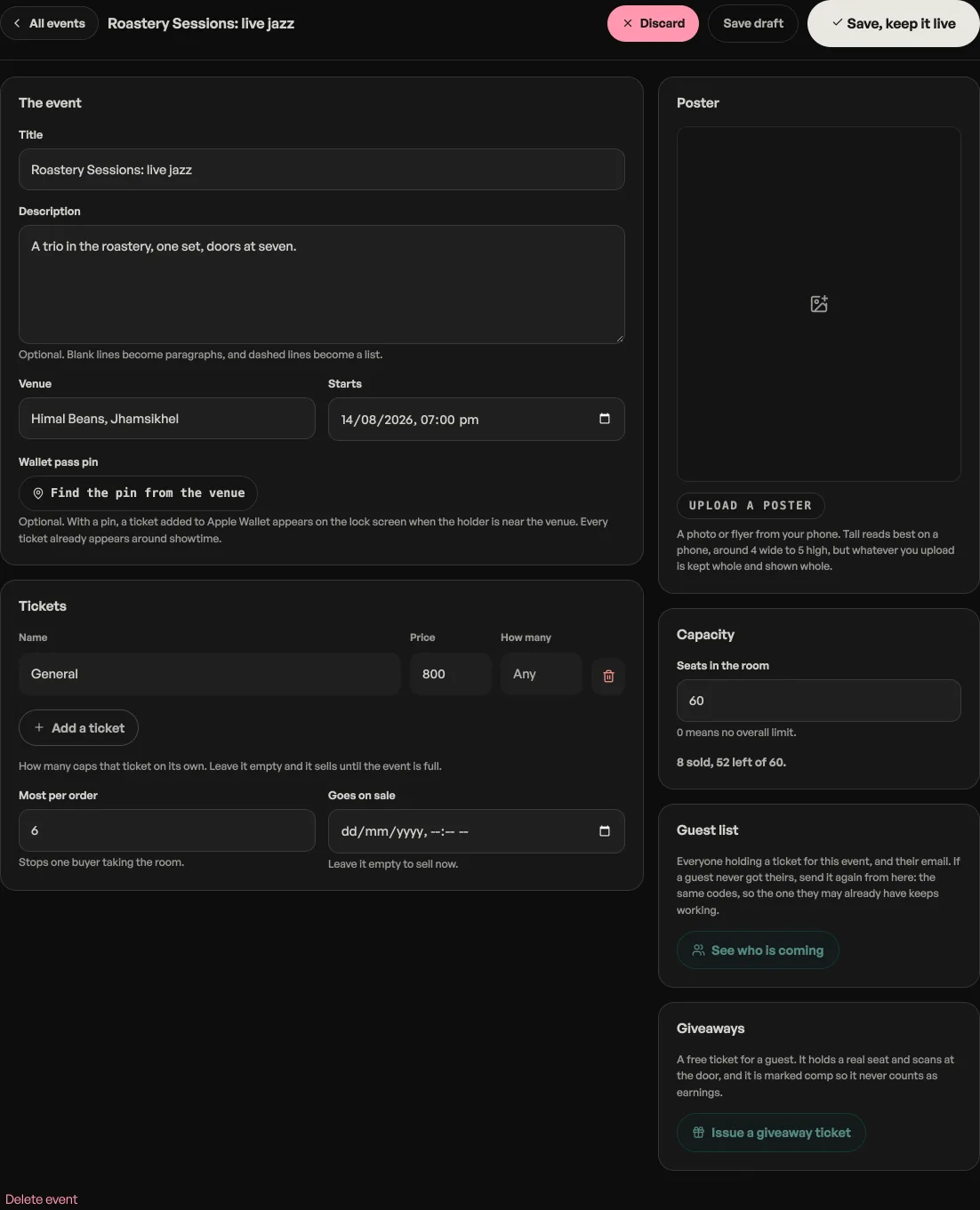
An event opens as a single page in two columns. The left is the event itself: title, description, venue, date, its tickets and their prices, and when they go on sale. The right is everything about the night: Poster, Capacity, Guest list and Giveaways. The save buttons sit at the top: Save draft keeps the night off your shop page, and the dark button beside it publishes a draft or saves a night that is already live. Both write the lot, tickets included, and nothing is saved until you press one.
Three dates, not one
- Date & time is when the event happens. It is what customers see on the card, and it is what the door goes by: a ticket scans from six hours before that time until twelve hours after. An event saved with the wrong hour turns real ticket holders away, so it is worth a second look before the night.
- Goes on sale is when people may buy. Leave it empty to sell right away. Set it for a drop: the event still appears on your storefront so people can see it coming, and anyone who tries to buy before that moment is told tickets are not on sale yet.
- Sales close is the last moment to buy. Leave it empty and it sells right up to the event. Setting it saves you marking the night Ended by hand at the right hour.
Draft, live, ended
- Draft is hidden. It is off your storefront and out of the Door scan list, and its tickets stop scanning, so you can build an event over a week without anybody seeing half of it.
- Live is on sale and visible, and it is the only status the door admits.
- Ended closes it: no new tickets, no new giveaways, and the door stops letting people in. Mark a night Ended once the room is in, not while stragglers are still arriving. If you mark it too early, set it back to Live and the gate opens again.
The numbers
- Seats in the room, under Capacity on the right, is the whole event. Set it to 0 for no overall limit. The line under it tells you how many have sold and how many are left.
- The limit on a ticket is how many of that one can sell. Leave it empty and it sells until the event is full.
- Most per order stops one buyer taking the whole room in a single go.
Changing a price or a quota later never touches tickets already sold. If you drop a quota below what has already gone, that tier simply stops selling; nobody's ticket is cancelled.
The order of your lineup
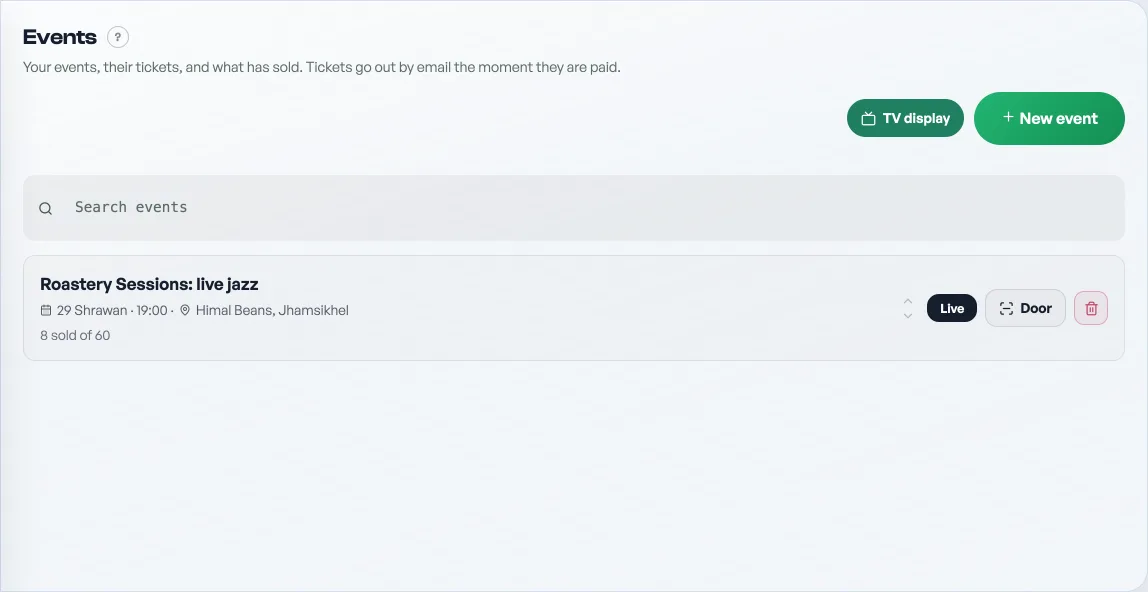
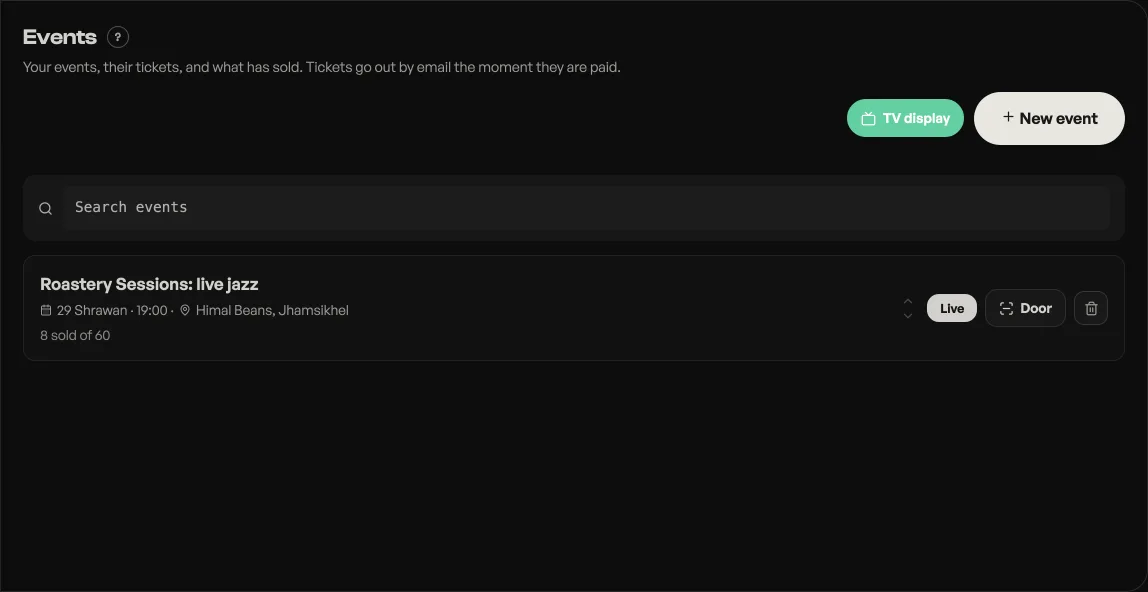
Events sort themselves by date. The up and down arrows on each row of the Events tab override that, and your storefront reads back the same order, so a headline act can sit above an earlier heat. The list moves the moment you press, and the new order saves behind it.
Deleting
Delete event removes the event and every ticket on it, and cannot be undone. For a night that has already happened, use Ended instead: the event stops selling and the sales stay in your records.
- Sell tickets to your eventsPut a gig, show or workshop on sale, take bookings, and scan people in at the door.
- Getting paid for ticketsA ticket is held, not sold, until you say the money arrived. Here is the whole path from checkout to the door.
- Send a guest their ticket againA guest says the email never arrived. Send it again from the order or from the event's guest list, with the same codes.