
Help · Money
Service charge, VAT and how a bill adds up
Turn on VAT if you are registered, set a service charge if you take one, and know which number each is worked on.
Two things can land on top of the goods: VAT, and a service charge. Both start off. Until you turn VAT on or set a service charge, a bill is the items plus delivery and nothing else.
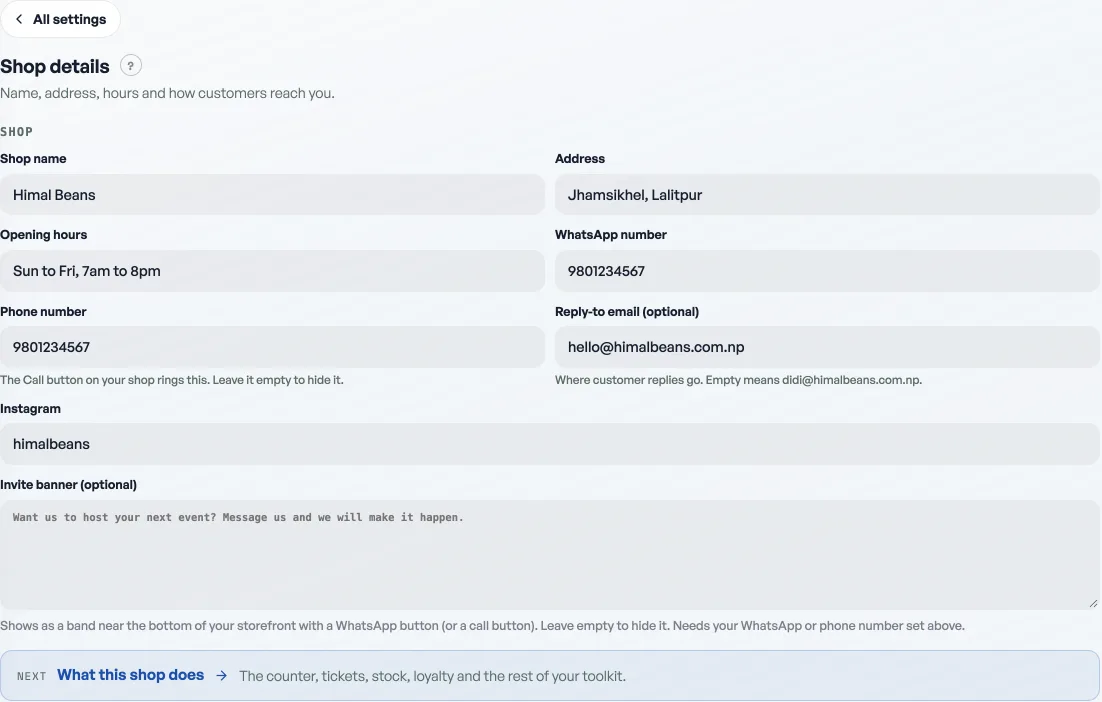
- Open Shop profile, then Shop details.
- Say who you are: legal name, PAN/VAT number and phone. All three are optional and all three print at the top of every bill. Filling in the PAN also starts your numbered tax invoice series, see Tax invoice numbers.
- Turn on VAT registered if you are. Nepal VAT is 13%. If you are not registered, leave it off and no VAT line appears anywhere.
- Set your service charge if you take one, usually 10% in a restaurant. It sits next to the VAT switch on the same page. Leave it at 0 and no service line appears.
The width of the roll in your printer is under Receipts and tax in Money, see Print on a 58mm or 80mm roll. The address customer replies come back to is with your other contact details, under Shop details, see Where customer replies land.
The order the sums happen in
It matters, because each step feeds the next.
- The subtotal is the items.
- A promo discount comes off first.
- Service charge is worked on the discounted subtotal.
- VAT is worked on the discounted subtotal plus the service charge, so the service charge is taxed too.
- Delivery is added last, after VAT, so a delivery fee is never taxed.
A worked example on a bag of 1,000 with a 10% code, 10% service and 13% VAT: 100 off leaves 900, service adds 90, VAT on 990 adds 129, and a delivery fee of 100 brings it to 1,219. Everything is rounded to whole rupees.
The same figures everywhere
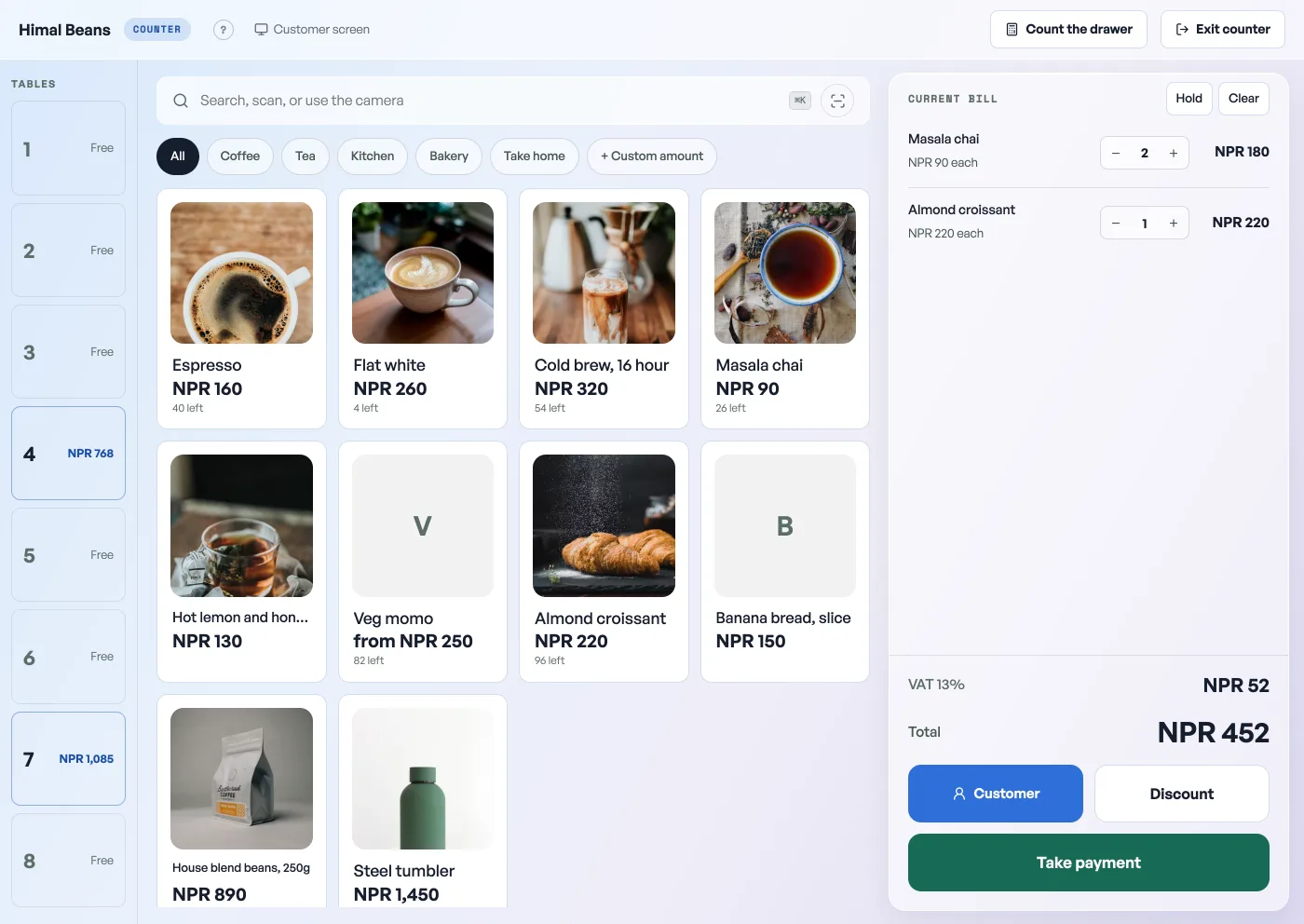
Your rates follow the sale wherever it is rung: the storefront checkout, a counter order you type on the board, the printed receipt and the customer's emailed one all use them, so no two copies of a bill disagree. A counter order takes no promo code, so its total starts at the subtotal.
Change a rate and only new orders follow it. The service and VAT on an order are stored with that order, so an old bill still totals what the customer actually paid, however many times you reprint it. What you collected is added up for you month by month, see Check the month's takings.
- Tax invoice numbersFill in your PAN and every paid order gets a numbered tax invoice, counting up from 1 each Shrawan.
- Check the month's takingsThe Sales tab month by month: what counts as paid, what is still owed, and the spreadsheet for your accountant.
- Print on a 58mm or 80mm rollTell Pasal which paper your printer takes, and the bill is laid out to fit it.