
Help · Getting started
Find your way around the dashboard
The short rail and the one fold behind it, searching from any tab, working on a phone, and the colour and language you prefer.
The dashboard is one page with tabs, not a stack of pages. The rail down the left is deliberately short: your shop's name and plan at the top, Search under it, the counter if you use one, then Home, the few screens your trade works in all day, one fold called More, and Help.
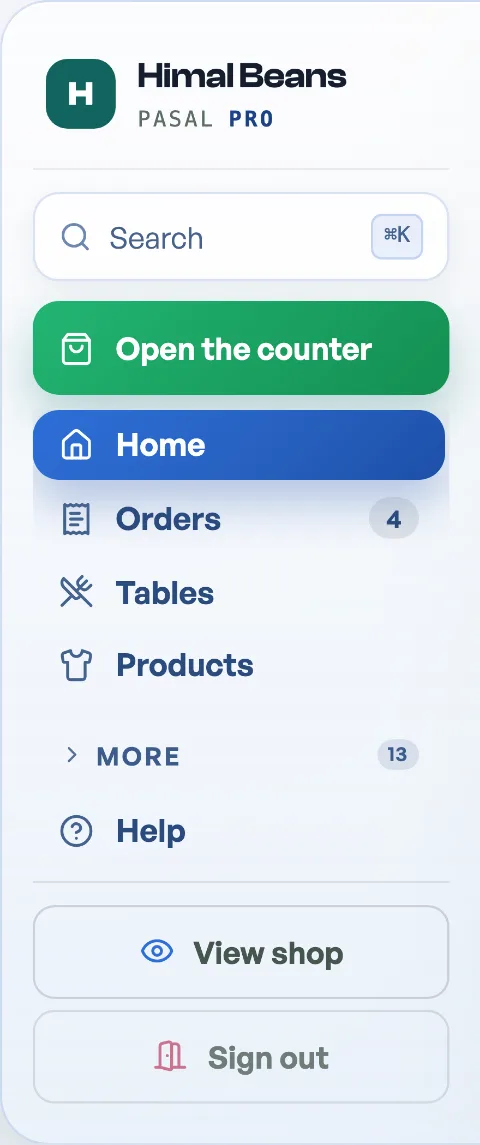
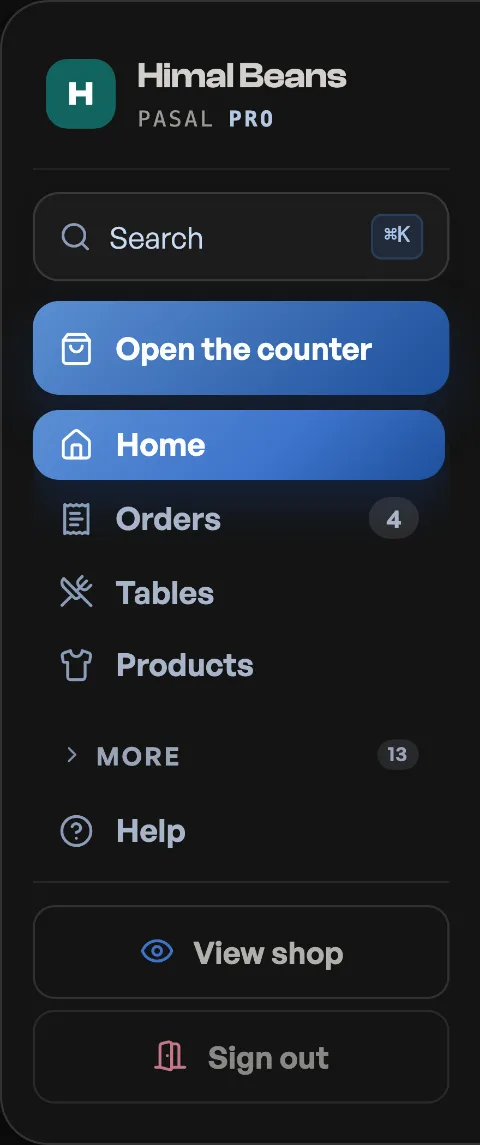
What stands in the open is what your trade actually does all day, so it differs by shop. A kirana reads Home, Orders, Products, More and Help. A cafe has Tables too, once you have set a table count on Link & QR. A salon has Bookings. A ticket seller has Events and Door scan. Orders and Bookings carry a count when something is waiting on you.
Home leads with what came in today and this week. Paid today names yesterday, and paid this week names the week before, so a quiet morning is not just a number on its own. Tap Paid today to open Sales, and Paid this week to open Visitors & sales.
Everything else is one press behind More
Press More and the rest of the rail unfolds in place, under four small headings that say which family a row belongs to.
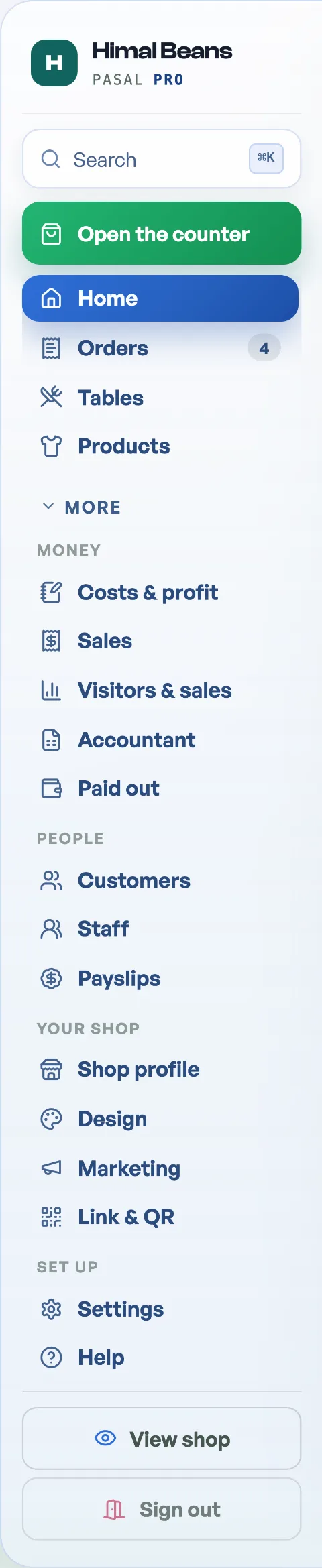
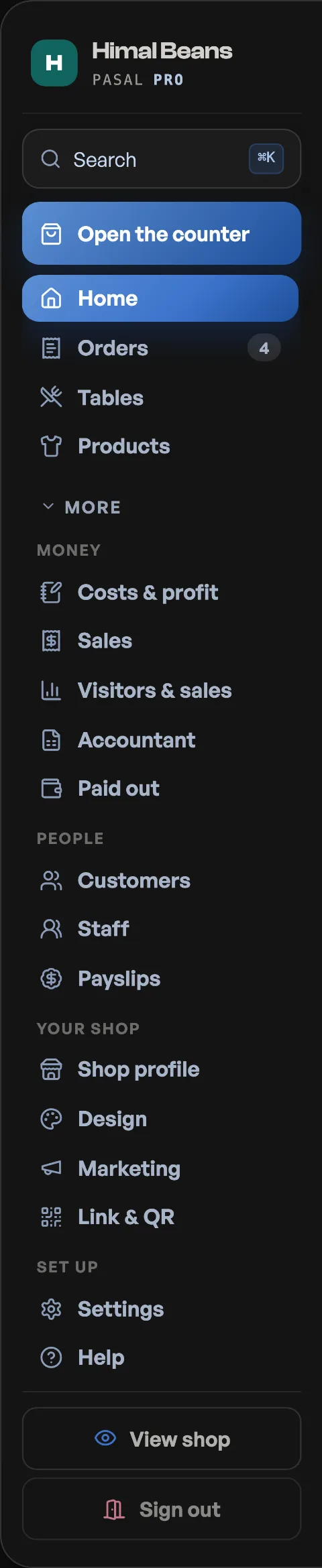
- Money: Costs & profit, Sales, Visitors & sales, Accountant, Paid out, and Khata if you keep one.
- People: Customers, Staff, Payslips.
- Your shop: Shop profile, Design, Marketing, Link & QR, and Returns and Repairs if you take them.
- Set up: Settings.
You only ever see rows your shop has and your login is allowed to open, so nobody's fold looks exactly like that picture. The fold remembers whether you left it open, on that device.
Pin what you open every day. Stand on a row and a small pin appears beside it: press it and the row lifts onto a shelf at the top of the rail and comes out of the fold, so a jeweller who lives in Khata keeps a short rail with Khata on it. Five at most, and it is remembered per person per device.
Search instead of hunting
The fastest way to anything is the Search button at the top of the rail, or the keyboard: Ctrl K, or Cmd K on a Mac.
- Type what you would say, not where it lives. Type "vat" and it opens Shop profile at Shop details. "Colour" opens Design at Colours and type. "Delivery fee" opens Shop profile at Orders. Results land on the exact pane, not just the tab.
- It searches your shop too: your products by name or category, and recent orders by order code, customer name or phone number.
- Some results do something rather than go somewhere. "Counter" opens the counter, "tv" opens the TV display, "shop" opens your live storefront in a new tab.
- Arrows move, Enter opens, Esc closes. Every word you type has to match, so "delivery fee" narrows rather than widens.
On a phone
There is no rail below a laptop width. The bar across the bottom holds five slots instead: Home, Orders, the counter raised in the middle, Products, and More. A shop that has no shelf and no counter, which is most ticket sellers, gets Door scan in one of the slots that frees up. Everything else opens as a sheet behind More, laid out under the same family headings the rail's fold uses, plus Every day for the rows the bottom bar could not fit. Search sits in the strip pinned across the top.
Settings, and Shop profile beside it
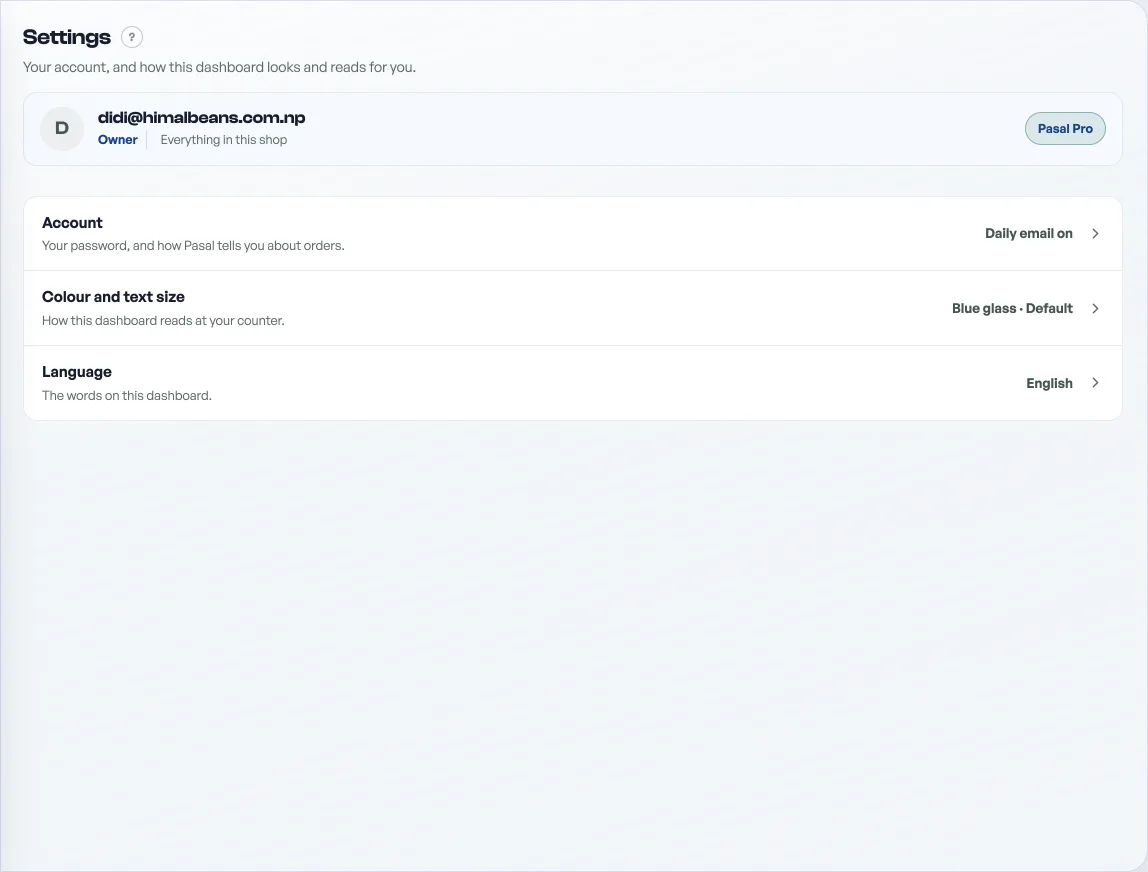
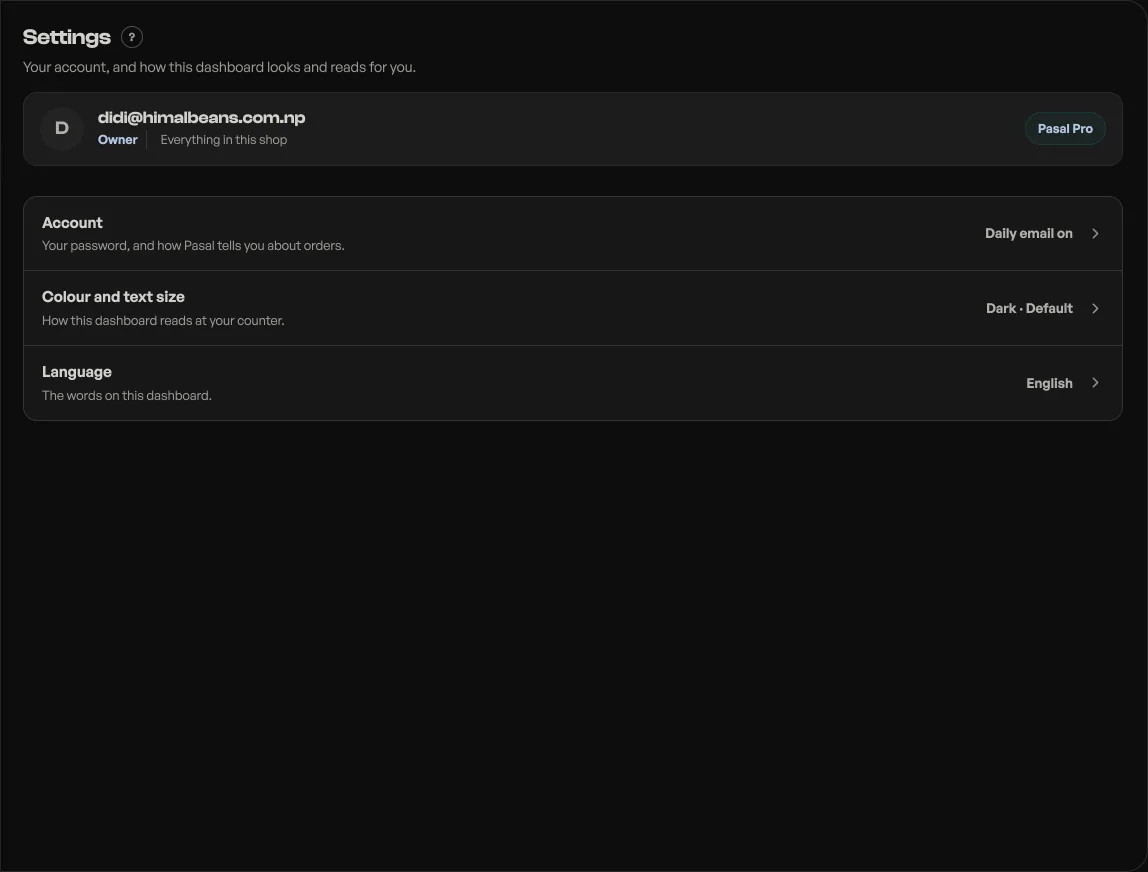
The Settings tab is three rows about you: Account (your password, and how Pasal tells you about orders; see Your Pasal account), Colour and text size, and Language. Everything about the shop itself is on Shop profile: its details, what this shop does, its legal pages, orders and delivery, payments, receipts and tax, the plan, and who works here. Promo codes, and the photographs on the screen that faces the customer, are on Marketing. The list is the first screen on a computer and on a phone: tap a row to enter it, and All settings at the top brings you back.
A row that holds one plain answer shows it on the right, so the list answers before you open anything: Daily email on or off on Account, Light or Navy on Colour and text size, and English or नेपाली on Language. Shop profile has the same kind of list, with a search box above its groups that filters those rows as you type, so "pan" finds Shop details and "roll" finds Receipts and tax.
Colour and language
Open Settings, then Colour and text size. Pick System, Light, Dark, Blue glass orNavy, and make the text bigger if the light at your counter is poor. System follows whatever your device is set to, switching with it morning and night. Navy paints the dashboard blue: the left menu is filled, and the rest of the room follows, including the counter. Take payment stays green.Language is the row under it: English or नेपाली. The language also decides whether your dates read Baisakh or बैशाख, see Dates on your dashboard.
Both are yours alone. They change nothing your customers see, and they are remembered on the device you set them on, so the counter laptop can run dark while your phone follows the daylight.
Run it like an app
On your phone, add the dashboard to your home screen and it opens full screen with no browser bars, and it can buzz you for every new order. See Get alerted for every new order.
Help without leaving
The Help tab holds these guides and opens them right there, so going back is one click. The Need help? button in the bottom corner answers from the same guides, and both lists are filtered to what your shop actually does. If neither sorts it, both offer WhatsApp, and a person replies, usually the same day.
- Your Pasal accountThe Settings row for your sign-in password, the daily email, and order alerts on this device.
- Get alerted for every new orderInstall the dashboard like an app and turn on notifications so nothing is missed.
- Turn shop features on and offYour shop type switches on the parts that suit it. Shop profile, What this shop does is where you change your mind.