
Help · Orders & fulfilment
Take in repair jobs
Book a device in, track it to pickup, and record what you charged.
A repair counter runs on a pile of devices and a memory of whose is whose. The Repairs tab replaces that with a job number.
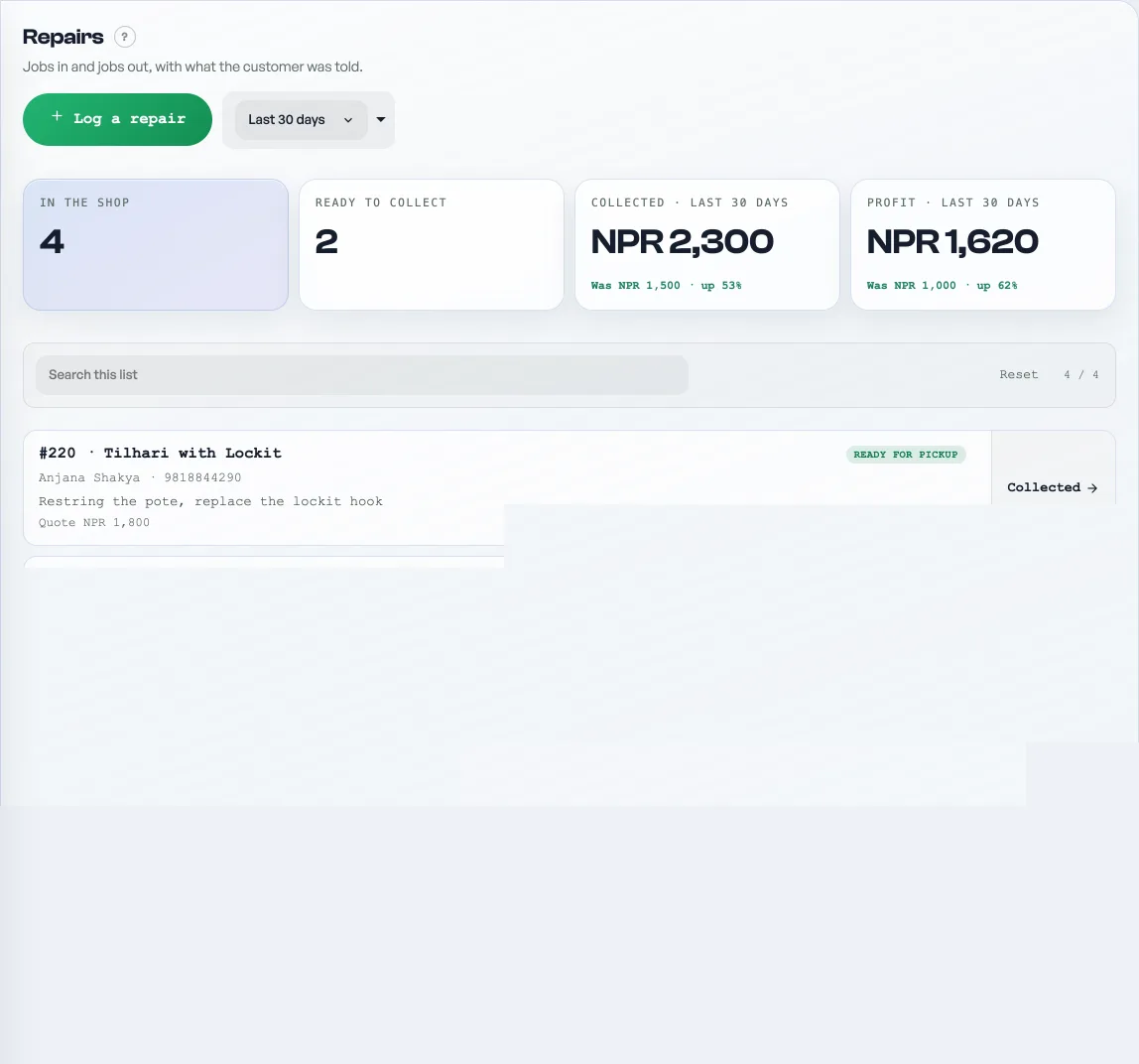
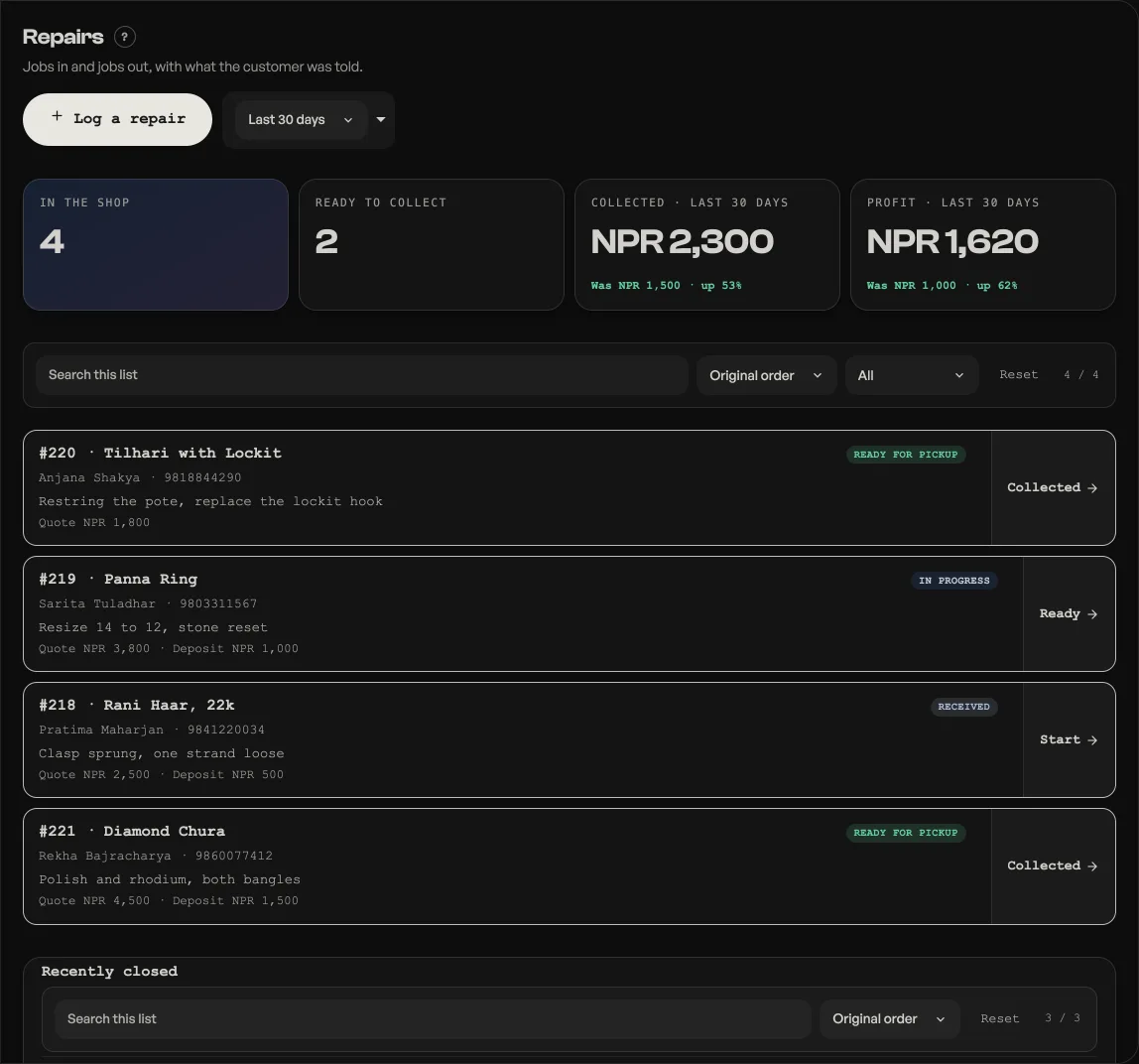
- Log a repair when someone drops something off: device, the fault they describe, their name and phone, your quote, and any deposit you took. It gets the next job number, so you can tell them "job 14".
- Move it along as you work: Received, then Start when you begin, then Ready when it is done.
- Collect it. Press Collected, confirm the final charge (it starts from your quote, change it if the job changed), and it closes.
The paper at both ends
Booking a job in ends on a sheet headed Booked in as #14, with the paper one press away. Print two slips prints both copies of the job ticket in one go: a Shop copy to tape to the device, and a Customer copy that goes home with them. Each carries the job number, the fault as they described it, the estimate, any deposit held and the balance due at collection, so what was agreed is on paper and not in anybody's memory. No printer? Send the ticket on WhatsApp puts the same words in a chat.
When the machine goes back, the closed job offers the collection receipt the same two ways, print or WhatsApp. It restates the final charge, the deposit already paid and the balance settled today, and you can reprint it any time from the closed job. Both papers use the roll width you set under Shop profile, Receipts and tax, see Print on a 58mm or 80mm roll.
Say how the money arrived. A deposit asks Deposit taken by and the collection asks Settled by: cash, eSewa and the rest. Cash marked on the job is what Close day expects to find in the drawer. The receipt is the job's own record of the money, so do not ring the repair through the counter as well: the same rupees are then counted twice, and Pasal cannot tell the two apart.
The tiles show how many devices are in the shop, how many are waiting to be collected, what you took in the last 30 days, and the profit on those jobs (what you charged minus parts and outside work). Collected and profit each name the window before, so this month sits next to last month rather than as a number on its own. If a job cannot be done, cancel it from the job sheet; a job closed by mistake can be reopened.
On by default for electronics shops and garages, and available to any shop under Shop profile, "What this shop does".
- Print on a 58mm or 80mm rollTell Pasal which paper your printer takes, and the bill is laid out to fit it.
- Close the day and count the drawerCheck what the counter says it took against the cash actually in the drawer, then send yourself the record.
- Managing orders on your boardMove tickets through fulfilment, collect payment, and keep the board tidy.