
Help · Your shop online
Arrange your storefront page
Reorder the blocks of your shop, hide the ones you do not need, and write the words in them.
Your storefront is a short stack of blocks: Welcome hero, Promo cards, Products (it reads Events, or Events & products, if you sell tickets), Bookings and About & contact. You decide the order and which of them show.
Opening Design takes over the screen: your live shop sits in the middle, and the rail down the left holds Templates, Sections, Theme and, if you sell products or tickets, Layout. Sections is where the page itself lives, and it is what this guide covers. Back to Dashboard, at the foot of the rail, is the way out.
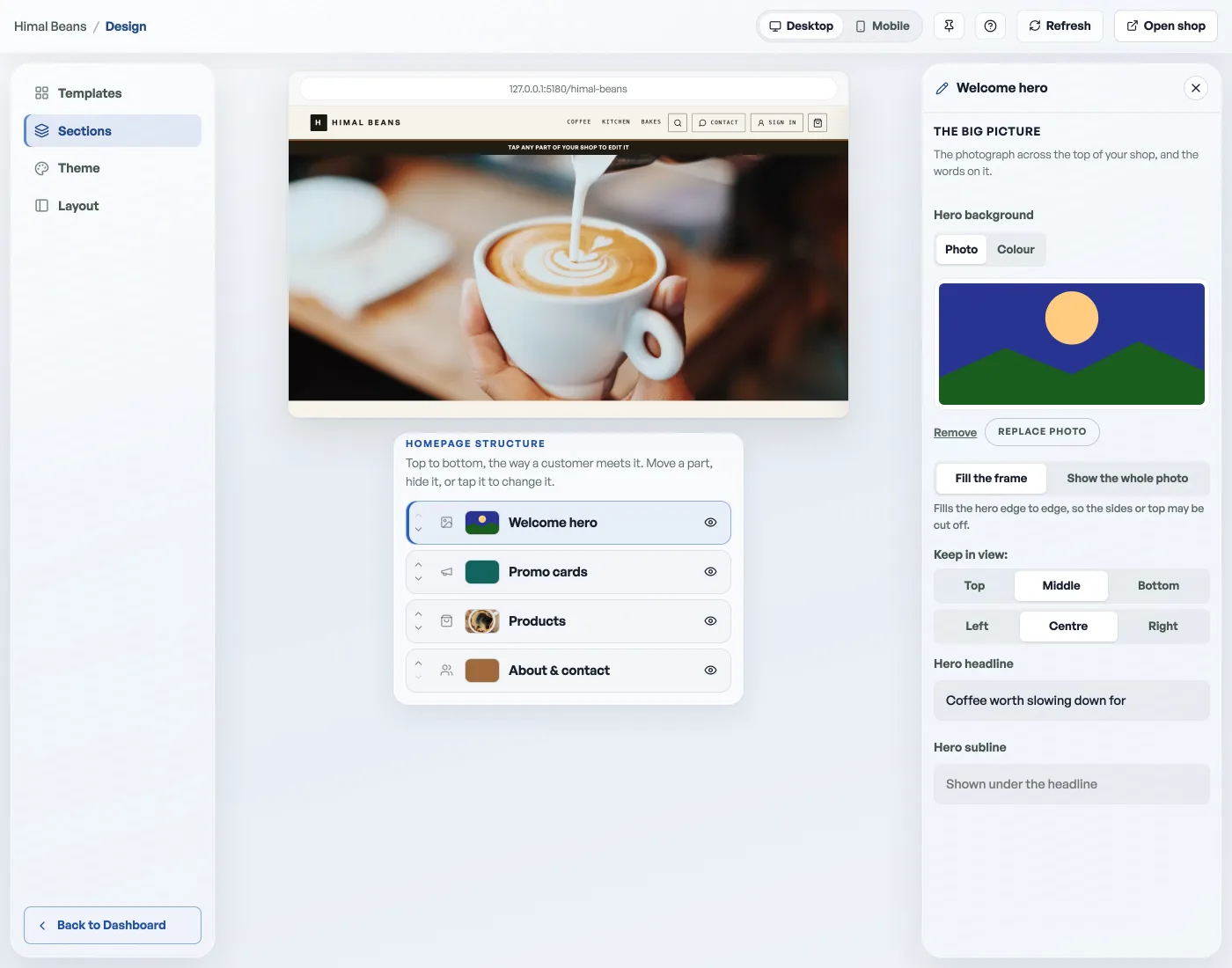
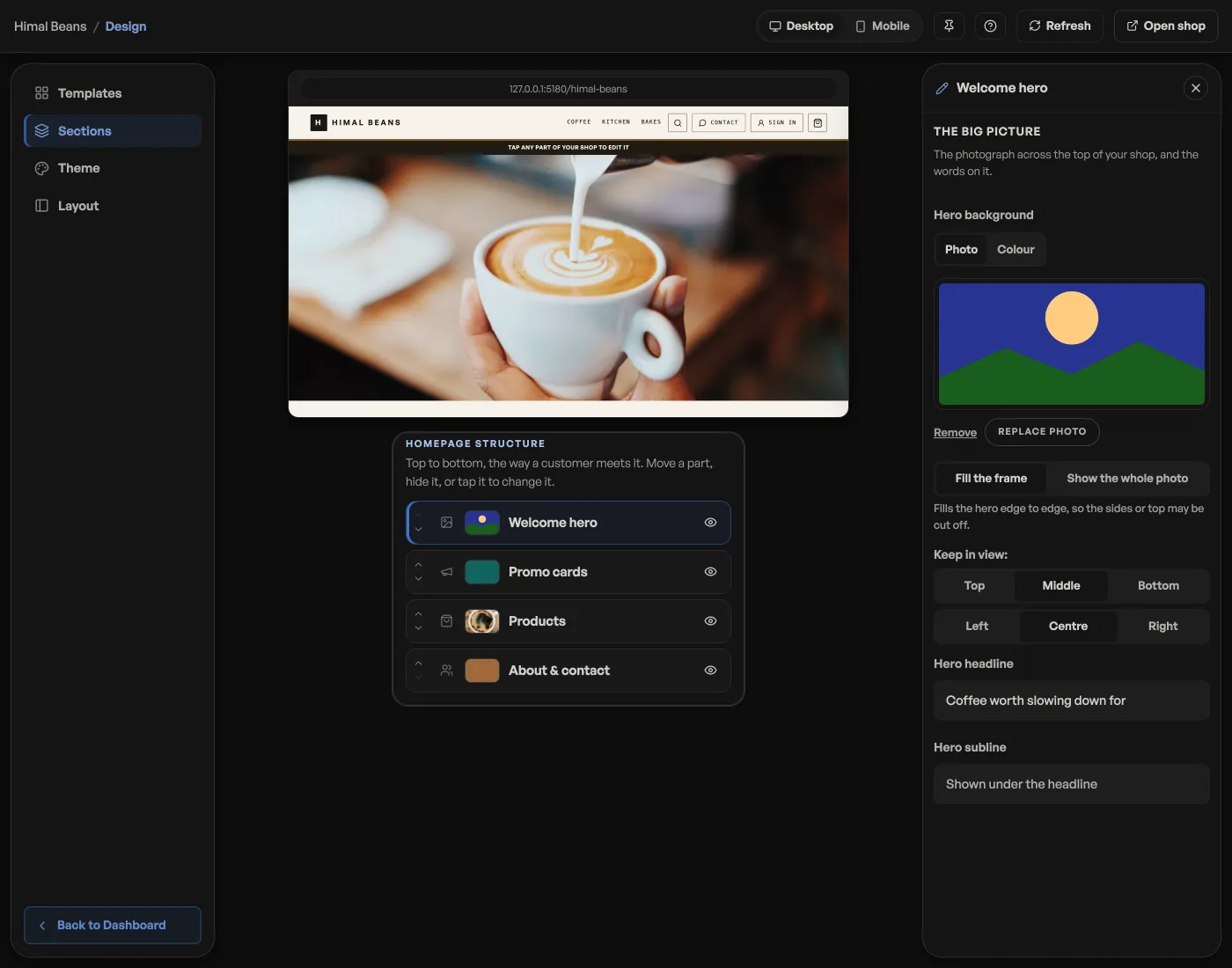
- Open Design. It opens on Sections: your shop in a browser card, and Homepage structure underneath, your blocks top to bottom, the way a customer meets them.
- The arrows on each row move a block up or down the page. Put products first if you want customers straight into the shelf, or lead with the hero if the shop needs introducing.
- The eye at the end of a row hides a block. Hiding is not deleting: everything in it stays exactly as it was and comes back the moment you show it again.
The Bookings row only appears once bookings are turned on for your shop.
The words
Tap a block's name and its settings open in a panel beside your shop; the cross at the top closes it. Everything in it saves itself as you type; there is no Save button, and your live shop has it within a second.
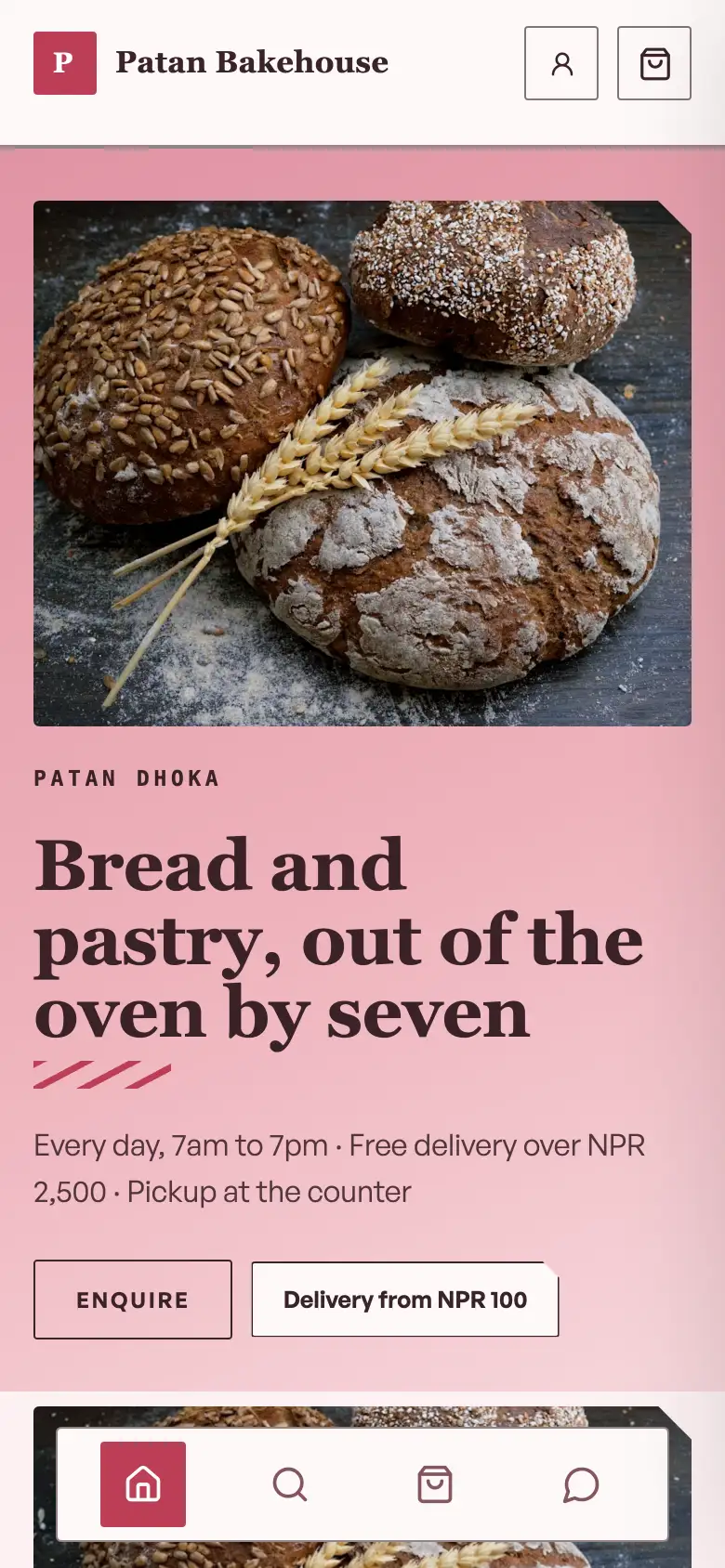
The page is built around a few short lines: the Hero headline and Hero subline are in Welcome hero, and the Page heading and the words for Section 1 and Section 2 are in About & contact. Leave the Hero headline empty and your template writes it for you; the grey text in that box is what it would say.
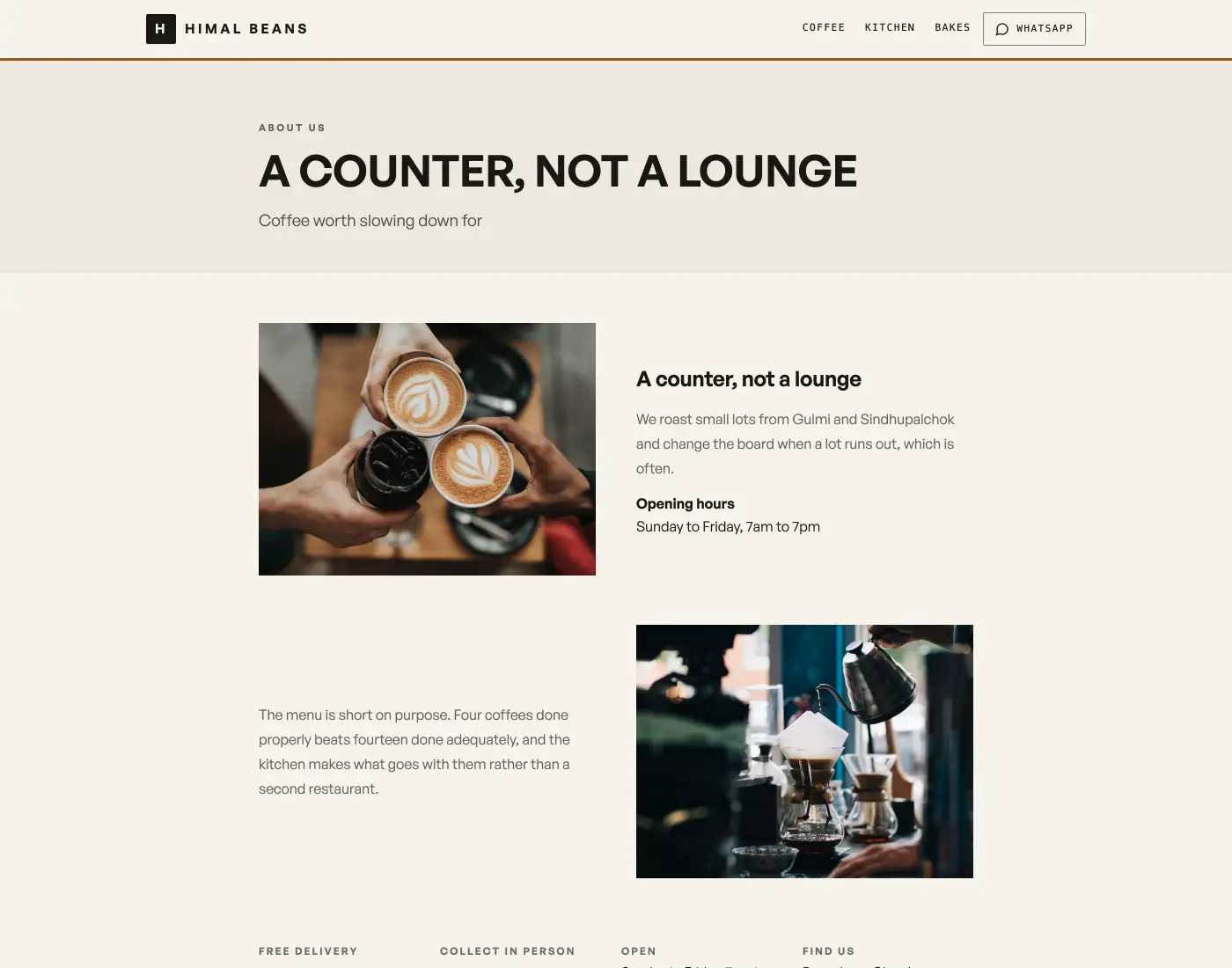
The words in those two sections also fill your About us page, so give them a paragraph or two rather than a sentence.
Feature strip and Why shop with us
Your own selling points live in two of the blocks: the strip of icons right under the hero is in Promo cards, under Extra blocks on your page, and the band further down with a heading and a few reasons to buy is in About & contact. Both are rows you add one at a time, and both stay invisible until you write something. See Write your own selling points.
About page photos
The pictures live with the words: Section 1 and Section 2 in About & contact each have their own Photograph slot. Section 2's opens only once Section 1 has a photograph. Leave a slot empty and the page borrows your hero photo, or a picture from your catalog, and tells you which it has borrowed.
Announcements
Two different things share this word. The strap above your shop name is Top offer strip at the top of Promo cards. A scrolling line further down the page lives in Promo cards, under Extra blocks on your page: three slots, each a short tag (NEW, DASHAIN), a title and one supporting line. Anything you leave empty is simply not announced. An announcement only says something: it takes nothing off the price. For a code customers type at checkout, see promo codes.
Tap the preview
The shop in the middle of the tab is your real shop, and in Design it says "Tap any part of your shop to edit it". Tap the hero and you land on the hero headline; tap the offer strip above your name, the icon row under the hero, the promo strip, the About block, the Book button or any product, and that part's editor opens right there. You never leave the Design tab to fix what you just spotted. The Desktop and Mobile buttons in the top bar show the same shop at both widths.
- Your About us pageTell your shop's story on a page of its own, with every way to reach you.
- Write your own selling pointsThe strip of icons under your hero and the band of reasons further down: what to write in them, and how to leave them out.
- Run a promo codeCreate a discount code customers type at checkout.